- Home
Games
 League of Legends
 Valorant
-a6d5b3e156bb.webp) Fortnite
Fortnite Call of Duty
 Clash of Clans
 Counter-Strike 2
 Roblox
 Rainbow Six Siege
 Clash Royale
 Minecraft
 Rocket League
 Dota 2
 Genshin Impact
 Squad Busters
 Rust
Rust Apex Legends
 Pokemon Go
 XDefiant
 LoL: Wild Rift
 Hay Day
 Diablo 4
 FC 25
FC 25 Marvel Rivals
 World of Warcraft
 Destiny 2
 Deadlock
-9ede9dc6b01b.webp) PUBG Mobile
PUBG Mobile The Finals
 Growtopia
 Forza Horizon 5
 Honkai: Star Rail
 Warframe
 8 Ball Pool
 Zenless Zone Zero
 Path of Exile
 Runescape 3
 Raid: Shadow Legends
 Lost Ark
 WoW: Classic Era
 Summoners War
 WoW: Season of Discovery
 WoW Cataclysm
 WoW: Hardcore
 Throne and Liberty
 New World
 Mobile Legends
 Escape From Tarkov
 Path of Exile 2
 Blade Ball
 Fisch
Fisch Pet Simulator 99
 Pets Go
-d8bcef7708c7.webp) One Piece Bounty
One Piece Bounty Anime Adventures
 Blox Fruits
 Adopt Me
 Murder Mystery 2
 Fragpunk
 Wuthering Waves
 Teamfight Tactics
 Free Fire
 Albion Online
 Black Desert Online
 Honor of Kings
 Brawl Stars
 Arena of Valor
 Call of Duty: Mobile
 Rematch
 Steal a Brainrot
 Grow a Garden
 FC 26
FC 26 Old School Runescape
 Plants vs Brainrots
 Overwatch
 Battlefield
 Arc Raiders
 Dragon Ball Legends
 Fallout 76
 Jailbreak
 Type Soul
 GPO
GPO DonutSMP
 Escape Tsunami For Brainrots
 Watcher of Realms
 Roblox Rivals
 2XKO
2XKO Sailor Piece
 Forza Horizon 6
 GTA 5
GTA 5- Lootboxes
- Become Affiliate
- Blog
- Contact Us
- Sign In
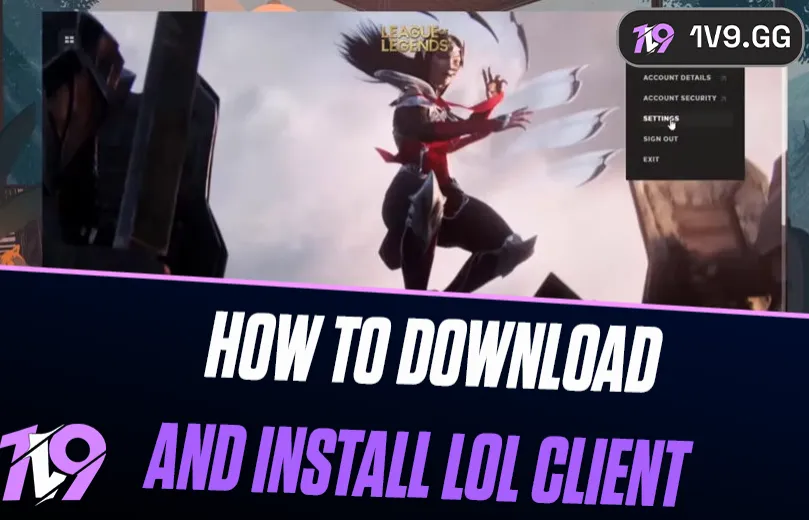

How to Download and Install League of Legends
Download League of Legends only from Riot's official League download page, choose the Windows or Mac installer, and let the Riot Client install and patch the game. League is officially supported on compatible Windows and macOS systems; Riot does not support Linux, SteamOS, or Bazzite.
Last verified:
Check these requirements before downloading
| Platform | Current minimum highlighted by Riot | Free storage listed by Riot | Installer |
|---|---|---|---|
| Windows | 64-bit Windows 10 build 19041+ or Windows 11; DirectX 11 feature level 11_0 hardware | 16 GB (HDD minimum; SSD recommended) | Windows installer from LeagueofLegends.com |
| macOS | macOS 11, Apple M1 and Metal-capable graphics in Riot's current table | 40 GB | Mac installer from LeagueofLegends.com |
| Linux / SteamOS / Bazzite | Not officially supported | Not applicable | No supported Riot installer |
These are free-space requirements, not a promise that every download will be the same size. Patches, cached files, language packs, and an existing Riot installation can change the transfer and final disk usage. Keep additional headroom so the client can unpack and apply updates.
How to download and install League of Legends on Windows
- Open Riot's official League of Legends download page. Change the site region or language if it does not match the Riot shard you use.
- Select Download for Windows. Your browser downloads Riot's Windows installer.
- Open the downloaded installer and approve the normal Windows permission prompt only after confirming the publisher and source are Riot Games.
- Choose the install location when the installer offers that choice. Use a local drive with enough free space and avoid removable storage that may disconnect.
- Let the Riot Client install, then sign in to your own Riot account or create one through Riot's official flow.
- Select League of Legends and let the client download the remaining game files and current patch.
- Riot Vanguard is required for League on Windows. Restart the PC when the Riot Client asks so Vanguard can start correctly.
- Open the Riot Client again, finish any remaining update, then select Play.
Do not use a third-party “full client,” torrent, mirror, or prepatched folder. The official installer is small because the Riot Client retrieves the current files after it starts.
How to download and install League of Legends on macOS
- Check the chip, macOS version, memory, and free storage in Apple menu > About This Mac and System Settings > General > Storage.
- Open Riot's official download page and choose Download Mac Installer.
- Open the downloaded disk image or installer and follow Riot's on-screen installation steps.
- If macOS asks for a permission, verify that the installer came directly from Riot before approving it. Do not disable Gatekeeper or install an unsigned replacement.
- Launch League of Legends or the Riot Client from Applications, sign in, and allow the current game files to finish downloading.
- After patching completes, open League and use a Practice Tool or Custom game to confirm graphics and input settings before a live queue.
The current support table lists 40 GB of available storage on macOS. An older guide that quotes 12 or 16 GB can leave too little room for the 2026 client and update process.
League of Legends system requirements in 2026
Riot can update minimum requirements, so its live support table is the source of record. The condensed tables below reproduce the values visible on September 3, 2026 rather than estimating them from installed file size.
Windows minimum and recommended specifications
| Component | Minimum | Recommended |
|---|---|---|
| CPU | Intel Core i3-530 or AMD A6-3650; ARM not supported | Intel Core i5-8250 or AMD Ryzen 3 1200 |
| GPU | GeForce 400 series, AMD HD 6570, or Intel HD 4600 | GeForce 560, AMD Radeon HD 6950, or Intel UHD 630 |
| Graphics feature | DirectX 11 feature level 11_0 hardware | DirectX 11 feature level 11_0 hardware |
| VRAM | 1 GB | 2 GB |
| RAM | 2 GB | 4 GB |
| Storage | 16 GB free on HDD | 16 GB free on SSD |
| Operating system | Retail 64-bit Windows 10 build 19041+ or Windows 11; TPM 2.0 enabled | 64-bit Windows 11; TPM 2.0 enabled |
| Resolution target | 1024 × 768 | 1920 × 1080 |
macOS values in Riot's current table
| Component | Current listed requirement |
|---|---|
| CPU | Apple M1 |
| GPU | Metal-capable graphics |
| Unified memory | 8 GB |
| Available storage | 40 GB |
| Operating system | macOS 11 |
| Resolution target | 1680 × 1050 |
Meeting a minimum does not guarantee a fixed frame rate, especially while the client patches or other applications use memory. Riot recommends the higher graphics preset only on suitable hardware.
How the Riot Client installs League updates
After the base installer runs, the Riot Client handles League downloads and normal patching. It may briefly show a low network rate while unpacking or writing files to disk. Do not assume every pause is a failed download.
- Keep the computer awake and connected until the client marks the game ready.
- Leave extra free space beyond the published minimum for temporary patch files.
- Restart only when the installer or Riot Client requests it, especially after the initial Vanguard installation on Windows.
- Use the client region tied to your Riot account; changing the interface language is separate. See our League language-settings guide after installation.
Safe fixes when League will not install or update
- Check Riot's status page. A regional maintenance or login incident cannot be repaired by reinstalling your PC client.
- Confirm the supported OS and free space. Windows 10 must be build 19041 or newer; the graphics device must expose DirectX 11 feature level 11_0. macOS needs the requirements in Riot's current table.
- Close and reopen the Riot Client normally. On Windows, check Task Manager for a stale Riot Client process before reopening. On Mac, quit the application rather than only closing its window.
- Restart the computer. This is required after Vanguard installation and is a low-risk fix for a pending client update.
- Run the official installer again. Download a fresh copy from Riot rather than using an old file or mirror. Point it at the established install location when prompted.
- Use Riot's error-specific support page. VAN codes can have security or hardware requirements. Follow the exact Riot article instead of disabling antivirus, firewall, TPM, Secure Boot, Exploit Protection, or Vanguard.
- Reinstall only after preserving what matters. A clean reinstall is a final step. Save local replays you need, then follow Riot's current uninstall/reinstall procedure or submit logs with a Support ticket.
Do not edit the registry, delete protected system files, use a “registry cleaner,” or download an unofficial repair tool. If the install-path field itself is stuck, use our Riot install-path troubleshooting guide only where its League/Riot Client steps apply.
League download and installation FAQ
Is League of Legends free to download?
Yes. The game client is free from Riot's official site. Optional cosmetics and other purchases are separate.
Do you need the Riot Client to play League?
Yes. Riot's installer uses the Riot Client to install, update, authenticate, and launch League.
Can you install League on Linux or SteamOS?
Riot's current requirements page says it supports only Windows and macOS, not Linux, SteamOS, or Bazzite. Old Wine, Lutris, or Proton instructions should not be presented as a supported route. Our League on Steam Deck compatibility guide explains the current limitation and safer alternatives.
How large is the League of Legends download?
Riot publishes free-storage requirements rather than one guaranteed transfer size. On September 3, 2026, its table lists 16 GB free for Windows and 40 GB for macOS. The actual network download and installed footprint can vary with patches and existing files.
Can you use the same Riot account on Windows and Mac?
Yes, provided you are the account owner and connect to the correct region. Riot account identity is separate from the local installation. If account details need attention, use the official path described in our League email-change guide.
Official sources and update log
- Official League of Legends download page
- Riot Support: Minimum and Recommended System Requirements
- Riot Games service status
- Official League of Legends Support
Update log: September 3, 2026 — rebuilt Windows and Mac installation steps, separated platform storage requirements, added current graphics/OS rules, documented unsupported operating systems, and replaced improvised repairs with a safe support sequence.
Posted On: March 9th, 2026
Recent Articles


Our 1v9 support team is available 24/7 to help you with any questions or issues you may have.
support@1v9.gg
Loading...
1v9.gg is not endorsed or affiliated by any game developers or publishers.
2026 1v9, All Rights Reserved, Created By Ritesh (riteshsahoo.com)