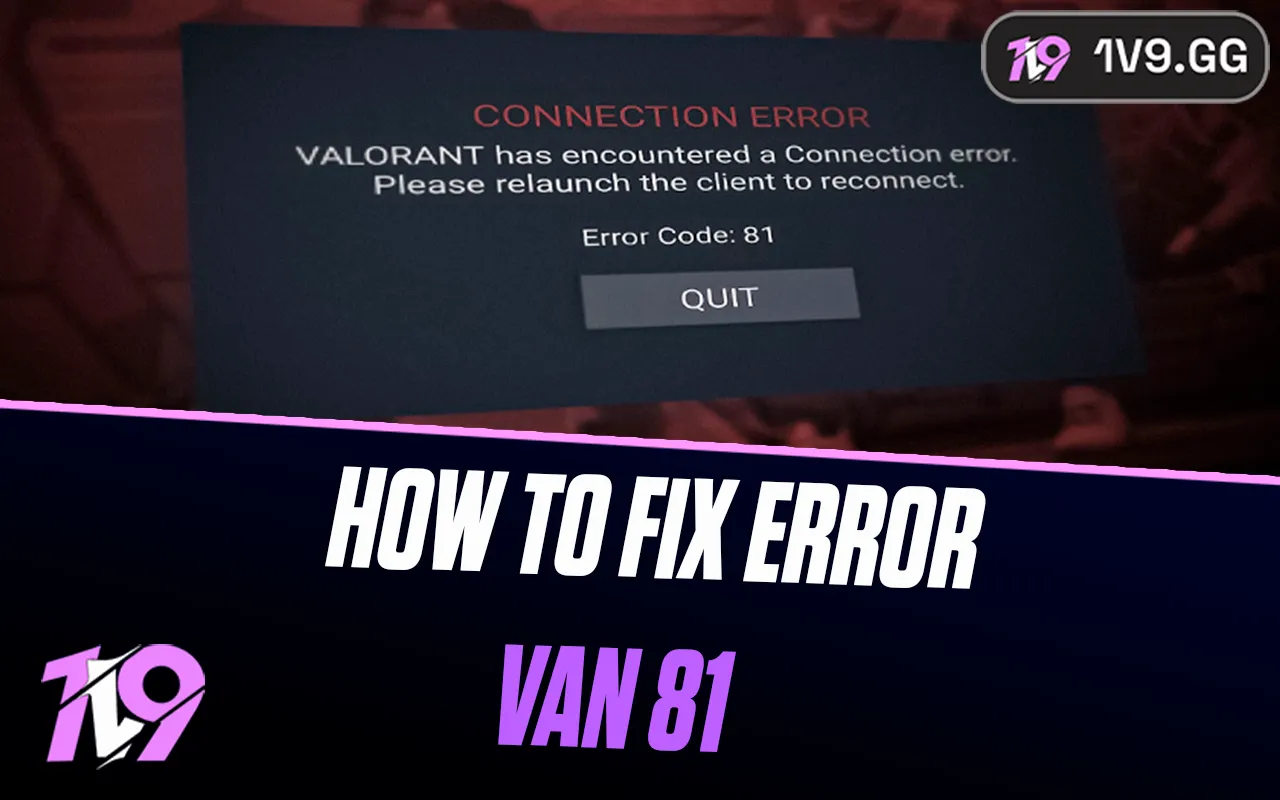


How to Fix VALORANT Error VAN -81
VALORANT error VAN -81 is a Riot Vanguard connection error. Riot’s official first step is to restart the PC and the Riot Client. If the same code returns after a full restart, reinstall Riot Vanguard and VALORANT through normal Windows controls, then contact Riot Support if a clean installation still fails.
Last verified: , during VALORANT Patch 13.05.
What does VALORANT error VAN -81 mean?
Riot classifies VAN -81 as a connection error involving Vanguard. The leading minus sign is part of the official code. It is different from a VAL client code and from named Vanguard security errors such as VAN 9001, VAN 9002, or VAN: RESTRICTION.
The message does not prove that your home internet is broken. The failed connection can sit between the Riot Client, Vanguard, Windows, and Riot’s services. That is why the most useful first step is a complete restart rather than changing random network or BIOS settings.
Fix VAN -81 in the safest order
- Check Riot’s service status. If VALORANT or authentication is in an incident or maintenance window, wait for Riot to resolve it instead of changing the PC.
- Close the game and Riot Client. In Task Manager, close only clearly named VALORANT and Riot Client processes that did not exit normally.
- Restart the PC. Use Windows Start > Power > Restart. A full restart gives Vanguard a clean boot; reopening only the game is not equivalent.
- Open the Riot Client normally. Let any pending client or game update finish, then launch VALORANT once.
- Update Windows through Windows Update. Install supported system updates and restart if Windows requests it.
- Check the connection without turning off protection. Disconnect an optional VPN or proxy, confirm other secure sites load, and restart your router if the whole network is unstable.
- Reinstall only if the code persists. Riot’s published VAN -81 resolution escalates from restart to reinstalling Vanguard and the game.
If the Riot Client is stuck downloading rather than showing VAN -81, use the separate VALORANT update troubleshooting guide. Fix the symptom you actually see instead of combining unrelated procedures.
How to reinstall Riot Vanguard and VALORANT safely
Reinstallation is the final self-service step in Riot’s VAN -81 guidance, not the first. Use Windows’ installed-app controls and Riot’s official installer:
- Exit VALORANT and the Riot Client.
- Open Windows Settings > Apps > Installed apps.
- Find Riot Vanguard, choose Uninstall, and confirm the Windows prompt.
- Find VALORANT and uninstall it.
- Restart the computer.
- Download VALORANT from Riot’s official site or use the official Riot Client to reinstall it.
- Allow the official installer to install Vanguard, then restart again if prompted.
- Launch the Riot Client and test once.
Do not manually remove Windows services, copy Vanguard files from another PC, or run cleanup software against the registry. If Windows cannot install to the selected drive, stop and diagnose that separate issue with our VALORANT install-path guide.
Safe connection checks for VAN -81
Because Riot labels VAN -81 a connection error, rule out a local network interruption before reinstalling:
- Open Riot Games Service Status and select the correct region.
- Confirm Windows shows the expected date, time, and time zone; secure connections can fail when the system clock is wrong.
- Pause an optional VPN or proxy and reconnect through the normal trusted network.
- If every device is offline, restart the modem or router and contact the internet provider if service does not return.
- If the problem occurs only on a managed school, work, or public network, ask its administrator whether Riot services are permitted. Do not bypass its controls.
Do not turn the firewall or antivirus off as a blanket test. If security software reports a specific block, verify the file is Riot-signed and follow Riot’s official exception guidance or contact the product’s support team.
Confirm the exact code before continuing
Similar-looking errors have different resolutions. Write down the full message or take a screenshot that excludes private account details. For example, VAN 57 identifies a different Vanguard-not-running condition, while VAN 9001 and VAN 9003 relate to specific Windows security checks.
If the message changes after a restart, follow the current code—not the one you saw earlier. Do not apply TPM, Secure Boot, virtualization, or exploit-protection instructions unless Riot’s page for the exact code tells you to.
When to contact Riot Support
Submit a Riot Support ticket when VAN -81 survives a complete restart and clean official reinstall, or when Windows reports a driver, installer, or security error you cannot safely interpret. Include:
- the exact code, including the minus sign;
- the time it occurred and your Riot region;
- whether it appeared before login, at launch, or during a match;
- the steps already completed;
- your Windows version; and
- logs collected with Riot’s official Riot Repair Tool if Support requests them.
Download diagnostic tools only from Riot Support. Never attach passwords, multi-factor codes, recovery codes, or payment details to a ticket.
Frequently asked questions
Is it VAN 81 or VAN -81?
Riot lists the code as VAN -81, with a minus sign. People commonly search for “VAN 81,” but recording the exact code helps prevent it from being confused with another error.
Can a Riot outage cause VAN -81?
A service incident can create connection symptoms, so check Riot’s regional status first. The code alone does not prove an outage or a local network failure.
Should I change the vgc service startup type?
Riot’s published VAN -81 instructions do not require a manual service edit. Restart first, then use the official reinstall route if necessary. Avoid scripts and registry changes from an unknown guide.
Should I disable antivirus or firewall protection?
No. Do not broadly disable security software. Investigate a specific block with official Riot guidance and the security vendor instead.
Will reinstalling delete my skins or rank?
Your VALORANT inventory and rank are tied to the Riot Account, not the local game installation. Make sure you sign back into the correct account after reinstalling.
Bottom line
For VAN -81, check Riot’s status, restart the PC and Riot Client, finish official updates, and test the normal connection. If the exact code persists, reinstall Vanguard and VALORANT through Windows and Riot’s installer. Stop before making security or registry changes and send Riot Support the code and logs instead.
Posted On: February 3rd, 2026
Recent Articles


Our 1v9 support team is available 24/7 to help you with any questions or issues you may have.
support@1v9.gg

-a6d5b3e156bb.webp)





Loading...
1v9.gg is not endorsed or affiliated by any game developers or publishers.
2026 1v9, All Rights Reserved, Created By Ritesh (riteshsahoo.com)