
League of Legends doesn't demand an expensive gaming PC, but an old computer isn't automatically compatible. Check your Windows version, graphics feature support and Vanguard security requirements before comparing processors. Riot's minimum and recommended specifications are below; for a new everyday gaming setup, we'd give priority to 16GB of system RAM, an SSD and a fully supported Windows 11 platform rather than buying the most expensive graphics card.
Last verified: September 27, 2026. Windows PC guide; Riot's requirements page was updated September 22, 2026.
Three different questions: The official minimum is the compatibility floor. The official recommended specification is Riot's higher baseline. Our practical advice is a purchasing and troubleshooting guide—not a measured FPS guarantee.
Official League of Legends PC requirements
These are the Windows specifications on Riot's current requirements page. Neither column includes a promised frame rate.
| Component | Official minimum | Official recommended |
|---|---|---|
| CPU | Intel Core i3-530 / AMD A6-3650 | Intel Core i5-8250* / AMD Ryzen 3 1200 |
| GPU | GeForce 400 Series / AMD HD 6570 / Intel HD 4600 | Nvidia GeForce 560 / AMD Radeon HD 6950 / Intel UHD 630 |
| Graphics support | DirectX 11 hardware; feature level 11_0 | DirectX 11 hardware; feature level 11_0 |
| System RAM | 2GB | 4GB |
| VRAM | 1GB | 2GB |
| Free storage | 16GB; HDD | 16GB; SSD |
| Windows | Windows 10 build 19041+ or Windows 11; TPM 2.0 enabled on Windows 11 | Windows 11; TPM 2.0 enabled |
| Architecture | x64; ARM unsupported | x64; ARM unsupported |
| Settings / resolution | Low / 1024 × 768 | High / 1920 × 1080 |
Riot lists retail Windows editions only, excluding Enterprise and Server. *“Core i5-8250” is Riot's exact model label, but it doesn't specify a suffix. That isn't enough to identify an i5-8250U—or another variant—confidently. Check the exact processor before buying. Likewise, verify the GPU's feature support rather than treating every GeForce 400-series variant as interchangeable.
Read this as a compatibility reference, not a shopping list of old components. A used computer can clear several rows and still fail a newer operating-system or firmware requirement. And a successful launch doesn't tell you how stable the game will be during a crowded fight.
A sensible setup for smoother play
1v9's practical hardware recommendation—not an official Riot requirement: start with a Windows 11-compatible Intel or AMD x64 system, 16GB RAM and an SSD. For a new general-purpose PC, a 500GB-class or larger SSD gives more room for Windows, applications and updates than a tiny game-only allocation. That capacity is a purchasing preference, not League's installed size.
An existing 8GB machine is worth trying before replacing it. For a purchase, we'd favor a reasonably recent four- or six-core processor over a very old flagship with an impressive “i7” badge. Core count alone isn't enough: the exact generation, cooling and graphics configuration still matter.
| Your goal | Where to focus | Check before spending |
|---|---|---|
| 1080p, targeting 60 FPS | Try compatible integrated graphics or an existing entry-level GPU first. Keep money for adequate memory, storage and a supported platform. | Use your intended settings and watch demanding fights, not just an empty lane. |
| 1080p on a 144Hz or 165Hz display | Prioritize sustained CPU performance, sensible cooling and enough GPU headroom at your chosen settings. | Look for recent League testing of the exact PC or laptop, including frame-time dips. |
| 240Hz or above | Treat this as a separate high-refresh target, not the default budget recommendation. | Don't buy from a generic FPS calculator. Require credible current testing of the complete configuration. |
These priorities aren't measured results. We couldn't verify a current, reproducible League benchmark set that supports a model-by-model parts list for those targets. When comparing hardware reviews, look for the game version, resolution, settings, memory configuration and test workload. An average alone can hide the slow frames that make a fight feel uneven.
A 165Hz monitor can refresh up to 165 times per second; it doesn't make the PC produce 165 FPS. Choose a frame-rate target your machine can sustain rather than chasing a large counter between fights.
Can a laptop or integrated GPU run League?
Yes, a compatible laptop can run League without a separate gaming graphics card. But “integrated graphics” describes a broad category, not one performance level. Check the exact chip and test the laptop plugged into its proper charger, with its vents unobstructed and the manufacturer's normal gaming or performance profile selected.
Laptop power limits and cooling can change sustained performance. Don't transfer results from a desktop GPU—or even a differently configured laptop—just because the product names look similar. On a dual-GPU laptop, also check which GPU League is actually using.
RAM and VRAM aren't the same thing
System RAM serves Windows and running applications. VRAM is graphics memory; a discrete graphics card usually has its own. Integrated Intel graphics instead use shared system memory, as Intel's documentation explains. A small “dedicated memory” reading therefore doesn't describe an integrated GPU's entire memory arrangement.
Don't add shared and dedicated figures together and call the result dedicated VRAM. Nor should you change BIOS memory allocations just to make a number look bigger. Identify the GPU, check its supported features and use the laptop manufacturer's guidance.
The compatibility checks that matter
Windows compatibility isn't Windows security support
League's published Windows floor and Microsoft's support lifecycle answer different questions. Windows 10's normal support ended on October 14, 2025. Microsoft's current Consumer Extended Security Updates page says eligible, enrolled Windows 10 22H2 devices can receive covered security updates through October 12, 2027. Enrollment conditions vary by region; ESU isn't a promise of League compatibility or ordinary feature support.
For a new PC, check Microsoft's Windows 11 requirements as well as League's table. Windows 11 itself requires at least 4GB RAM, a compatible processor, TPM 2.0 and UEFI firmware that is Secure Boot-capable. Its storage and graphics requirements also apply independently. League's 2GB RAM entry doesn't turn a 2GB computer into a supported Windows 11 machine.
DirectX version and feature level are different
The System tab in dxdiag might say DirectX 12 while the graphics hardware lacks a feature a game needs. Check the Display tab's Feature Levels list. League requires 11_0 support, enforced since Patch 25.21.
Microsoft defines a feature level as a hardware capability, not an FPS rating. Installing a newer DirectX runtime cannot create missing GPU capabilities. Update a supported driver if appropriate, but don't buy an old card based only on its series name or a download site's “DirectX compatible” badge.
Vanguard can impose an additional requirement
The Windows game uses the Riot Client and requires Riot Vanguard to be active. A faster GPU won't fix a security requirement that prevents the game from starting.
Riot's Vanguard security guidance describes requirements that depend on the system: TPM 2.0, Secure Boot, memory integrity or IOMMU may need attention. Don't turn that conditional guidance into a blanket claim that every Windows 10 PC has the same checklist.
Follow the exact error. For example, Riot's VAN: RESTRICTION instructions distinguish a request for Windows build 19045+ from one for 26100+, which requires Windows 11. This is why the general requirements table isn't always the final answer for a restricted machine.
An optional feature has its own higher bar: Vanguard Pre-Check allows on-demand operation on eligible systems. Riot currently lists Windows 11 25H2 or newer, Secure Boot, TPM 2.0, IOMMU, VBS and HVCI for it. Those are Pre-Check requirements, not a replacement for League's general minimum table.
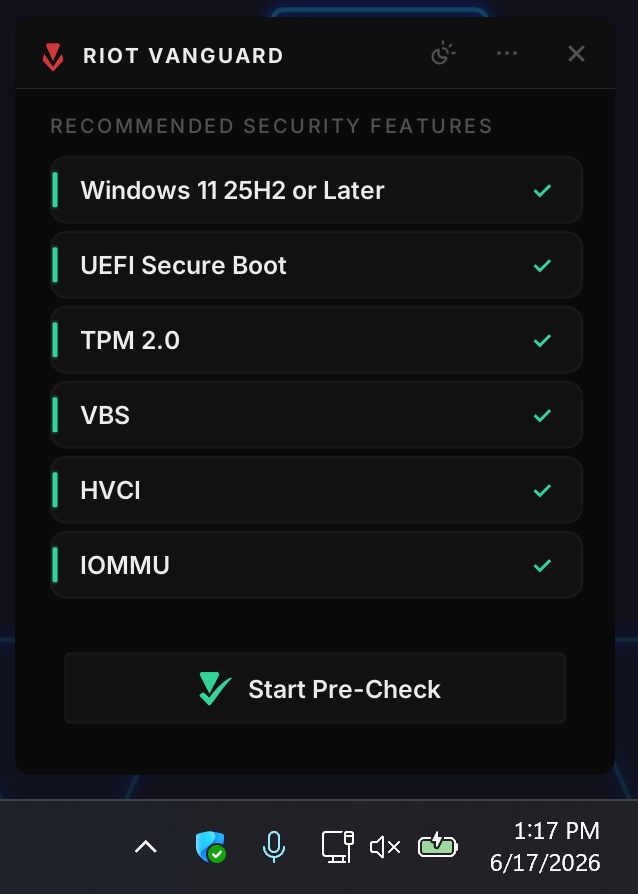
Start with the read-only checks below. If firmware changes are necessary, use guidance for your exact motherboard or laptop and keep your device-encryption recovery information available. Don't clear the TPM, disable protections or follow a generic BIOS shortcut. Riot also distinguishes discrete TPM support from firmware-TPM requirements for some restrictions in its TPM troubleshooting guide.
How to check your PC without changing anything
- Identify Windows and the processor. Open Settings → System → About. Record the processor's full name, installed RAM and System type. Look for an x64-based processor, not just “64-bit operating system.” Microsoft's device-information guide shows the relevant sections.
- Check the build. Press Windows + R, enter
winverand read the version and OS build. “Windows 10” alone isn't enough to compare with a build-specific requirement. - Inspect graphics. Run
dxdiag, then open Display. Note the GPU name and Feature Levels. If there are multiple Display or Render tabs, inspect the adapter used by League rather than assuming the first listed one is the gaming GPU. - Check storage and resource use. Settings → System → Storage shows space on your drives. Task Manager → Performance helps identify the CPU, memory and graphics hardware and shows their activity. These are built-in Windows tools; you don't need an unknown “PC checker” download.
- Read security status if Vanguard asks. Run
tpm.mscto inspect TPM readiness and Specification Version. In System Information (msinfo32), read BIOS Mode and Secure Boot State. Then match any Vanguard error to Riot's documentation. Reading these panels doesn't require changing the settings.
If compatibility checks pass, use a low-pressure session to judge your existing hardware before shopping. Once you're ready to install, our League client installation walkthrough covers that separate task; use the current specification table here for compatibility.
Storage: don't confuse the requirement with a download
The table's free-space figure isn't a measurement of today's compressed download or your finished installation. The Riot Client, game files, Vanguard and temporary update files all need room. Check the current installer's request and leave additional free capacity for updates; this guide doesn't claim a fixed installed size or universal patch allowance.
An SSD is a sensible quality-of-life choice for loading and general responsiveness. That doesn't mean it will raise every in-match frame rate. If storage access is the problem, it can help; if the CPU or GPU is limiting rendering, replacing a healthy SSD with a faster one isn't the first move.
What should you change first?
Find the symptom before choosing a component. These are diagnostic priorities, not a guarantee that one part will solve the problem.
- The game won't start: resolve the stated Windows, graphics or Vanguard compatibility issue first. More RAM won't bypass it.
- FPS is low: reduce shadows and effects, close unnecessary background work and compare the same scene. A large improvement after lowering resolution suggests graphics load matters; little change means you should investigate other limits rather than immediately buying a GPU.
- Hitches appear with several apps open: inspect memory pressure and disk activity. Extra RAM is useful when memory is constrained, not an automatic FPS upgrade.
- Performance worsens as the laptop heats up: check ventilation and the manufacturer's cooling guidance. Don't disable thermal safeguards.
- Movement rubber-bands despite steady FPS: investigate latency and packet loss. Faster internet bandwidth, an SSD and a new graphics card solve different problems; none is a universal “lag fix.”
Riot's low-frame-rate guide is a useful starting point for settings, drivers and cooling checks. For a fuller in-game setup, see our League video and FPS settings guide. Change one setting at a time so you can tell what helped.
PC requirements FAQ
What about Windows on ARM, Linux or SteamOS?
Riot doesn't support Windows ARM processors or Linux-based systems, including SteamOS and Bazzite. Windows app emulation isn't confirmation that League and its anti-cheat are supported. Don't buy a Snapdragon Windows laptop or Linux handheld on that assumption.
Do these requirements apply to Mac?
No. macOS has a separate specification table, including Metal graphics requirements. Use Riot's macOS section on the requirements page linked above and its dedicated Mac settings guide. Don't apply the Windows ARM restriction to Apple Silicon Macs.
Is a cheap used office PC a good choice?
It can be, if the exact system passes the compatibility checks and performs well enough for your target. Before paying, verify its Windows 11 eligibility, firmware support, GPU feature level and upgrade options. Small cases may limit graphics cards, power supplies or cooling. A low purchase price isn't good value if the necessary platform upgrade costs more than the PC.
Update log — September 27, 2026: checked Riot's September 22 specification table, DirectX enforcement, current Vanguard and Pre-Check guidance, and Microsoft's Windows lifecycle documentation. Practical hardware advice is editorial; no new benchmarks or first-hand gameplay testing are claimed.


-a6d5b3e156bb.webp)