

Best League of Legends Settings for 2026
The best League of Legends settings prioritize stable frame times, readable fights, and inputs you can repeat under pressure. Start with native resolution, Full Screen, V-Sync off, shadows off, low effects, a deliberate FPS cap, Quick Cast, Attack Move on Cursor, a larger minimap, and clear ping audio. Then test one change at a time in Practice Tool.
Best League of Legends settings at a glance
Use this as a baseline, not a commandment. Your monitor, hardware, role, champion pool, and comfort all matter. A consistent 120 FPS is preferable to a counter that swings between 200 and 80 during a five-on-five fight.
| Setting | Recommended baseline | Why |
|---|---|---|
| Window Mode | Full Screen | Best starting point for consistent focus and latency |
| Resolution | Monitor native | Sharpest text, health bars, and skill effects |
| Character Quality | Medium | Keeps champions easy to distinguish |
| Environment / Effects | Low | Reduces clutter and GPU load |
| Shadows | Off | Easy performance saving |
| Anti-Aliasing | Off for FPS; on if headroom is ample | Visual preference, not competitive information |
| Wait for Vertical Sync | Off | Avoids added latency; enable only to solve tearing |
| Frame Rate Cap | Stable value your PC can hold | Controls heat and erratic frame pacing |
| Quick Cast | On for frequently used abilities | Removes the confirmation click |
| Attack Move on Cursor | On | Makes attack-move target selection follow the cursor |
| Minimap Scale | 45–65 | Improves glance readability without dominating the screen |
| Pings / Announcer | Higher than music and ambience | Protects useful match information |
Video settings for clear fights and stable FPS
Open a match or Practice Tool, press Esc, and choose Video. Native resolution is the clearest option. Lowering resolution can rescue a weak integrated GPU, but it also makes small UI details and distant effects harder to read. Try the quality controls first.

Choose a frame cap your system can sustain
Do not choose 240 merely because your monitor advertises 240 Hz. First watch the in-game FPS counter during a busy fight. If the game stays above 165 FPS but dips below 200, a 165 cap may feel steadier than 240 or uncapped. For 60 Hz displays, 60 or a modestly higher stable cap is a sensible start. If you use adaptive sync, follow your monitor and GPU maker's guidance; the correct combination can vary.
Keep Wait for Vertical Sync off for the lowest-latency baseline. If tearing is distracting, test V-Sync rather than treating “off” as sacred. The goal is a clean, predictable image—not the largest number in the corner.
What to lower first
- Shadows: turn them off first.
- Effects and Environment Quality: lower these next, especially if teamfights cause dips.
- Anti-Aliasing: disable it on low-end hardware.
- Character Quality: leave Medium if possible, then use Low or Very Low only if you still need headroom.
- Hide Eye Candy and Screen Shake: hide decorative distractions and disable camera shake.
Riot's own low-FPS troubleshooting advice similarly recommends desktop resolution, lower character/environment/effects settings, shadows off, and V-Sync and anti-aliasing disabled as a low-spec baseline. Treat that as a diagnostic preset, then raise clarity settings one by one.
Point-and-click or WASD in 2026?
League now offers two legitimate control schemes. Point-and-click uses right-click movement and preserves the muscle memory most long-time players already have. WASD uses directional keys for movement and can feel more familiar to players arriving from shooters or action games. Riot enabled WASD in ranked queues in Patch 26.9 after testing showed only a small win-rate difference, with point-and-click holding a minor advantage at the time.
| Choose | When it fits | Main tradeoff |
|---|---|---|
| Point-and-click | You already kite comfortably, use function keys, or want the traditional control model | Movement and aiming share more mouse attention |
| WASD | Keyboard movement feels natural or improves accessibility | Consumes prime keys and demands a fresh ability/item layout |
Neither option automatically makes you better. Pick one, create a coherent layout, and stop switching during ranked sessions. Riot's 2026 input overhaul also allows separate champion profiles, direct MB1 binding, and distinct actions for selecting, interacting, auto-attacking, and casting. All keyboard keys except Delete and Escape can be bound, although required actions must remain assigned.
Best hotkeys, Quick Cast, and attack move
For classic controls, keep abilities on Q, W, E, and R unless you have a clear ergonomic reason to move them. D and F for summoner spells are equally standard; which spell goes on which key is personal. Place frequently used active items where you can press them without looking, and move less urgent inventory slots farther away.

Use Quick Cast selectively
Quick Cast fires toward the cursor as soon as you press the key. It is faster, but normal cast previews are useful while learning range and shape. A practical hybrid is Quick Cast on the regular key, with an indicator or normal cast on Shift + key. Self-cast on Alt + key is useful for shields, heals, and buffs.
Champion-specific profiles are the real 2026 upgrade. You can keep normal cast for Viktor's laser or Rumble's ultimate while using Quick Cast elsewhere, without changing the global layout before every match. Build profiles in Practice Tool, then use Restore to Defaults if the new input system behaves unexpectedly.
Attack move and Target Champions Only
- Player Attack Move Click: bind it to an easy key such as A or a mouse button. It combines the command and click.
- Attack Move on Cursor: turn it on so the search favors the area around your cursor, not your champion.
- Target Champions Only: bind it close enough to hold during tower dives and crowded fights. Remember that it does not transform attack move into champion-only attack move.
- Stop Position: keep S available. Stopping cleanly helps cancel pathing and makes last-hit timing more deliberate.
If kiting is the reason you are changing settings, our League attack-move and kiting guide explains the mechanic rather than just the menu option.
Mouse speed and camera settings
There is no universal League DPI. Start with the Windows pointer speed and in-game mouse speed you can control without overshooting. An in-game value near 50 is a neutral baseline, but changing DPI and in-game sensitivity at the same time makes diagnosis impossible. Disable Windows “Enhance pointer precision” if you want consistent, non-accelerated desktop input, then test whether that feels better in League.
Use an unlocked or semi-locked camera for information gathering. Space can center the camera on your champion; holding it temporarily is often safer than permanent lock. Bind allied-camera views to reachable keys if F1–F5 are uncomfortable. Junglers and supports benefit especially from fast lane checks, while every role should practice moving the camera before a long-range ability or objective fight.
Keep camera move speed high enough to cross a fight but low enough to stop accurately. Edge scrolling is optional. If the cursor accidentally throws the camera across the map, reduce edge-scroll sensitivity or rely more on middle-mouse drag and minimap clicks.
Interface, minimap, and accessibility settings
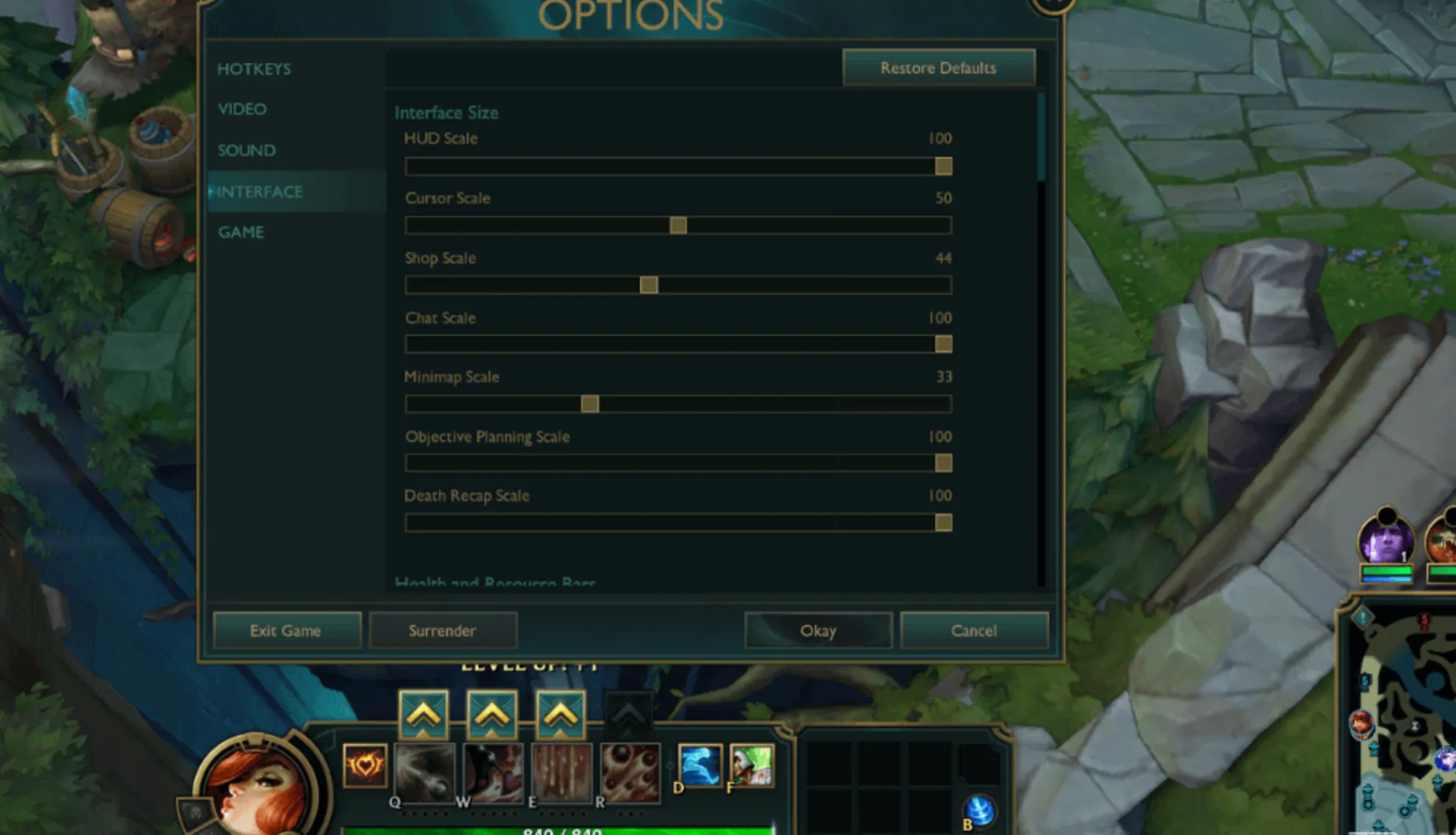
A useful interface puts decisions within one glance. Shrinking the entire HUD can create space, but an unreadable minimap costs more information than it saves. Start with HUD around 70–90, cursor near 50, and minimap around 45–65. Players on a large or high-resolution display may prefer a larger minimap.
- Show Spell Costs: on while learning mana and energy budgets.
- Champion names: useful when skins make silhouettes unfamiliar.
- Colorblind mode and relative team colors: use them when they improve team recognition.
- Chat: keep it small or party-only if it distracts you; pings carry most urgent information.
- Streamer Mode: available under Interface > Health and Resource Bars; it replaces account names with champion names in the streamer's view.
A larger minimap only helps if you look at it. Pair the setting change with a habit: glance after every last-hit, wave, or cooldown cycle. Our League warding guide shows what to do with the information you see.
Sound settings that protect useful cues
League is visual, but pings, the announcer, champion abilities, and objective alerts still matter. Keep pings and sound effects clearly audible. Lower music and ambience until they sit behind information rather than competing with it. Voice volume is preference; master volume should leave enough headroom that a teamfight does not become harsh or fatiguing.

For voice chat, set the input threshold so normal speech opens the mic but keyboard noise does not. Avoid pushing every output slider to 100; a clean balance is easier to understand during stacked ultimates.
Three practical settings presets
Low-end laptop
Use Full Screen, native resolution first, Very Low character/environment/effects quality, shadows off, anti-aliasing off, V-Sync off, eye candy hidden, and a 60 FPS cap. If the game still drops below 60 in teamfights, lower resolution one step and close overlays, browsers, recording tools, and unused client features.
Mainstream 144 Hz setup
Use native resolution, Full Screen, Medium character quality, Low environment/effects, shadows off, anti-aliasing to taste, V-Sync off, and a stable cap around 144 or modestly above it. Judge the 1% lows during fights, not the fountain FPS.
High-refresh competitive setup
Use native resolution, Full Screen, Medium characters, Low effects/environment, shadows off, and a cap your system can hold through heavy fights. Test adaptive sync and latency settings according to your monitor and GPU. Extra visual quality is safe only after stability is proven.
How to fix stutter, FPS drops, or bad input
- Separate network lag from frame lag. Toggle the FPS and ping display. Rubber-banding with stable FPS is a connection problem; a falling FPS counter is local performance.
- Test Riot's low preset. If it fixes the drop, raise one graphics setting at a time.
- Cap runaway FPS. Hundreds of frames in the fountain can increase heat before a teamfight. Choose a sustainable cap.
- Close overlays and background capture. Discord overlays, companion apps, browsers, and recorders can cause intermittent hitches.
- Update the GPU driver and Windows. Reboot after updates instead of testing inside an old session.
- Restore inputs to defaults. Riot explicitly recommends this after the 2026 input overhaul if bindings behave incorrectly. Rebuild the layout gradually.
- Repair or reset configuration only as a last step. Save screenshots of your settings first; deleting config files removes deliberate customizations.
Change only one variable per test and reproduce the same Practice Tool scenario. If you are new to the game itself, pair this setup with our updated League of Legends beginner guide. Players who want feedback on camera habits, keybind execution, and decision-making can also compare the available League coaching options.
League of Legends settings FAQ
What are the best League settings for FPS?
Use Full Screen at native resolution, turn shadows off, set environment and effects to Low, disable V-Sync and anti-aliasing, hide eye candy, and cap FPS at a value the PC can maintain in teamfights. On very weak systems, lower character quality and then resolution.
Should League FPS be uncapped?
Only if the system remains cool and frame times stay consistent. A sensible cap can reduce heat, fan noise, and large swings. Test capped and uncapped under the same workload.
Is WASD allowed in ranked League?
Yes. Riot enabled WASD in ranked in Patch 26.9 in 2026. Point-and-click remains the default, and both input schemes support champion-specific profiles.
Is Quick Cast always better?
No. It is faster, but indicators teach range and shape. Many players use Quick Cast for common abilities and an indicator or normal cast modifier for precision. Champion profiles make that hybrid easier.
What minimap size should I use?
Start around 45–65 and adjust for display size and eyesight. The map should be readable in a glance without obscuring fights. Habit matters more than the exact number.
Posted On: November 29th, 2025
Recent Articles


Our 1v9 support team is available 24/7 to help you with any questions or issues you may have.
support@1v9.gg

-a6d5b3e156bb.webp)





Loading...
1v9.gg is not endorsed or affiliated by any game developers or publishers.
2026 1v9, All Rights Reserved, Created By Ritesh (riteshsahoo.com)