

Best Valorant Settings for 2026
The best Valorant settings give you stable frame times, low input latency, an uncluttered picture, and controls you can repeat. A strong PC baseline is Fullscreen at native resolution, low visual quality, Multithreaded Rendering on, V-Sync off, NVIDIA Reflex on when available, a consistent FPS limit, a simple crosshair, a fully visible minimap, and one spatial-audio method—not two.
Best Valorant settings at a glance
These values are a defensible starting point, not a pro-player costume. Keep anything that improves comfort or accessibility, and change one variable per test.
| Setting | Starting value | Purpose |
|---|---|---|
| DPI / sensitivity | 800 DPI · 0.25–0.40 | 200–320 eDPI range to begin calibration |
| Scoped / ADS multiplier | 1.0 | Neutral baseline; adjust only after testing |
| Display | Fullscreen · native resolution · highest refresh rate | Clear image and reliable presentation |
| FPS limit | Stable value the PC holds in fights | Consistent frame times and temperature |
| Multithreaded Rendering | On when shown | Uses capable CPUs more effectively |
| NVIDIA Reflex | On; test On + Boost | Reduces the render queue on supported NVIDIA systems |
| Quality | Low, with MSAA 2x / AF 4x if headroom permits | Low clutter with readable edges |
| Vignette / V-Sync / Bloom / Distortion | Off | Avoids decoration and added latency |
| Minimap | Whole map visible · vision cones on | Round information at a glance |
| Headphone audio | Stereo + HRTF, or Auto-Detect + one Windows spatial format | Directional cues without double processing |
Mouse DPI, sensitivity, and eDPI
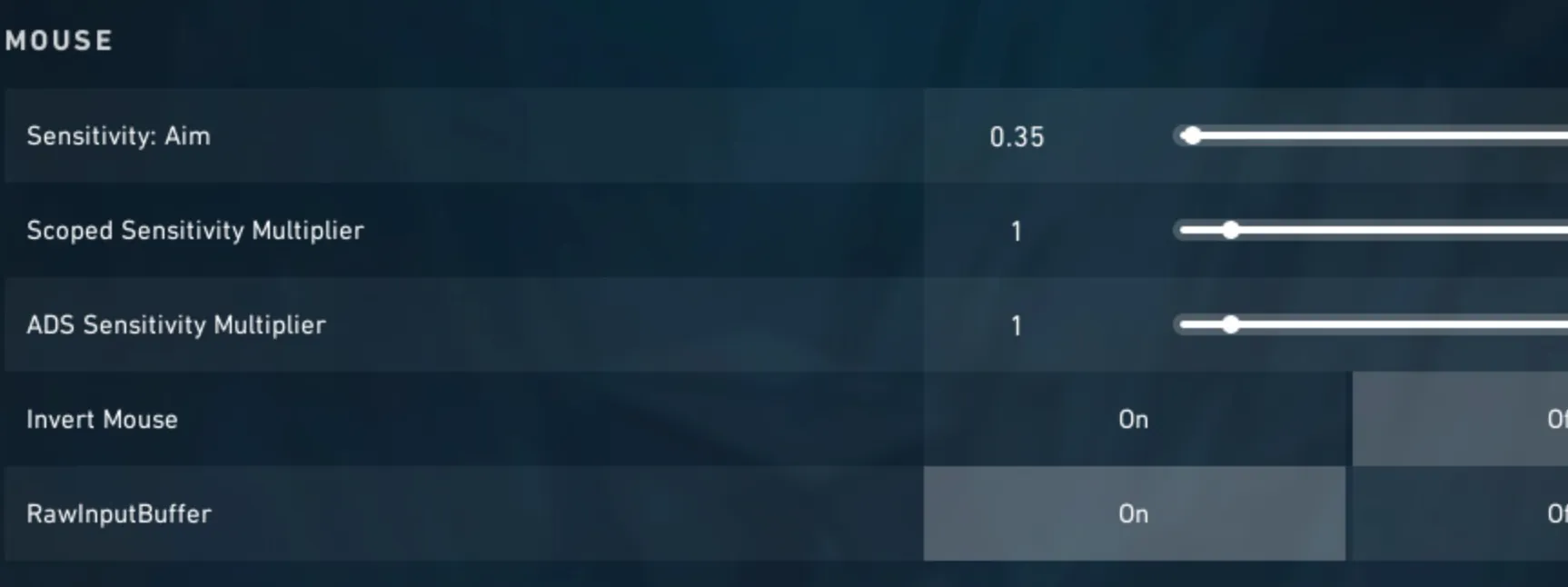
eDPI = mouse DPI × in-game sensitivity. At 800 DPI and 0.35 sensitivity, eDPI is 280. That lets you compare speeds across different DPI values, but eDPI is not a quality score. Desk space, grip, arm movement, agent role, and physical comfort decide what works.
A practical calibration method
- Start around 240–300 eDPI if you have enough mousepad space. This is only a test range.
- In the Range, make a comfortable 180-degree turn without running off the pad. If you cannot turn, raise sensitivity slightly.
- Track a bot's head while strafing. If you constantly pass the target, lower sensitivity by 5–10%; if you lag behind, raise it.
- Run two Deathmatches and note whether errors are overshoots or undershoots.
- Keep the winner for a week. Daily sensitivity changes prevent useful muscle-memory feedback.
Begin scoped and ADS multipliers at 1.0. Lowering the Operator scope multiplier can help tiny corrections, but it also changes the relationship you must learn. Do not assume “1” produces identical physical movement at every field of view; it is simply a clean starting point.
A clear Valorant crosshair baseline
Use a bright color that remains visible on every map, turn firing and movement error off once you understand them, and keep the center open enough to see a head. A small cyan or green static cross with thin inner lines is a safe start. A dot works for disciplined tapping but gives less horizontal reference during spray transfer.

If you want import codes and alternatives for different sight preferences, use our Valorant crosshair guide. Copying a pro's crosshair is harmless; copying it without checking visibility is not.
Video and graphics settings
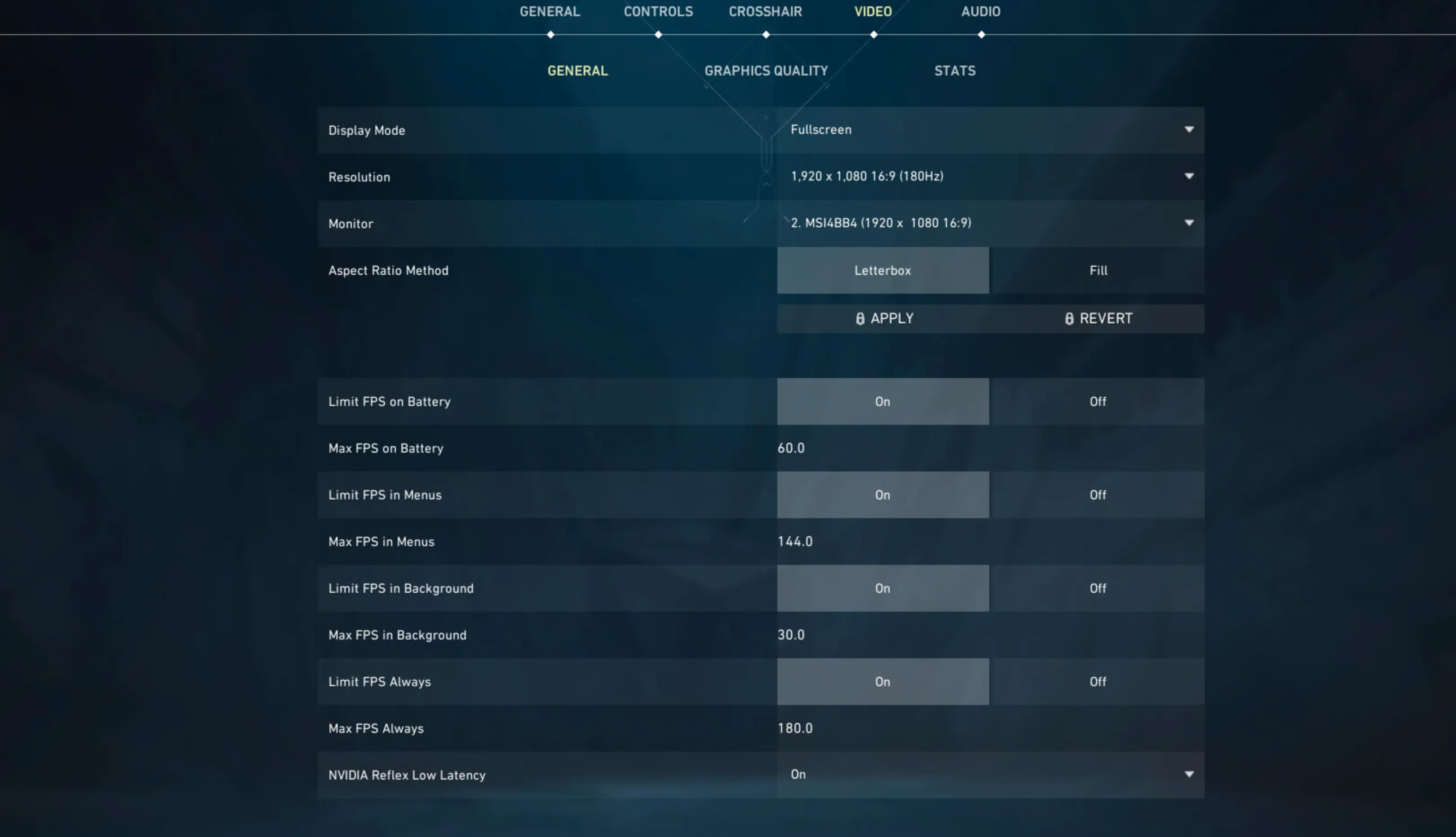
Choose Fullscreen, your monitor's native resolution, and its highest available refresh rate. Lower resolution can help a GPU-bound low-end PC, but Valorant often becomes CPU-limited at competitive settings. If reducing resolution barely changes FPS, the GPU is probably not the bottleneck.
| Graphics option | Competitive baseline | Adjustment |
|---|---|---|
| Material Quality | Low | Raise only for visual preference |
| Texture Quality | Low or Medium | Medium is reasonable with VRAM headroom |
| Detail / UI Quality | Low | Reduces clutter and overhead |
| Vignette / Bloom / Distortion | Off | No competitive information |
| V-Sync | Off | Use only when tearing outweighs latency cost |
| Anti-Aliasing | MSAA 2x | None on very weak GPUs; 4x with surplus headroom |
| Anisotropic Filtering | 4x | Increase if angled surfaces remain inexpensive |
| Improve Clarity / Sharpening | Test on | Keep only if edges improve without visible artifacts or FPS loss |
| Cast Shadows | Off | Affects first-person model shadows, not enemy shadows |
How to set FPS limits
Cap menu and background FPS to reduce heat and power use. For gameplay, first measure the worst sustained FPS during utility-heavy fights. A steady 240 feels better than a counter bouncing between 400 and 180. With variable refresh, follow the display maker's recommended cap and sync combination; with no adaptive sync, compare a stable cap against uncapped play. Avoid copying a single “three frames below refresh” rule without considering Reflex, monitor behavior, and GPU load.
Input latency, Multithreaded Rendering, and Reflex
Enable Multithreaded Rendering when Valorant exposes it on a supported PC. Riot introduced it to improve performance in scenes with many objects, particularly on capable systems. If enabling it causes a repeatable regression on an unusual CPU, document the same benchmark and turn it back off.
On supported NVIDIA GPUs, use NVIDIA Reflex Low Latency: On. Test On + Boost if lowest latency matters more than power and heat. NVIDIA explains that Boost keeps clocks high in CPU-bound cases for a modest extra latency benefit, but it consumes more power. When Reflex is active in Valorant, do not stack an NVIDIA Control Panel Ultra Low Latency override; let the in-game Reflex integration manage the queue.
AMD users should begin with current drivers, Radeon Anti-Lag only if the driver supports it for Valorant, and no global “one-click optimization” that silently changes resolution, sharpening, or caps. Verify each driver feature with the in-game frame-time graph. If your FPS problem is broader than this guide, our Valorant FPS troubleshooting guide covers diagnosis in depth.
Minimap settings for complete information
The non-negotiable requirement is seeing the relevant map without waiting for a rotation. Keep vision cones on, show map region names if you are learning callouts, and reduce zoom until both sites and common rotation lanes fit. Rotate versus Fixed/Based on Side is preference: rotating maps align with your view; fixed maps preserve consistent callout orientation.
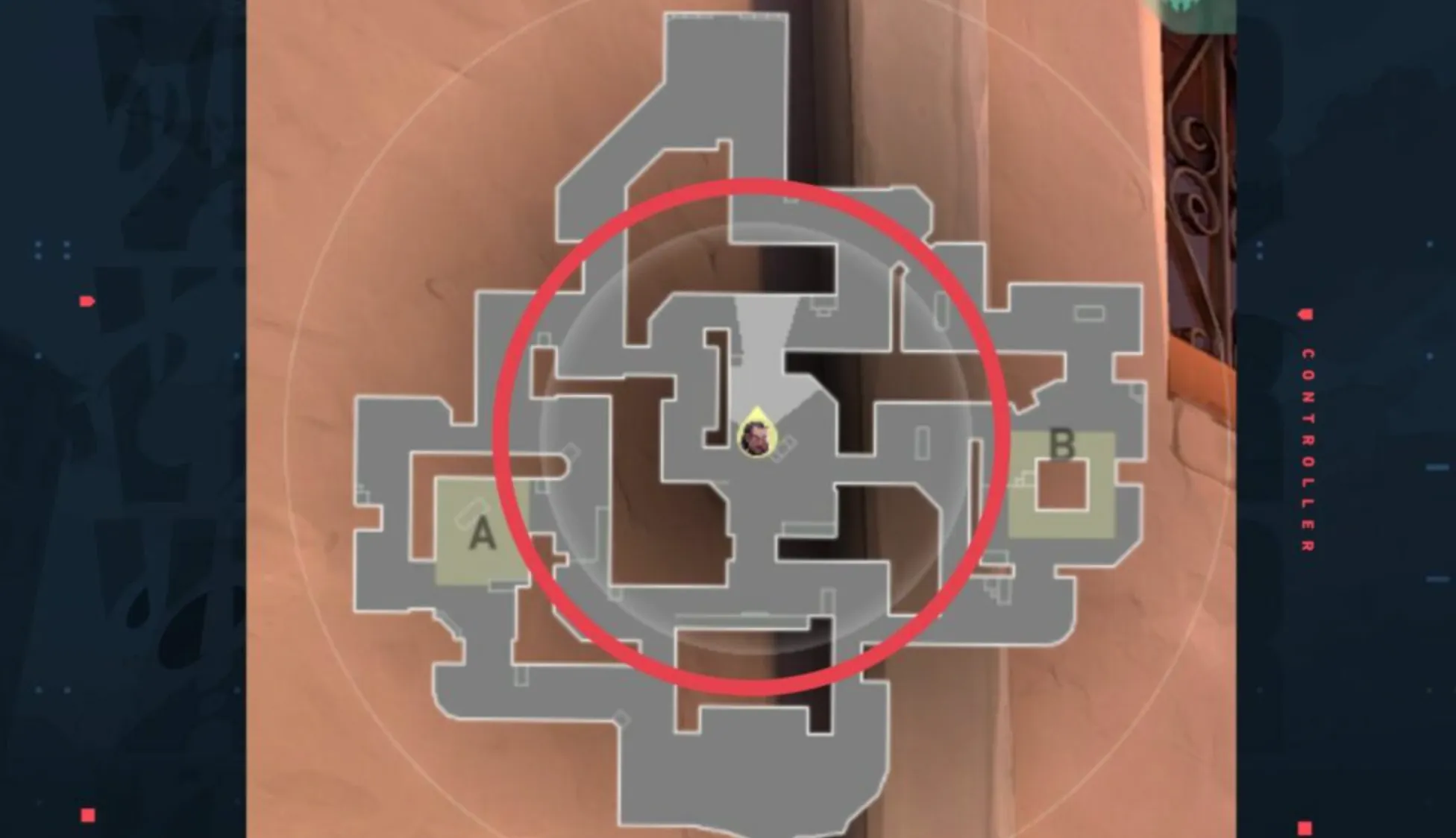
Try map size 1.0–1.2, zoom around 0.8–0.9, and Keep Player Centered off as a starting point. On small displays, a slightly larger map can be worth more than extra peripheral view. The correct result is instant comprehension, not a particular decimal.
Controls, keybinds, and communication
Keep movement on WASD and place walk, crouch, jump, spike, weapons, and abilities where they do not force your movement fingers to leave position at the wrong moment. Mouse side buttons are useful for abilities that must be used while strafing, but avoid binding every utility action to the aiming hand.

- Jump: Space, mouse wheel, or both; keep a conventional key for menu/tutorial prompts.
- Crouch: Ctrl or a comfortable alternative. Do not hold it automatically in every duel.
- Equip last weapon: use it if Operator and sidearm swaps feel slow on number keys.
- Agent profiles: create only when one agent needs a special layout; too many exceptions increase errors.
- Push-to-talk: choose a key you can press without releasing movement. Set mic threshold so keyboard noise stays closed.
Keep tactical callouts audible and mute abusive players early. Voice and pings are information channels, not obligations to absorb distraction. Players who want individualized feedback can compare Valorant coaching options without treating coaching as a requirement for improvement.
Audio, footsteps, and HRTF
Use exactly one headphone-spatialization path. The simplest baseline is Speaker Configuration: Stereo, HRTF: On, and Windows/headset virtual surround off. If you prefer Dolby Atmos, Windows Sonic, DTS, or supported headset spatial software, set Valorant to Auto-Detect, enable that one Windows solution, and let Valorant turn off its HRTF. Stacking HRTF with another surround processor can smear direction.
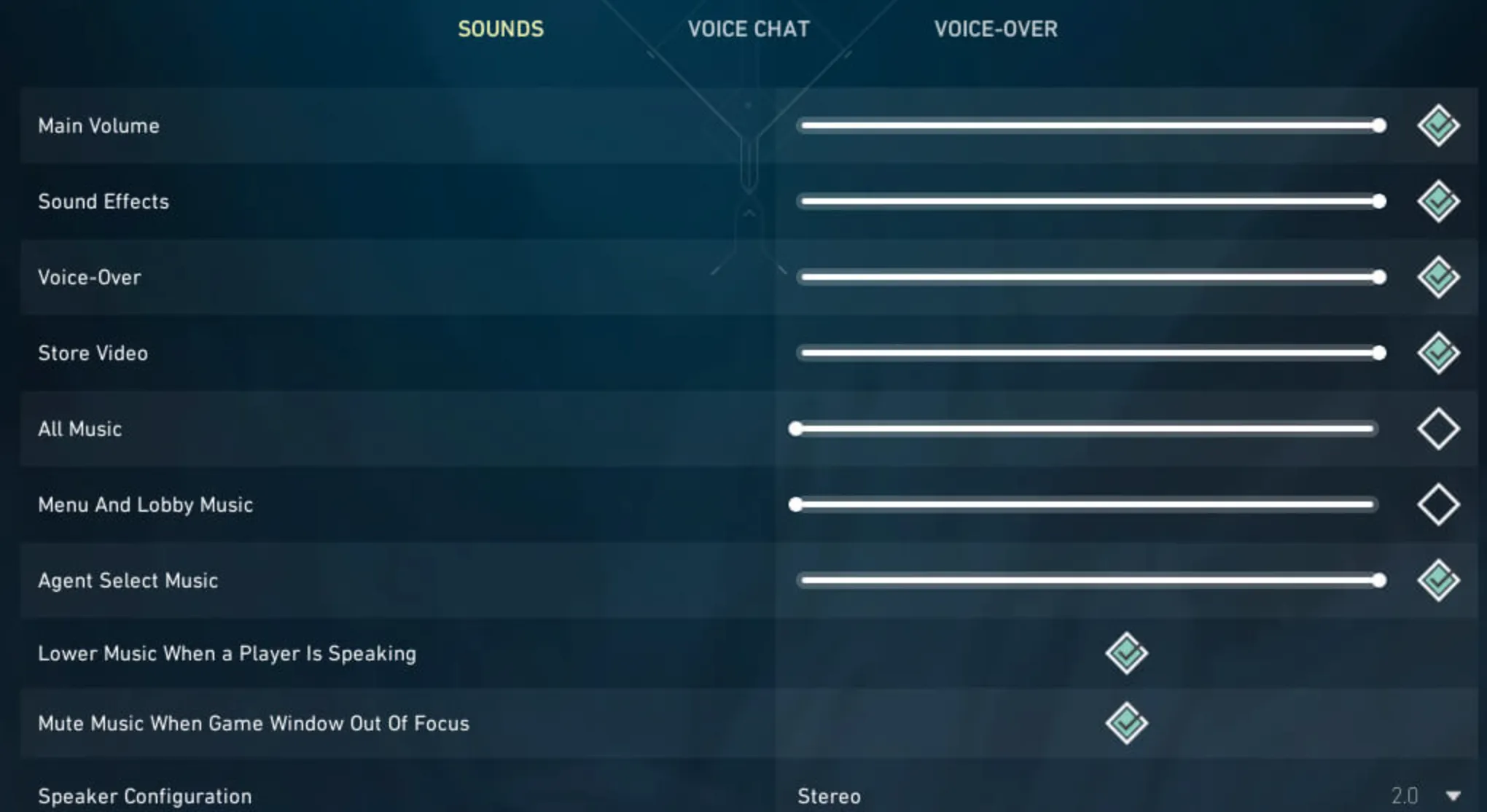
Turn music down or off during matches, keep sound effects clear, and balance voice chat below gunfire and footsteps. HRTF is designed for headphones, not speakers or mono output. Riot says no single HRTF solution universally provides a competitive advantage because each model fits different anatomy, so compare front/back accuracy and comfort.
Windows, monitor, NVIDIA, and AMD checks
- Set the display refresh rate in Windows. A 240 Hz monitor running at 60 Hz defeats the in-game choice.
- Use Game Mode and current GPU drivers. Reboot after driver installation.
- Disable overlays one at a time. Recording, chat, RGB, and stat overlays can cause hitches.
- Keep Windows pointer acceleration irrelevant. Valorant uses raw input; Patch 11.06 made its higher-performance buffer permanent.
- Avoid conflicting caps. Do not combine an in-game cap, driver cap, overlay cap, and monitor sync without understanding which one is active.
- Confirm power and thermals. Laptops should be plugged in; sustained clock drops often explain late-match stutter.
Settings for low-, medium-, and high-end PCs
Low-end PC or laptop
Use Fullscreen, all quality options Low, anti-aliasing None, anisotropic filtering 1x–2x, clarity and sharpening off if they cost frames, Multithreaded Rendering on when available, and a 60/90/120 cap the system can sustain. Reduce resolution only after quality options and background apps.
Mainstream 144–240 Hz PC
Use native resolution, Low materials/detail/UI, Medium textures, MSAA 2x, AF 4x, Multithreaded Rendering on, V-Sync off, and Reflex on for NVIDIA. Cap around a verified stable value rather than the highest Range result.
High-end competitive PC
Keep native resolution and low-clutter visuals. Extra GPU power should protect frame-time lows, not justify Bloom or Distortion. Test Reflex On + Boost, high polling rates, and uncapped versus capped play with a repeatable metric; retain only changes that improve latency without introducing heat or instability.
A 15-minute settings verification routine
- Confirm Windows refresh rate, Fullscreen mode, native resolution, and the correct monitor.
- Enable the client FPS, frame-time, packet-loss, and ping graphs.
- Use the Range to test sustained spray, ability effects, and bot tracking—not idle FPS.
- Run Deathmatch for sensitivity, crosshair visibility, footsteps, and fight-time frame drops.
- Save screenshots of every final settings page and stop changing them before ranked.
Settings remove friction; they do not replace positioning, utility timing, or practice. If ranked progression is the next question, the updated Valorant ranking-system guide explains RR and MMR separately.
Valorant settings FAQ
What eDPI is best for Valorant?
There is no universal best eDPI. Start around 200–320 if you have adequate mousepad space, then calibrate from overshoots, undershoots, and a comfortable 180-degree turn.
Should NVIDIA Reflex be On or On + Boost?
Start with On. On + Boost can shave a little more latency by keeping GPU clocks high in CPU-bound play, but it uses more power and creates more heat. Test both under the same workload.
Where is Raw Input Buffer in Valorant?
It no longer appears. Riot removed the configurable setting in Patch 11.06 and permanently enabled the more performant path for all players.
Should HRTF be on?
For headphones, test Stereo plus Valorant HRTF first. If you use Windows or headset spatial audio instead, select Auto-Detect and use only that processor. HRTF and spatial audio are not intended for speakers or mono.
Does stretched resolution make agents wider?
Valorant does not give the same stretched-player-model effect players associate with some other shooters. Native resolution preserves the clearest UI and image; lower resolution is primarily a performance choice.
Posted On: November 29th, 2025
Recent Articles


Our 1v9 support team is available 24/7 to help you with any questions or issues you may have.
support@1v9.gg

-a6d5b3e156bb.webp)





Loading...
1v9.gg is not endorsed or affiliated by any game developers or publishers.
2026 1v9, All Rights Reserved, Created By Ritesh (riteshsahoo.com)