


How Big is Valorant? Download Size & System Requirements (2026)
Valorant has grown a lot since its launch, and with every update, players naturally want to know how much space the game actually takes up. Riot Games recently made things clearer by updating the Riot Client to show download size and storage usage during installation, fixing one of the most common complaints from new players. Instead of installing blindly, you can now see exactly how much data you’re downloading and how much space Valorant will use on your PC. In this guide, we’ll break down Valorant’s current download size, total install space, updated system requirements, and what you should expect when installing or managing the game in 2026, all in a simple and easy-to-understand way.
Valorant Download Size
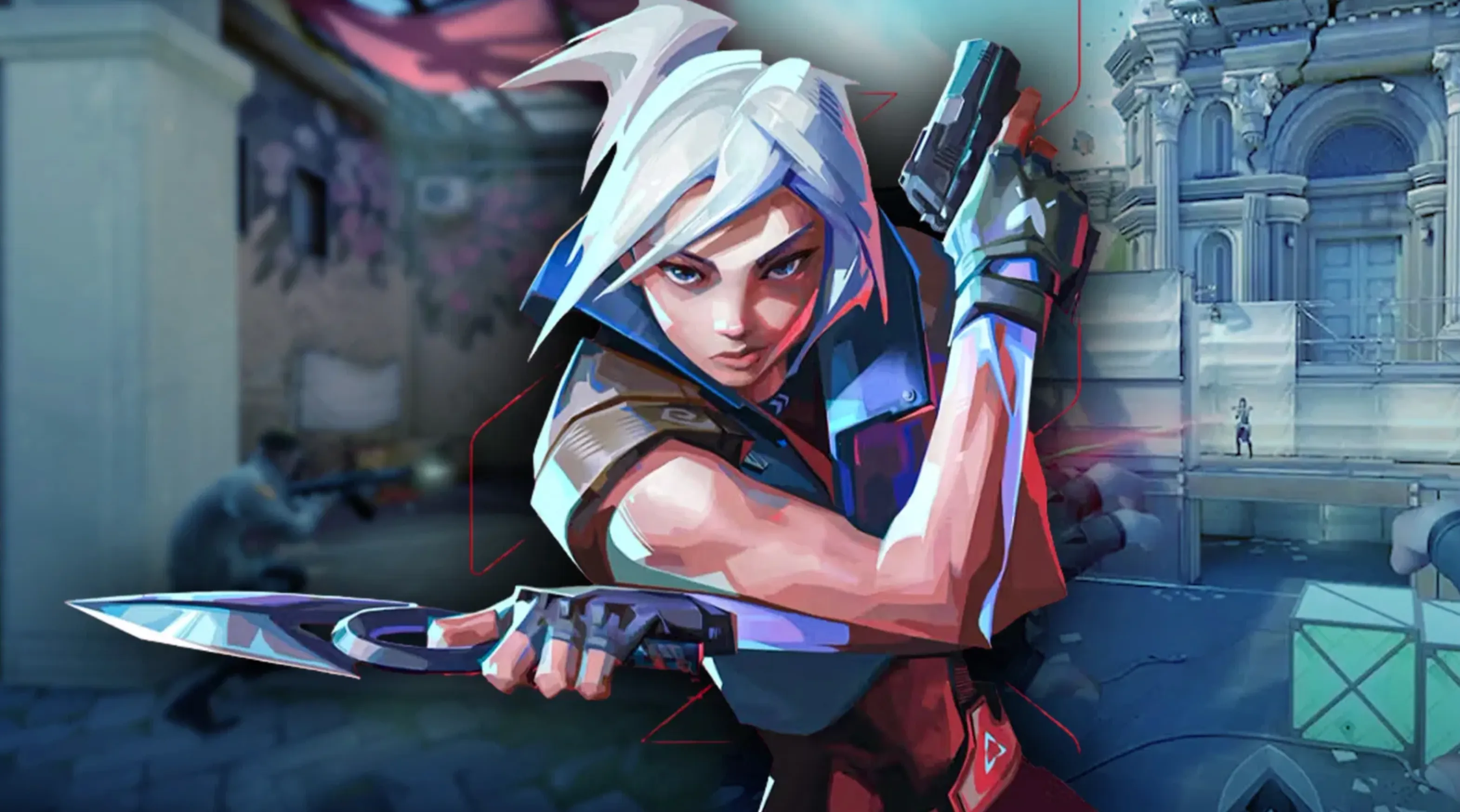
When you start installing Valorant through the Riot Client, the download size is shown as roughly 22.8 GB once the installation actually begins. This detail doesn’t appear before you click install, which is why many players only notice it after committing to the download. That 22.8 GB is the compressed data pulled directly from Riot’s servers. After the files are unpacked and installed, Valorant ends up taking around 25.7 GB of space on your drive. It’s also worth remembering that this is just the base install. Over time, patches, new agents, maps, and seasonal updates will slowly increase the total amount of data stored on your system.
Valorant System Requirements
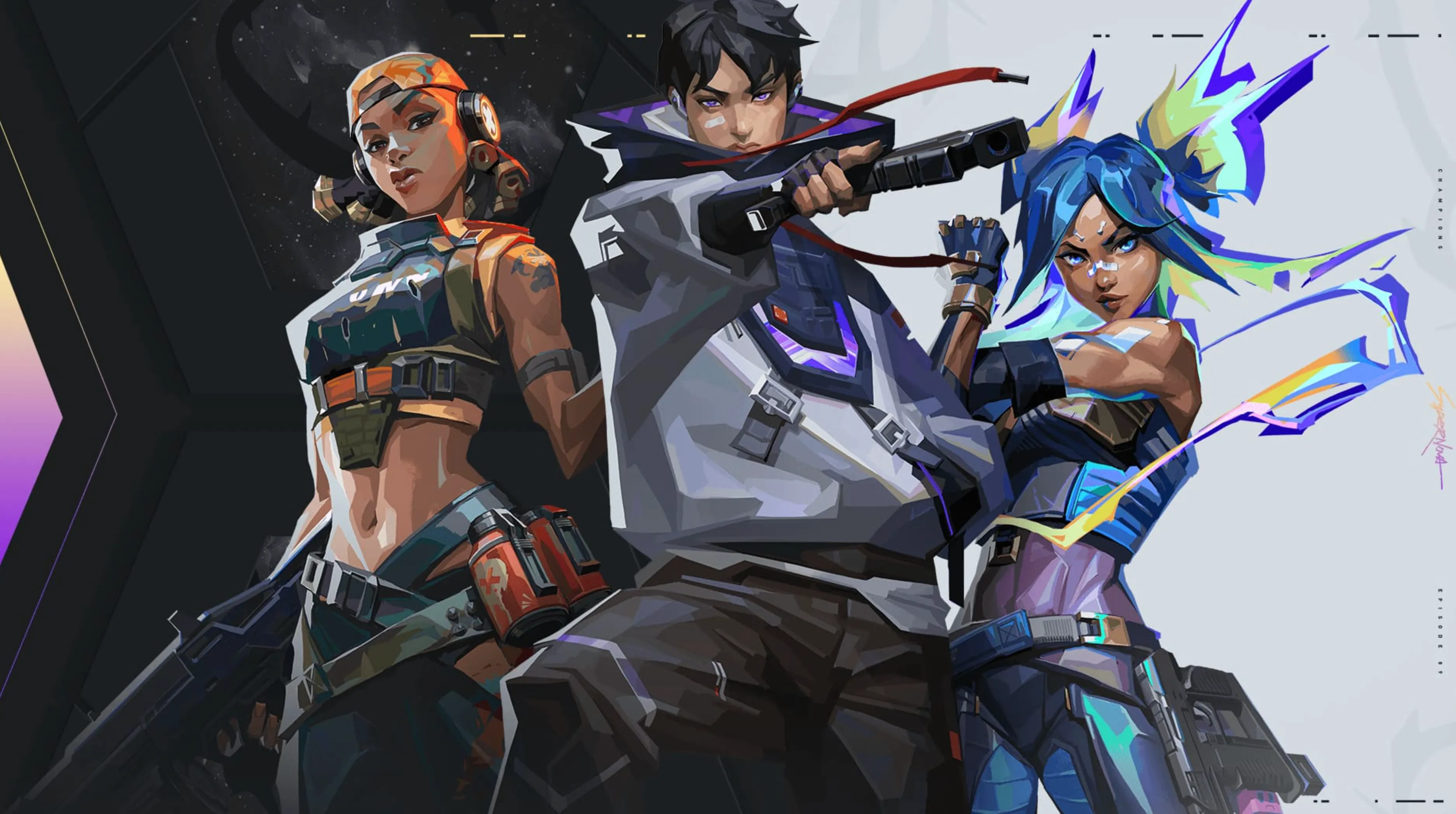
Valorant is designed to run well on a wide range of PCs, which is one of the reasons it’s so popular. At a basic level, you’ll need a system running Windows 10 or Windows 11, along with at least 4 GB of RAM and 1 GB of VRAM. On the CPU side, older processors like an Intel Core 2 Duo or AMD Athlon 200GE are enough to launch and play the game, while integrated graphics such as Intel HD 4000 or a Radeon R5 200 can handle the visuals on low settings. For a smoother and more consistent experience, Riot recommends stepping up to an Intel i3-4150 or Ryzen 3 1200 paired with a GeForce GT 730 or Radeon R7 240, which allows for better stability and higher frame rates.
If you’re aiming for competitive play, especially on high refresh rate monitors, stronger hardware becomes important. A setup built around an Intel i5-9400F or AMD Ryzen 5 2600X, combined with a GTX 1050 Ti or Radeon R7 370, is commonly used to push 144 FPS or more. While Valorant technically still runs with 4 GB of RAM at this level, most serious players choose 16 GB to keep the system responsive during matches. Also keep in mind that on Windows 11, Riot requires TPM 2.0 and Secure Boot to be enabled, as these are mandatory for Valorant and Vanguard to function properly.
How To Locate or Move Valorant to Another Drive
If you’re running low on storage or you’ve just reinstalled Windows, you don’t need to redownload Valorant from scratch. You can either reconnect the Riot Client to an existing install or move the game to a different drive with a few simple steps.
Finding an existing Valorant install is useful if the game is already on your PC but the Riot Client can’t detect it. Start by opening the Riot Client and clicking Install on Valorant. When prompted to choose a location, point the installer to the folder where Valorant is already stored. Make sure the path ends correctly, for example S:\Riot Games\Valorant\live. A common mistake is selecting an extra folder level, such as Valorant\Valorant\live, which won’t work. Once the correct path is selected, click Install and the client will scan the folder and link to the existing files instead of downloading everything again.
Moving Valorant to another drive is just as straightforward. First, locate your current Valorant folder on your PC. Fully close the Riot Client and make sure Valorant isn’t running in the background. Then cut the entire Valorant folder and paste it into the new drive or directory you want to use. After that, reopen the Riot Client, click Install on Valorant, and choose the option that indicates the game is already installed. Select the new folder location, and the client will verify the files and prepare the game to launch from its new drive.
Before doing either method, always double-check that all Riot and Valorant processes are closed. This helps avoid missing files or corruption and ensures the move or reconnection works smoothly the first time.
Conclusion
Valorant remains a lightweight and accessible competitive shooter, even in 2026. With a relatively small download size and modest system requirements, Riot Games has made sure the game runs smoothly on a wide range of PCs without demanding high-end hardware. Thanks to clearer download information in the Riot Client, players now know exactly how much space Valorant takes and how to manage their install across different drives. Whether you’re installing the game for the first time or optimizing your setup for competitive play, Valorant continues to deliver high performance without sacrificing storage or accessibility.
Posted On: January 15th, 2026
Recent Articles


Our 1v9 support team is available 24/7 to help you with any questions or issues you may have.
support@1v9.gg

-a6d5b3e156bb.webp)





Loading...
1v9.gg is not endorsed or affiliated by any game developers or publishers.
2026 1v9, All Rights Reserved, Created By Ritesh (riteshsahoo.com)