- Home
Games
 League of Legends
 Valorant
-a6d5b3e156bb.webp) Fortnite
Fortnite Call of Duty
 Clash of Clans
 Counter-Strike 2
 Roblox
 Rainbow Six Siege
 Clash Royale
 Minecraft
 Rocket League
 Dota 2
 Genshin Impact
 Squad Busters
 Rust
Rust Apex Legends
 Pokemon Go
 XDefiant
 LoL: Wild Rift
 Hay Day
 Diablo 4
 FC 25
FC 25 Marvel Rivals
 World of Warcraft
 Destiny 2
 Deadlock
-9ede9dc6b01b.webp) PUBG Mobile
PUBG Mobile The Finals
 Growtopia
 Forza Horizon 5
 Honkai: Star Rail
 Warframe
 8 Ball Pool
 Zenless Zone Zero
 Path of Exile
 Runescape 3
 Raid: Shadow Legends
 Lost Ark
 WoW: Classic Era
 Summoners War
 WoW: Season of Discovery
 WoW Cataclysm
 WoW: Hardcore
 Throne and Liberty
 New World
 Mobile Legends
 Escape From Tarkov
 Path of Exile 2
 Blade Ball
 Fisch
Fisch Pet Simulator 99
 Pets Go
-d8bcef7708c7.webp) One Piece Bounty
One Piece Bounty Anime Adventures
 Blox Fruits
 Adopt Me
 Murder Mystery 2
 Fragpunk
 Wuthering Waves
 Teamfight Tactics
 Free Fire
 Albion Online
 Black Desert Online
 Honor of Kings
 Brawl Stars
 Arena of Valor
 Call of Duty: Mobile
 Rematch
 Steal a Brainrot
 Grow a Garden
 FC 26
FC 26 Old School Runescape
 Plants vs Brainrots
 Overwatch
 Battlefield
 Arc Raiders
 Dragon Ball Legends
 Fallout 76
 Jailbreak
 Type Soul
 GPO
GPO DonutSMP
 Escape Tsunami For Brainrots
 Watcher of Realms
 Roblox Rivals
 2XKO
2XKO Sailor Piece
 Forza Horizon 6
 GTA 5
GTA 5- Lootboxes
- Become Affiliate
- Blog
- Contact Us
- Sign In

How To Play Fortnite xCloud With Decky Loader On The Steam Deck
Playing Fortnite on the Steam Deck isn’t officially supported out of the box, but that doesn’t mean it’s impossible. Thanks to Xbox Cloud Gaming and a powerful tool called Decky Loader, Steam Deck users can stream Fortnite smoothly without installing Windows or dealing with complex workarounds. This method lets you access Fortnite through xCloud directly on SteamOS, keeping performance stable while avoiding anti-cheat issues. In this guide, we’ll walk through how to play Fortnite using xCloud with Decky Loader on the Steam Deck, covering what you need, why this method works so well, and how to get everything set up the right way so you can jump into matches with minimal effort.
How To Install Decky Loader on the Steam Deck
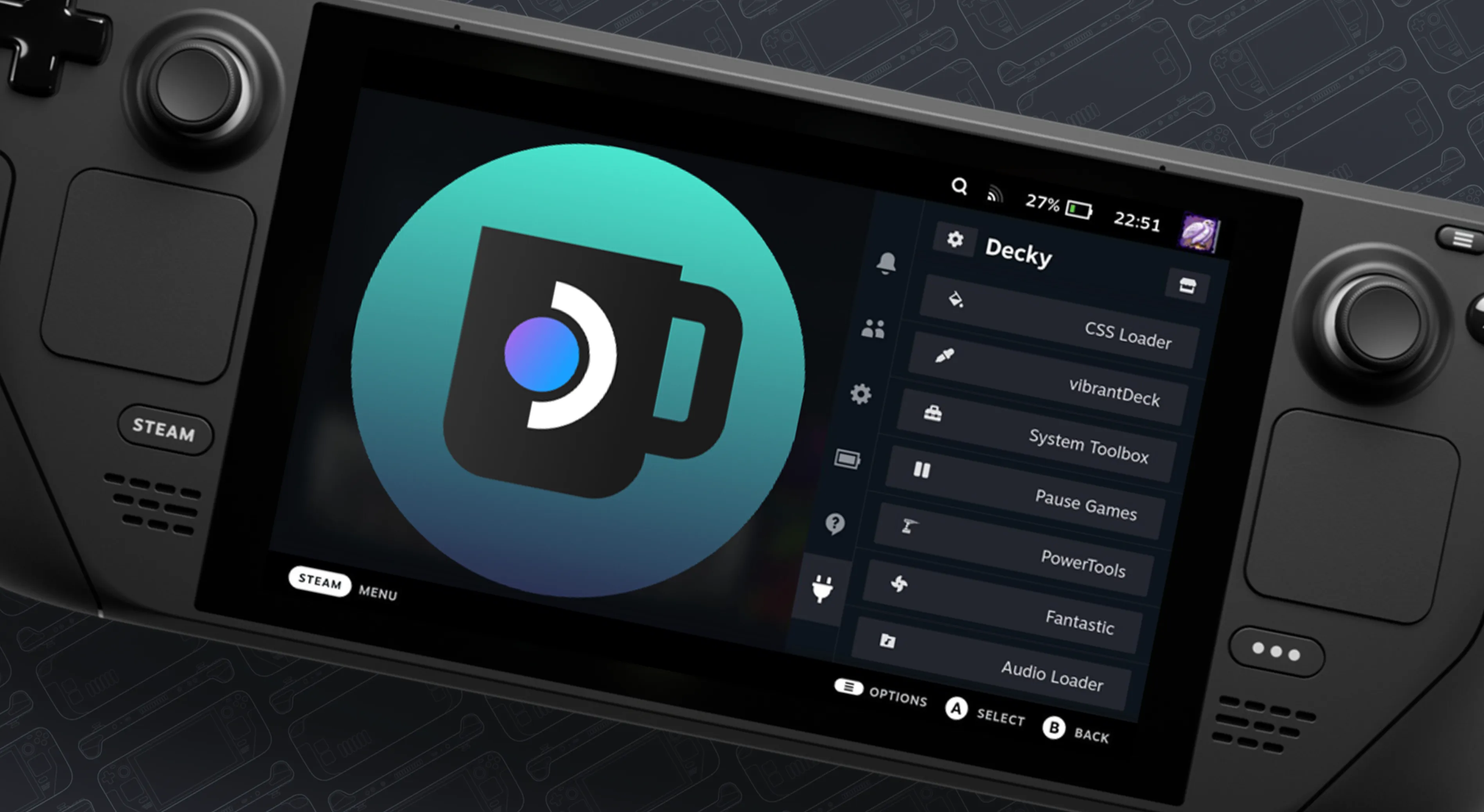
Decky Loader is one of the best tools you can install on a Steam Deck if you want more freedom and customization. It lets you add powerful plugins that extend what the Steam Deck can do, including tools that allow access to non-Steam services. One of the most useful plugins available through Decky Loader is NonSteamLaunchers, which makes it possible to add platforms like Xbox Cloud Gaming so you can play Fortnite on the Steam Deck.
To get started, press the Steam button and open System Settings, then enable Developer Mode. Once that’s on, scroll down to the Developer section and turn on CEF Debugging, then restart your Steam Deck. After rebooting, press the Steam button again, open the Power menu, and switch to Desktop Mode. From there, open the Discover store, install Google Chrome, and use it to download Decky Loader from its official GitHub page. Once downloaded, open the installer, choose the Recommended Install, and let it finish. When the process is complete, return to Gaming Mode.
How To Access Decky Loader’s Testing Store
Decky Loader includes multiple store channels, and the Testing Store is where you’ll find plugins that are still being worked on or updated more frequently. Even though these plugins are labeled as experimental, some of them—like NonSteamLaunchers—are widely used and very stable. Switching to the Testing Store only takes a minute and unlocks access to these extra tools.
To enable the Testing Store, follow these steps:
Open the Quick Access Menu (QAM) on your Steam Deck, then select the plugin icon at the bottom. With Decky Loader open, click the settings gear, go into the General section, and change the Store Channel dropdown to Testing. Exit the menu, tap the Store icon, and the Testing Store will now be visible. From there, scroll through the list and install NonSteamLaunchers.
How to Fix Missing NonSteamLaunchers in the Decky Store
In some cases, NonSteamLaunchers may not appear in the Decky Loader store. This isn’t caused by anything you did wrong — the plugin has occasionally been removed or hidden while updates are being worked on. If that happens, you can still install it manually using the official injector.
Start by pressing the Steam button, opening the Power menu, and switching back to Desktop Mode. Open a browser and go to the NonSteamLaunchers GitHub page. From there, download the file called NSLplugin.desktop. Once the download is complete, double-click the file and choose Execute.
You’ll be asked to enter your Steam Deck’s sudo password. If you don’t have one yet, you’ll be prompted to create it. After that, select Update to latest release and confirm the installation. When everything finishes, return to Gaming Mode, and NonSteamLaunchers should now be fully installed and ready to use inside Decky Loader.
How To Install Fortnite on the Steam Deck

After installing NonSteamLaunchers through Decky Loader, you can add Fortnite via Xbox Cloud Gaming directly to Gaming Mode. Press the QAM button to open Decky Loader, then go into the NonSteamLaunchers menu. Enable Auto Scan Games, open the Streaming section, and turn on Fortnite xCloud. Give it a few minutes to complete the setup in the background.
How To Locate and Launch Fortnite on the Steam Deck
Once the setup is complete, press the Steam button and head to your Library. Use R1 to switch over to the Non-Steam tab, where you’ll find a newly added Fortnite entry. Open it, hit Play, and sign in with your Xbox account when prompted. After logging in, Fortnite will launch through xCloud, letting you play directly on your Steam Deck without installing the game locally.
Conclusion
Playing Fortnite through xCloud on the Steam Deck with Decky Loader is a solid workaround for anyone who wants to enjoy Fortnite without native Linux support. Once everything is set up, the experience is surprisingly smooth, with no need to tweak controls or mess around with complicated settings. Decky Loader and NonSteamLaunchers make the whole process flexible, letting you access Fortnite directly from Gaming Mode just like any other game. As long as you keep Decky Loader updated after Steam Deck system updates, this method remains one of the easiest and most reliable ways to play Fortnite on the Steam Deck in 2026.
Posted On: December 27th, 2025
Recent Articles


Our 1v9 support team is available 24/7 to help you with any questions or issues you may have.
support@1v9.gg
Loading...
1v9.gg is not endorsed or affiliated by any game developers or publishers.
2026 1v9, All Rights Reserved, Created By Ritesh (riteshsahoo.com)