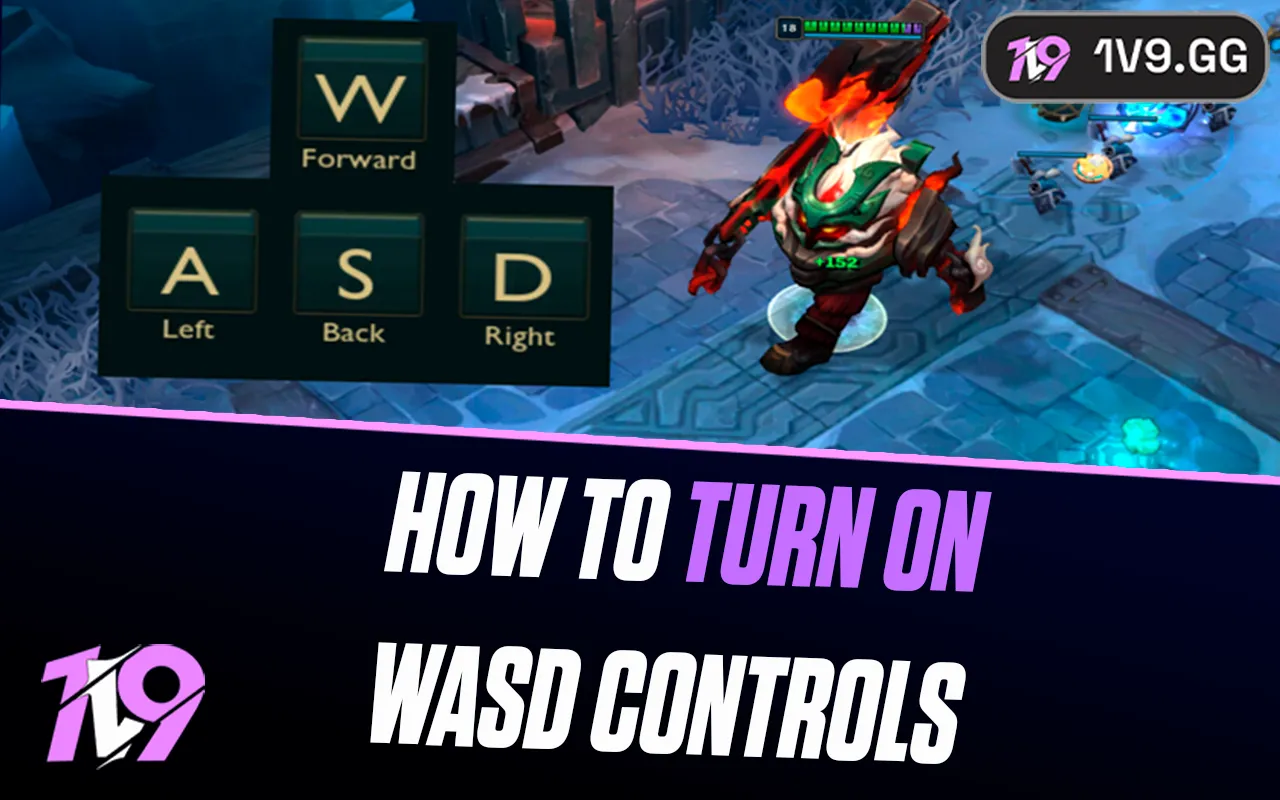


Yes. League now offers optional WASD movement on PC, and Riot enabled it for Ranked, including Clash, after its staged rollout. You can switch control schemes in the in-game hotkey settings; mouse movement remains available.
Related 1v9 reading: League beginner guide.
How to turn WASD on or off
Open a Practice Tool or custom game, press Esc, open Hotkeys, and select the movement control scheme. Choose WASD, review every conflict the client flags, save, then test movement, attack-move, stop, camera lock, items and summoner spells before queueing. Return to the same control-scheme selector to switch back to point-and-click.
WASD consumes four valuable keys. Do not blindly overwrite QWER abilities. Use the client conflict list to move attack-move, stop and camera controls to reachable keys or mouse buttons. Keep item slots and trinket bindings consistent across champions.
Ranked, camera and combat behavior
Riot’s April 2026 update said WASD was ready for Ranked, and Patch 26.9 enabled it for Ranked including Clash. It remains optional: opponents can use either scheme. WASD does not automate attacks, ability aiming or spacing decisions.
- An unlocked or semi-locked camera usually gives better information than permanent lock.
- Attack-move still needs a deliberate bind and click or cast input.
- Practice diagonals, orb-walking and last hits before Ranked.
- Some modes or temporary queues can expose controls differently after patches.
WASD setup checklist
Create a temporary custom game and confirm that W, A, S and D move in every diagonal combination while Q, E, R, Flash, the trinket and active items still fire from the intended keys. Check attack-move, stop, target-champions-only, scoreboard and ping-wheel access. A bind that feels fine while walking can fail once you need to kite, cast and move at the same time.
If WASD is missing, confirm the live client is fully patched and that you are not reading an old PBE-only walkthrough. Riot rolls client features through patches, and custom modes can temporarily disable or override a scheme. Do not install a macro or remapper to reproduce the option.
How to learn the scheme without losing games
Spend several sessions in Practice Tool, Co-op vs. AI or Normal games before Ranked. Start with last-hitting while moving, then add camera panning, attack-move and spell combinations. Champions with frequent kiting expose awkward binds quickly; immobile casters are useful for learning camera and skill-shot control without constant orb-walking.
WASD is a preference, not an automatic advantage. It can separate movement from cursor aim, but four keyboard keys become unavailable for other actions and long-time mouse-movement habits need retraining. Keep the scheme that produces fewer missed inputs and better map awareness.
Sources and update policy
Primary verification: Riot: WASD ranked release. Time-sensitive mechanics, availability and prices should be rechecked after major patches.


-a6d5b3e156bb.webp)





