

How To Switch Brawl Stars Accounts on Android and iOS
Many players don’t stick to just one Brawl Stars account. Some create a second profile to test new brawlers or strategies without affecting their main trophies, while others share a device with family members or friends. There are also players who simply enjoy starting fresh while keeping their original progress safe.
Switching between accounts used to be a bit messy in the early days of the game, but things are much simpler now thanks to Supercell ID. This system allows players to link multiple accounts and move between them quickly without losing progress. Once everything is connected properly, jumping from one profile to another only takes a few seconds.
However, the exact steps can vary slightly depending on whether you’re playing on Android or iOS. There are also a few small details that are worth understanding before switching accounts, especially if you want to avoid accidentally overwriting progress or logging into the wrong profile.
In this guide, we’ll explain exactly how to switch Brawl Stars accounts on both Android and iOS, how Supercell ID works, and the safest way to manage multiple profiles without losing your game data.
What Is a Supercell ID in Brawl Stars?
Supercell ID is the account system created by Supercell that allows players to save and manage their progress across all of the company’s games. In Brawl Stars, it connects your game profile to an email address instead of tying it only to your phone or tablet. This means your progress is stored online, allowing you to log into the same account from different devices without losing anything.
Each Supercell ID must be linked to its own unique email. Because of this, players who want to run multiple Brawl Stars accounts need a different email address for each one. Once those accounts are connected to Supercell ID, switching between them becomes much easier and much safer than relying on device storage alone.
Using Supercell ID is also important for account protection. If your device is lost, reset, or replaced, you can simply log back in with the same email and recover your progress instantly. Without this connection, recovering an account becomes much more difficult.
When setting up your Supercell ID, there is also an option called “Remember me on this device.” Enabling this feature saves your login session on that device, which means you won’t need to enter a verification code every time you switch between accounts. This makes moving between multiple Brawl Stars profiles much faster and more convenient.
Switching Brawl Stars Accounts Using Supercell ID
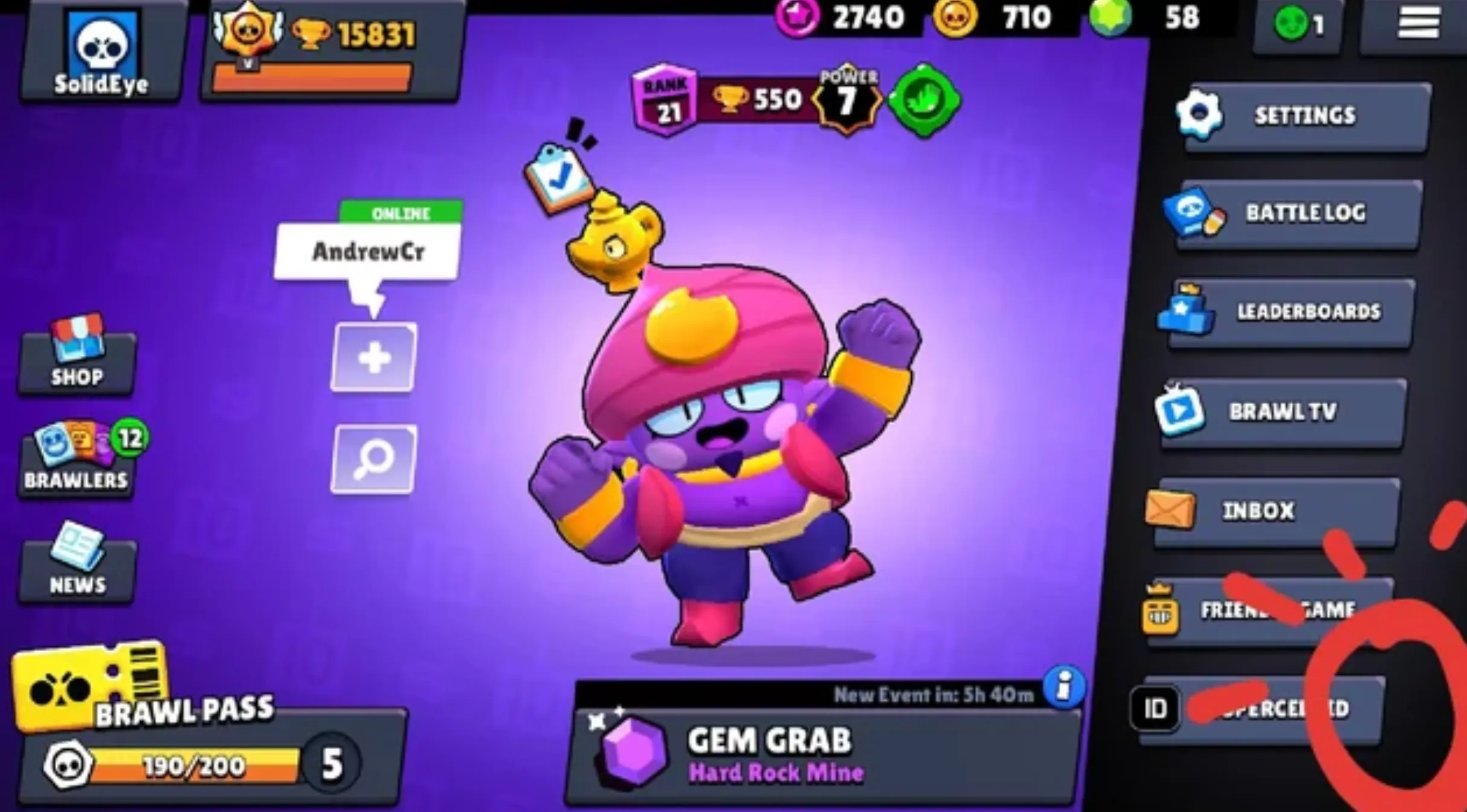
The easiest and most reliable way to move between multiple Brawl Stars accounts is through Supercell ID. Once your profiles are connected to different email addresses, switching between them only takes a few seconds, and the process works the same on both Android and iOS devices.
To switch accounts using Supercell ID, start by opening the game and accessing the settings menu. From there, sign out of the currently active Supercell ID. After logging out, the game will return to the main login screen where you can sign back in with another account.
Steps to switch accounts using Supercell ID:
1. Launch Brawl Stars and open the Settings menu by tapping the gear icon.
2. Tap the Supercell ID option and choose Log Out.
3. On the main screen, select Log In with Supercell ID.
4. Choose Use Another ID and enter the email connected to the account you want to access.
5. After confirming the login code, the game will load that account instantly.
If you’ve already used several Supercell IDs on the same device, switching becomes even faster. Open the Supercell ID menu in Settings and tap the small arrow icon to view your saved accounts. From there, you can simply select the profile you want to play without entering your details again.
Because Supercell ID stores your progress online, it’s the safest and quickest method for managing multiple Brawl Stars accounts.
How To Switch Brawl Stars Accounts on Android via Google Play
Players on Android can also switch accounts through Google Play Games if they are not using Supercell ID. This method relies on your device’s Google account system instead of logging in directly through the game. However, the process takes place mostly inside your phone’s settings rather than inside Brawl Stars itself.
Before launching the game, you’ll first need to add the second Google account to your device. Once the account is added, you can change which profile Google Play Games uses for saved game data.
Steps to switch Brawl Stars accounts through Google Play:
1. Open your device Settings and add the additional Google account you want to use.
2. Go to Google Settings and select All Services.
3. Tap Settings for Google Apps, then open Play Games.
4. Select Sign-in Account and look for the option labeled Change the default account for games.
5. Tap Change and choose the Google profile you want to use.
6. Launch Brawl Stars and select the account connected to that Google profile when prompted.
One important thing to remember is that Google Play saves can sometimes overwrite existing game data if accounts are mixed incorrectly. To avoid losing progress, it’s strongly recommended to link your main Brawl Stars account to Supercell ID before switching Google accounts. Skipping that step is one of the most common reasons players accidentally lose their saved progress.
How to Switch Brawl Stars Accounts on iOS Using Game Center
On iPhone and iPad, Brawl Stars can connect your progress to Game Center, which is Apple’s gaming profile system. Instead of linking accounts directly to iCloud or your main Apple ID, the game uses the Game Center profile currently signed in on the device. Because of this, each Brawl Stars account needs to be tied to a different Game Center profile if you want to switch between them.
Changing accounts on iOS usually involves signing out of the current Game Center account and logging into another one connected to the profile you want to use. Once you launch the game again, Brawl Stars will automatically load the account linked to that Game Center profile.
Steps to switch Brawl Stars accounts on iOS:
1. Open your iPhone or iPad Settings.
2. Tap your name or Apple ID at the top of the screen.
3. Scroll down and select Game Center.
4. Tap Sign Out to disconnect the current Game Center profile.
5. Sign back in using the Apple ID connected to the other Brawl Stars account.
6. Launch Brawl Stars, and the game will automatically load the profile tied to that Game Center login.
If your account is not connected to a Supercell ID, iOS usually limits you to one Brawl Stars profile per device. This is why many players eventually link their accounts to Supercell ID. Doing so allows you to switch profiles directly from the in-game menu instead of repeatedly signing in and out of Game Center.
For players who regularly manage multiple accounts on iPhone, using Supercell ID for each profile is usually the easiest long-term solution. It simplifies switching accounts and reduces the chances of accidentally loading the wrong save data.
How To Set Up Multiple Brawl Stars Accounts on One Device
Running more than one Brawl Stars account on the same device is completely possible, but each profile needs to be connected to its own Supercell ID. Since Supercell IDs are tied to email addresses, every account you create must use a different email. This allows the game to treat each profile as a separate save while still letting you switch between them easily.
Once each account is properly registered, the device can store them locally, making it much faster to move between profiles without repeating the entire login process every time.
Steps to set up multiple Brawl Stars accounts:
1. Open Brawl Stars and go to the Settings menu.
2. Tap Supercell ID and choose Log Out of the current account.
3. On the main screen, select Play Without Supercell ID to start a new profile.
4. Open Settings again and tap Supercell ID, then choose Register New.
5. Enter a new email address and confirm the login code sent to your inbox.
6. Enable “Remember me on this device” so the account stays saved on your phone or tablet.
Enabling the “Remember me” option is important. It allows your device to store the account details locally, meaning you won’t need to enter verification codes every time you switch accounts. Once several profiles are saved, you can quickly swap between them directly from the Supercell ID menu in the game.
Brawl Stars Account Switching Problems and Solutions
Switching accounts in Brawl Stars is usually quick and straightforward, but players occasionally run into a few common issues. Most of these problems are easy to fix once you know what’s causing them.
Verification Code Not Arriving
If the Supercell verification code doesn’t appear in your inbox, the first place to check is your spam or junk folder. Some email providers automatically filter automated login emails, which can delay or hide the message. Adding Supercell’s email domain to your safe sender list can help prevent this from happening again.
Another thing to remember is that only the newest code works. If you request several codes in a short time, the earlier ones will automatically become invalid. Wait a moment for the most recent code and use that one.
If the email still doesn’t arrive after several attempts, open the Help and Support section inside the game and contact Supercell support directly. They can assist with account access if the problem continues.
Wrong Account Loading After Switching
Sometimes the game may load a different profile than expected. This usually happens when the device is signed into the wrong Google account or Apple ID, or when the game syncs incorrectly with Supercell’s servers.
Before assuming your progress has been lost, log out and confirm which account is currently connected both inside the game and at the device level. In most cases, simply logging back in with the correct Supercell ID will restore your progress immediately.
Locked Out After Switching Devices
If you log into multiple accounts on a new device very quickly, the system may temporarily block additional logins. This is a security measure designed to detect unusual activity.
When this happens, wait a few minutes before trying again and make sure you are entering the correct Supercell ID for each account. If the issue continues, clearing the game cache or reinstalling the app can resolve potential data conflicts.
It’s also best to avoid logging into the same account on several devices at the same time. If the lockout doesn’t clear, contacting Supercell support through the in-game help menu and providing your player tag will help resolve the problem faster.
FAQs
Can you use multiple Brawl Stars accounts on the same device?
Yes, it’s possible to manage several Brawl Stars accounts on one phone or tablet. Each profile simply needs to be connected to its own Supercell ID with a different email address. When the accounts are saved on the device and the “Remember me” option is enabled, switching between them becomes quick and only takes a few seconds.
Will switching accounts delete my Brawl Stars progress?
No. As long as your profile is linked to a Supercell ID before switching, your progress remains completely safe. Your trophies, brawlers, skins, and other items stay attached to that account and will reload exactly as they were the next time you log back in.
Is it allowed to switch between Brawl Stars accounts?
Yes, switching accounts itself isn’t against the rules. Many players use different profiles for practice or to try new strategies. However, using multiple accounts to exploit matchmaking, boost trophies unfairly, or interact with your own accounts to gain an advantage can lead to penalties.
What should I do if my Supercell verification code isn’t arriving?
Start by checking your spam or junk folder, since verification emails sometimes get filtered there. Make sure the email address was entered correctly and wait a minute before requesting another code, because only the newest code will work. If the problem keeps happening, the fastest solution is to contact Supercell through the in-game Help and Support section.
Conclusion
Switching between Brawl Stars accounts on Android and iOS is much easier today than it used to be, mainly thanks to the Supercell ID system. Once each account is properly linked to its own email, you can move between profiles in seconds without risking your progress. Whether you’re testing strategies on a secondary account, sharing a device with someone else, or simply managing multiple profiles, the process is straightforward when everything is set up correctly. Just make sure every account is connected to a Supercell ID and saved on your device, and switching accounts will stay quick, safe, and hassle-free whenever you want to jump into a different profile.
Posted On: March 12th, 2026
Recent Articles


Our 1v9 support team is available 24/7 to help you with any questions or issues you may have.
support@1v9.gg


-a6d5b3e156bb.webp)





Loading...
1v9.gg is not endorsed or affiliated by any game developers or publishers.
2026 1v9, All Rights Reserved, Created By Ritesh (riteshsahoo.com)