

How to Play Mobile Legends on Mac Safely (2026)
You can play Mobile Legends: Bang Bang on a Mac in three practical ways: run the Android version through BlueStacks Air on an Apple-silicon Mac, use another current macOS Android emulator such as MuMuPlayer Pro, or mirror the game from an iPhone. MLBB does not have a native macOS client, so every method involves a compatibility layer or a phone.
Last verified: August 26, 2026
For most M-series Macs, BlueStacks Air is the most complete option because it installs MLBB from Google Play and supports configurable controls. If you want to keep the game running on your iPhone, Apple’s iPhone Mirroring is simpler, but input feel and regional availability are limitations.
Which method is best for your Mac?
| Method | Best for | What you need | Main limitation |
|---|---|---|---|
| BlueStacks Air | Installing the Android game and creating keyboard controls | Apple-silicon Mac, macOS 11 or newer, 8 GB RAM minimum | Third-party emulator; no current Intel-Mac build |
| MuMuPlayer Pro | An alternative Android environment on Apple silicon | Compatible M-series Mac and a separate emulator install | Third-party, with paid features and changing compatibility |
| iPhone Mirroring | Using the existing iOS installation in a Mac window | macOS Sequoia 15+, iOS 18+, same Apple Account and nearby devices | Not available in every region; less suitable for competitive inputs |
An M1, M2, M3 or M4 Mac is the clearest fit for an emulator. BlueStacks states that Air supports Apple-silicon Macs and lists 8 GB of RAM as the minimum, with 16 GB recommended. Intel Macs can use iPhone Mirroring only if the Mac has Apple’s T2 Security Chip and meets Apple’s other requirements. AirPlay screen mirroring also works on supported hardware, but you continue controlling the game on the phone.
How to install Mobile Legends with BlueStacks Air
- Open the official BlueStacks Air installation guide and download the macOS package from BlueStacks. Avoid download mirrors.
- Open the downloaded .pkg file and complete the macOS installer. Approve only the permissions needed for the emulator and its controls.
- Launch BlueStacks Air, open Google Play and sign in with a Google account you control.
- Search for Mobile Legends: Bang Bang, confirm the publisher and install the current Play Store listing.
- Open MLBB and sign in through the same account-binding method used on your phone. Let the game download its current resources before joining a match.
- Open the emulator’s controls editor and bind movement, basic attack, skills, camera and shop buttons. Test the layout in Training Camp before playing Ranked.
If you also use Windows, the setup and emulator choices differ; see the separate Mobile Legends PC guide rather than following Mac-specific steps on a PC.
MuMuPlayer Pro is the main Mac alternative
MuMuPlayer Pro is another Android emulator with an official Apple-silicon build. Download it only from the MuMuPlayer Mac support page, install MLBB through its supported app-store route, and configure key mapping before entering a real match.
It is an alternative, not a required second installation. Pricing, supported Android versions and per-game compatibility can change, so confirm the current terms before paying. The old version of this article listed LDPlayer as a Mac option; LDPlayer’s current desktop product is for Windows, so it has been removed from the macOS recommendations.
How to play through iPhone Mirroring
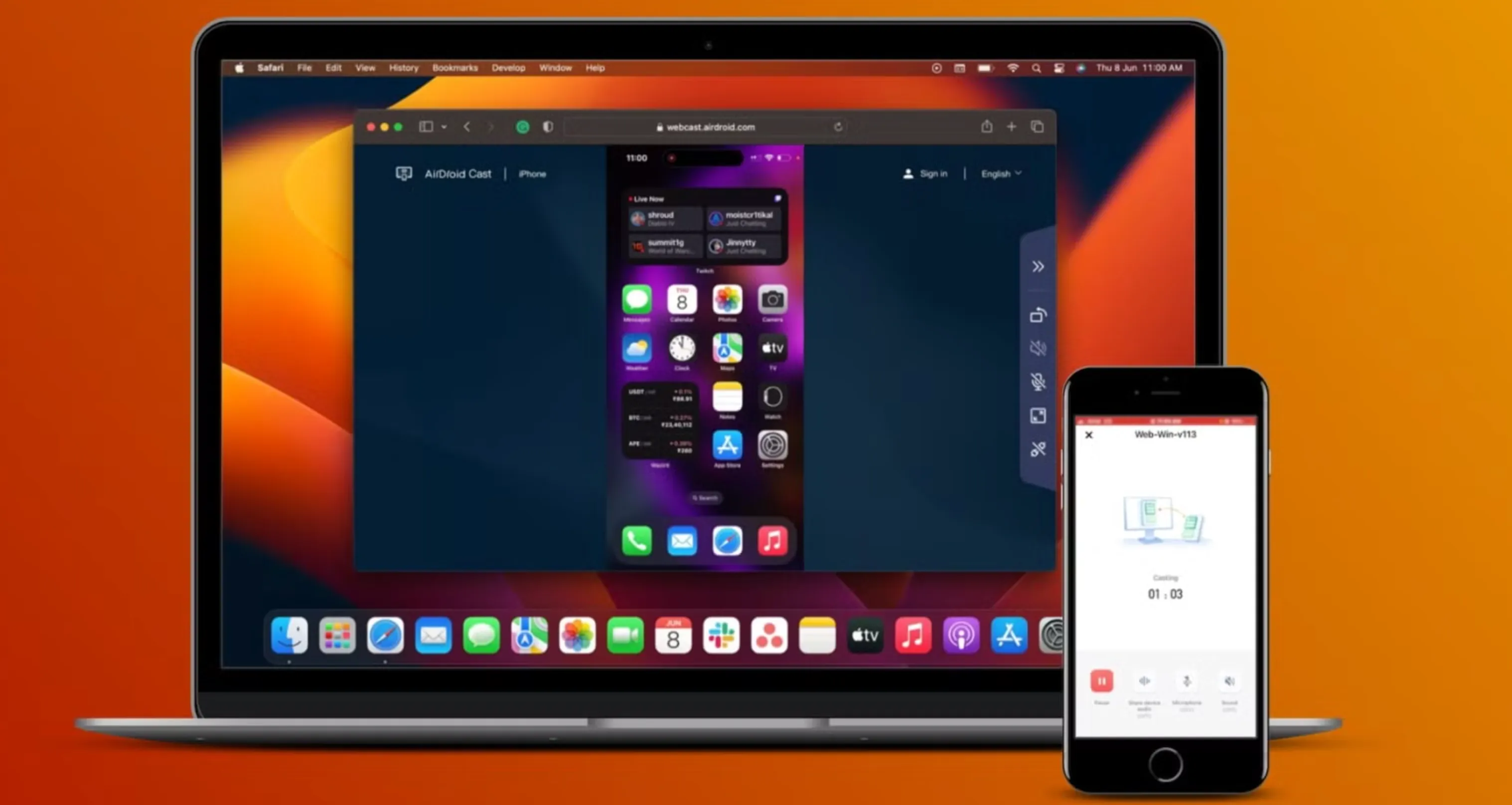
Apple’s iPhone Mirroring keeps MLBB running on your iPhone while showing and controlling the phone from a Mac window. Apple requires macOS Sequoia 15 or later, iOS 18 or later, Bluetooth and Wi-Fi enabled, the same Apple Account with two-factor authentication, and nearby devices. The iPhone must be locked while the Mac controls it.
- Install MLBB on the iPhone and confirm that your account is bound.
- On the Mac, open iPhone Mirroring from Applications, then follow the device-pairing prompts.
- Unlock the iPhone when prompted, finish the first connection, then lock it again.
- Open MLBB from the mirrored iPhone Home Screen. Landscape content expands automatically when supported.
- Test movement and skill aiming in a non-ranked mode. If latency or gestures feel inconsistent, return to direct touchscreen play.
Regional limitation: Apple says iPhone Mirroring is currently unavailable in the European Union. Availability can also depend on managed-device settings. AirPlay can display the phone on a Mac, but controls remain on the iPhone.
Bind and protect your MLBB account first
Before moving between devices, open MLBB’s Account Center and bind the profile to a login method you control. Confirm the displayed account ID, server and progress before disconnecting anything. Never give an emulator website, another player or a support impersonator your password, verification code or recovery code.
BlueStacks Air and MuMuPlayer Pro are third-party emulators, not official Moonton Mac clients. Use unmodified software from the developer’s official site, keep MLBB updated through the app store, and recheck current tournament or competition rules before using an emulator in organized play. No guide can promise that a third-party compatibility layer will remain supported after every game update.
Performance and control settings that matter
- Start conservatively: use a moderate resolution and frame-rate setting, then increase them only if matches remain stable.
- Leave memory for macOS: closing browsers, video editors and other heavy apps helps more than assigning every CPU core or all available RAM to the emulator.
- Build a complete key map: bind every skill, cancel-cast action, shop, recall, camera movement and communication key. A missing cancel or targeting input is costly in real matches.
- Keep targeting predictable: match the emulator layout to your in-game targeting preferences. The current MLBB settings guide explains graphics, controls and targeting in more detail.
- Use a stable connection: keep the Mac near the router or use Ethernet through an adapter. Mirroring adds another wireless link, so it can feel less direct than playing on the phone.
Keyboard and mouse controls are different from touchscreen muscle memory. Use Classic or Training Camp while adapting; the Mobile Legends beginner guide can help you separate setup problems from positioning and role mistakes.
Fix common Mac problems
MLBB is not visible in Google Play
Update the emulator, confirm that its Android profile and region are supported, and clear the Play Store cache through Android settings. Do not install a modified APK from an unknown site as a workaround.
The emulator stutters or overheats the Mac
Lower resolution and frame rate, close background apps, restart the emulator, and give the Mac airflow. Avoid allocating all system resources to Android. If the problem began after an emulator or game update, check the developer’s support page before reinstalling.
iPhone Mirroring cannot find the phone
Confirm both devices use the same Apple Account with two-factor authentication, enable Bluetooth and Wi-Fi, keep the devices nearby and check that the iPhone is locked. Personal Hotspot and active AirPlay sessions can prevent the connection.
Your progress did not appear
Stop before creating purchases or changing bindings. Check the account ID, login provider, server and region. A fresh guest profile is not proof that the original account was erased; it usually means the wrong login method opened.
FAQ
Is Mobile Legends available natively for macOS?
No native MLBB Mac client was available when this guide was checked. BlueStacks Air and MuMuPlayer Pro run an Android environment; iPhone Mirroring keeps the iOS game on the phone.
Can an Intel Mac run BlueStacks Air?
BlueStacks Air currently targets Apple-silicon Macs. An Intel Mac with Apple’s T2 chip may meet the hardware requirement for iPhone Mirroring, but it must also run macOS Sequoia 15 or later.
Will MLBB progress sync to a Mac emulator?
It should load when you sign in through the same bound account and the correct server. A guest account is tied to local app data and should be bound before changing devices.
Can you buy Diamonds from the Mac?
You can use MLBB’s supported purchase route inside the version you installed. If you compare an external Mobile Legends Diamond top-up, verify the player ID, server and amount before paying; cosmetics and currency do not improve emulator performance.
Bottom line
Use BlueStacks Air if you have an M-series Mac and want a full Android install with configurable controls. Use iPhone Mirroring when you prefer to keep MLBB on your iPhone and meet Apple’s availability requirements. Whichever route you choose, bind the account first, download software only from its official source and test inputs outside Ranked before trusting the setup.
Sources and update policy
Compatibility was checked against Apple’s iPhone Mirroring requirements and AirPlay instructions, plus current BlueStacks Air and MuMuPlayer Pro support documentation. Emulator requirements and game compatibility can change, so 1v9 reviews this page after significant macOS, emulator or MLBB updates.
Posted On: January 23rd, 2026
Recent Articles


Our 1v9 support team is available 24/7 to help you with any questions or issues you may have.
support@1v9.gg


-a6d5b3e156bb.webp)





Loading...
1v9.gg is not endorsed or affiliated by any game developers or publishers.
2026 1v9, All Rights Reserved, Created By Ritesh (riteshsahoo.com)