

How to Play Clash Royale on Mac: Step-by-Step Guide
Clash Royale is one of Supercell’s most popular strategy games, mixing real-time card battles with quick matches and competitive PvP. While it’s designed for mobile on iOS and Android, a lot of players prefer playing on a bigger screen with a keyboard and mouse, especially during longer sessions or intense ladder climbs. The good news is that even though there’s no official Mac version of Clash Royale, you can still play it smoothly on macOS using a few reliable methods. In this guide, we’ll walk through the best ways to play Clash Royale on Mac, explain what you need to get started, and help you choose the option that fits your setup the best.
1. Android Emulators
Android emulators are one of the most popular ways to play mobile games on a Mac. They work by creating a virtual Android device on your computer, letting you install and run apps just like you would on a phone or tablet. This means you can play Clash Royale on macOS without owning an Android device at all.
BlueStacks is the most commonly used option on Mac. After installing it, you can sign in with your Google account, download Clash Royale directly from the Google Play Store, and start playing on a larger screen using your mouse and keyboard. Your progress carries over automatically as long as you log into the same Supercell account you use on mobile.
Pros
• Full access to the Google Play Store
• Much bigger screen than a phone
• Mouse and keyboard support for easier controls
• Free to install and use
• Syncs with your existing Clash Royale account
Cons
• Can be demanding on system resources, especially on older Macs
• Includes ads unless you upgrade to a paid plan
• Performance depends heavily on your Mac’s hardware
• Some UI elements may not scale perfectly to large screens
• Occasional crashes or bugs can happen during updates
2. iPhone Screen Mirroring
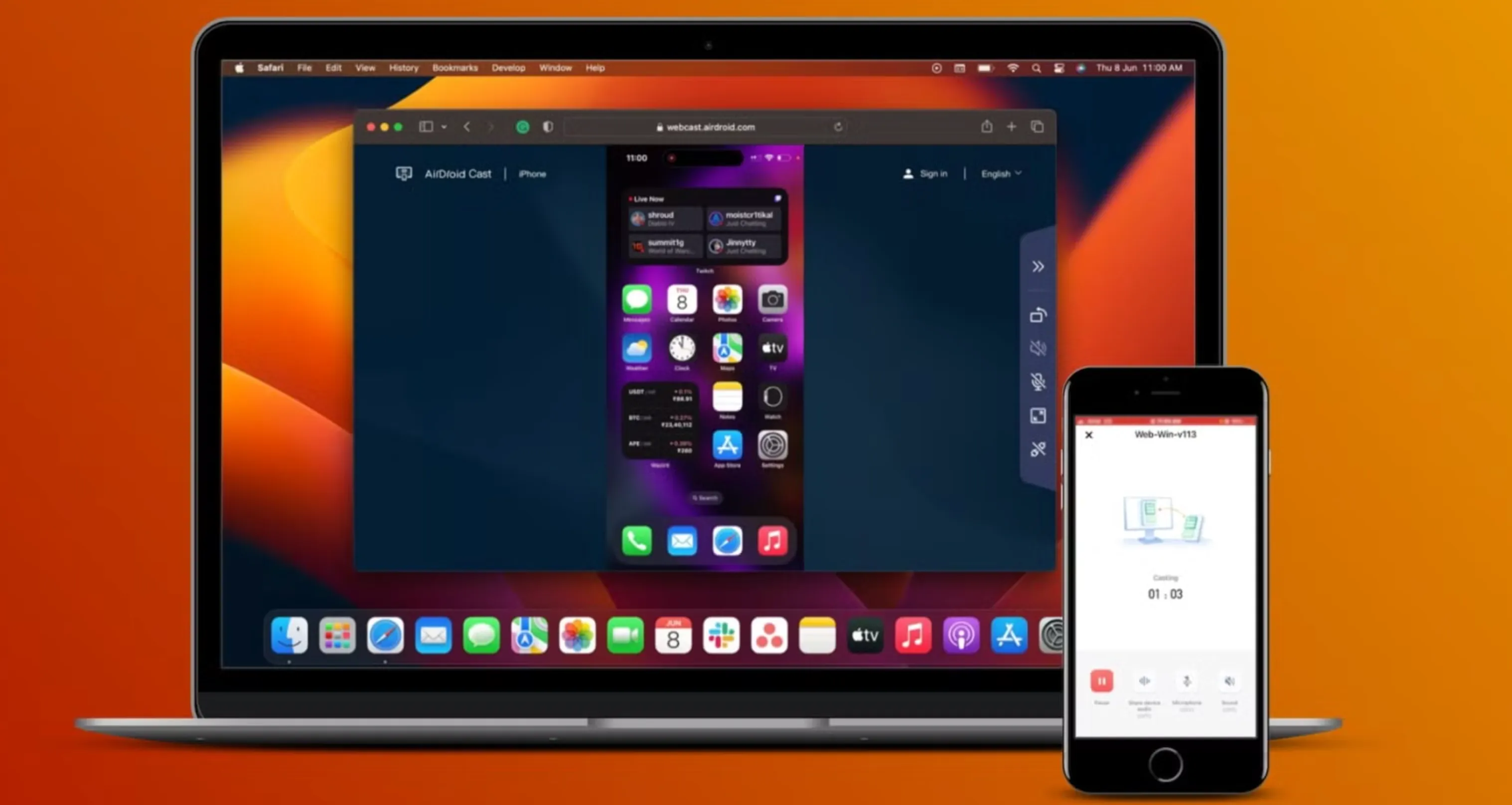
Another solid way to play Clash Royale on a Mac is by using Apple’s built-in iPhone screen mirroring feature. Introduced in 2024, this tool lets you see and control your iPhone directly from your Mac without installing any extra apps or emulators. Everything runs through Apple’s own system, so setup is simple and stable.
On macOS Sequoia, the iPhone Mirroring app comes preinstalled. Once you open it, your Mac connects to your iPhone automatically using Wi-Fi and Bluetooth. Your phone’s screen appears in a window on your desktop, and you can interact with it using your mouse, trackpad, and keyboard, just as if you were holding the phone in your hands.
For Clash Royale, this is as close as it gets to playing the game natively on Mac. Since the game is running directly on your iPhone, all progress stays perfectly synced with your Supercell account. The bigger display makes matches easier to follow, while typing in clan chat feels much faster on a keyboard. Game audio is also routed through your Mac’s speakers, which usually sound better than a phone’s.
Your iPhone does need to stay locked and close to your Mac during the session, but aside from that, the experience is smooth and very reliable.
Pros
• Built directly into macOS, no downloads needed
• True mobile gameplay since you’re using your real iPhone
• Progress syncs instantly with your Clash Royale account
• Mouse and keyboard support for easier interaction
• Game audio plays through Mac speakers
• Free to use with no ads or subscriptions
• No extra strain on your Mac’s performance
Cons
• Requires macOS Sequoia (15+) and iOS 18
• Needs an Apple Silicon Mac (M1 or newer) or a T2 chip
• iPhone must stay nearby and locked while playing
• You can’t use your iPhone separately during mirroring
• Both devices must be logged into the same Apple ID
• Wi-Fi and Bluetooth must stay enabled
• Not available in the EU
• Limited to one Mac and one iPhone connection at a time
Conclusion
Playing Clash Royale on a Mac is completely doable, even without an official desktop version. Whether you prefer the flexibility of an Android emulator or the seamless experience of Apple’s iPhone screen mirroring, each method offers a reliable way to enjoy the game on a bigger screen. Emulators are great if you want full keyboard and mouse control without needing your phone nearby, while iPhone mirroring is the best choice for players who want the smoothest, most authentic experience with zero setup hassle. In the end, the right option depends on your Mac, your setup, and how closely you want to replicate mobile gameplay, but either way, you can battle, climb trophies, and manage your deck comfortably from your Mac.
Posted On: January 23rd, 2026
Recent Articles


Our 1v9 support team is available 24/7 to help you with any questions or issues you may have.
support@1v9.gg


-a6d5b3e156bb.webp)





Loading...
1v9.gg is not endorsed or affiliated by any game developers or publishers.
2026 1v9, All Rights Reserved, Created By Ritesh (riteshsahoo.com)