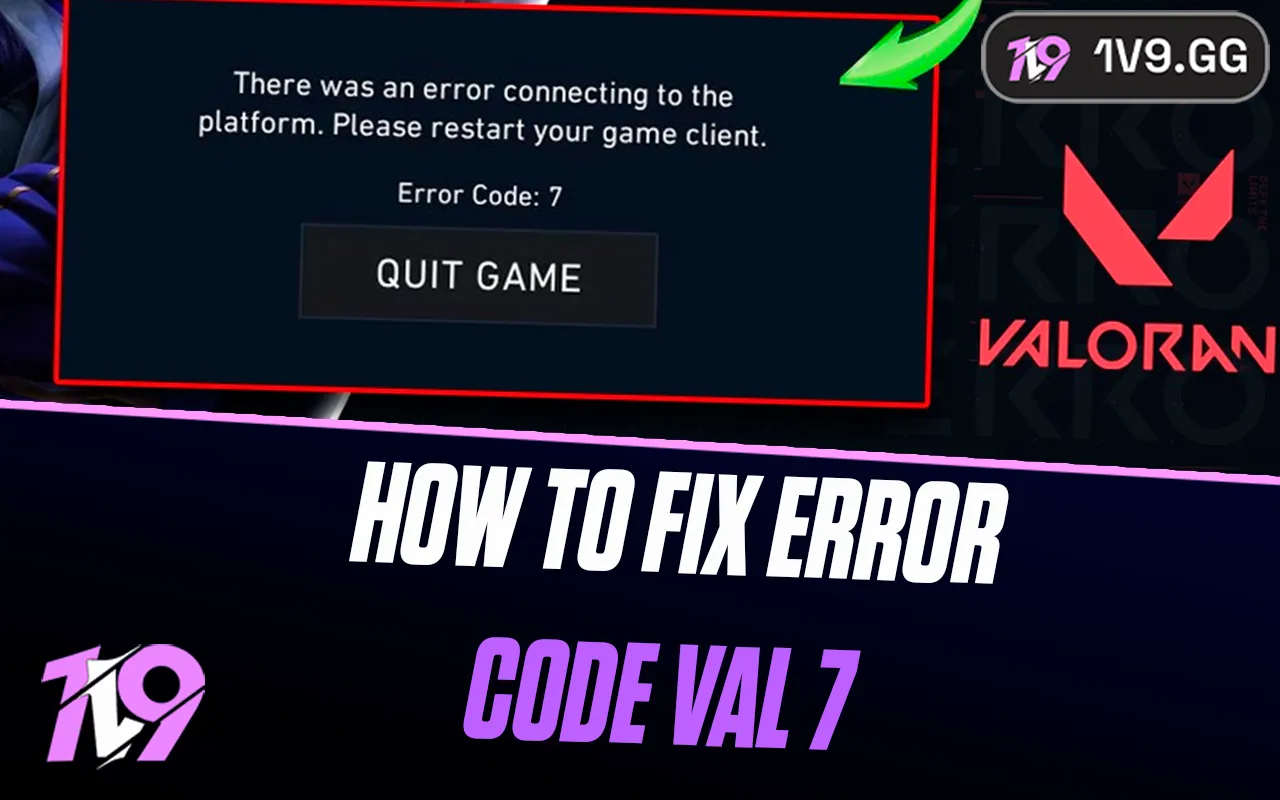


Valorant Error Code VAL 7: Quick Fix Guide
Valorant Error Code VAL 7 usually shows up when something blocks your account from connecting to Riot’s servers, and it can feel especially annoying when you just want to jump into a match. This issue is often linked to account restrictions, login problems, or server-side checks rather than in-game bugs. The good news is that it’s fixable once you understand what’s causing it. In this guide, we’ll break down what VAL 7 actually means, why it happens, and the most effective ways to fix it so you can get back into Valorant without wasting time guessing.
#1: Check Valorant Server Status
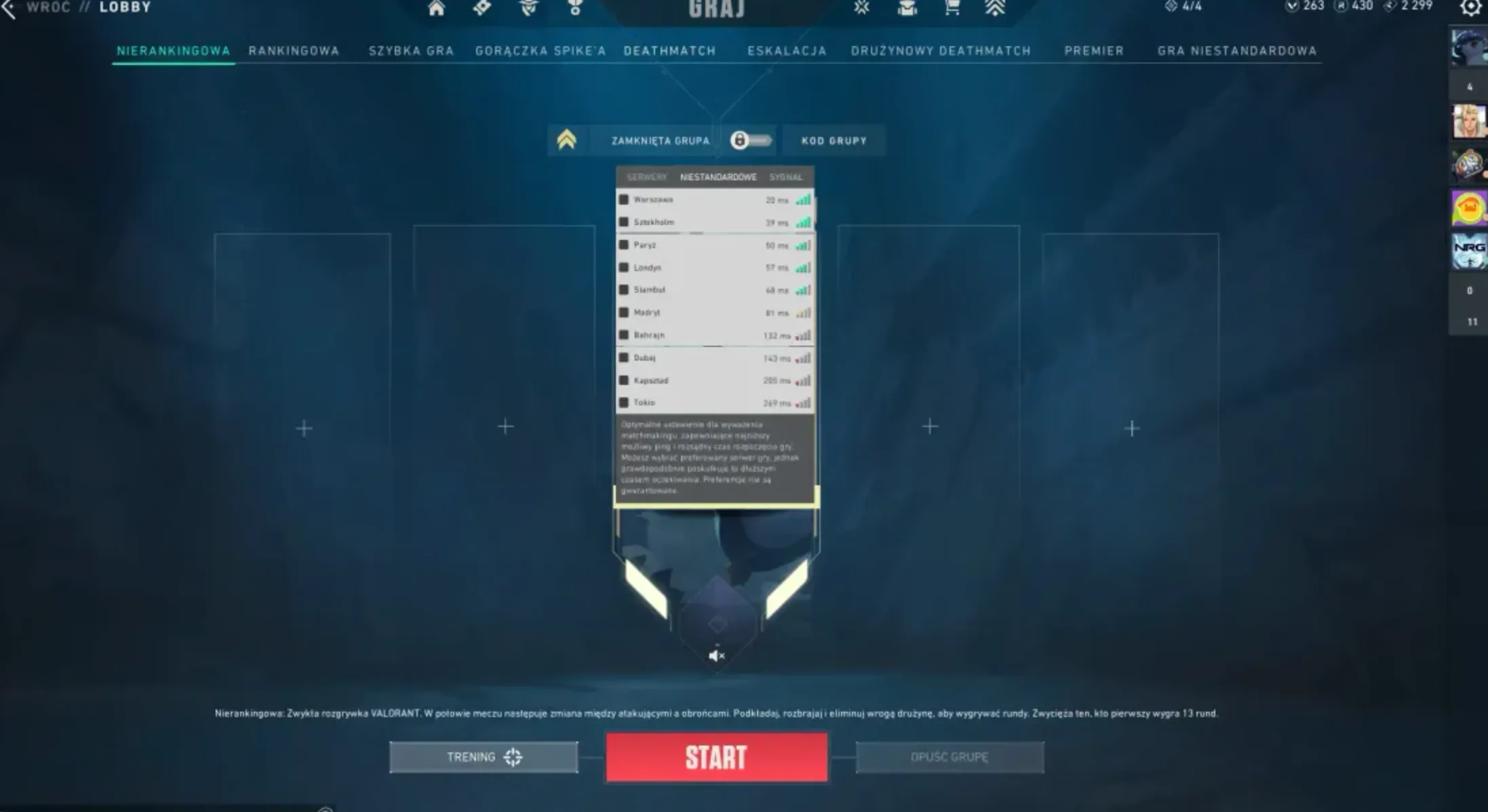
Before trying anything else, always make sure the problem isn’t on Riot’s side. Valorant Error Code VAL 7 can appear during server outages or maintenance periods. Head to Riot Games’ official service status page, choose your region, and check if Valorant or Riot services are experiencing issues. This page updates live and clearly shows ongoing problems or scheduled downtime. For extra confirmation, you can also look at community sites like Down Detector, where players report issues in real time. If many users are reporting problems at the same time, the best fix is simply waiting until Riot resolves it.
#2: Check and Restart Your Internet Connection
Connection problems can trigger VAL 7 even if everything else on your internet seems to work fine. Start by running a quick speed test to confirm your connection is stable and fast enough for online play. After that, fully power down your modem and router, wait at least 30 seconds, then turn them back on to refresh the network. If you’re using a VPN, disable it for now, as VPNs can block or reroute traffic in a way that interferes with Valorant’s servers. To narrow things down further, try launching the game on a different network, such as a mobile hotspot. If Valorant works there, the issue is likely tied to your main internet connection or router settings.
#3: Update and Reinstall Vanguard
Vanguard plays a critical role in allowing Valorant to run and connect properly, so any issue with it can trigger Error Code VAL 7. If the anti-cheat isn’t working as intended, a fresh reinstall is often the best solution. Start by fully closing Valorant and the Riot Client, then open Task Manager and make sure no Riot or Valorant processes are still running. Next, uninstall Riot Vanguard either from the system tray icon or through Windows’ Apps and Features menu. To ensure nothing is left behind, open Command Prompt as an administrator and remove the leftover services using the commands sc delete vgc and sc delete vgk. Once that’s done, restart your PC and launch Valorant again. The game will automatically reinstall Vanguard with clean files, which often fixes VAL 7 and restores normal connectivity.
#4: Modify the VGS Service Startup Type
Valorant relies on the Vanguard service running correctly in the background, so if it’s not set up properly, VAL 7 can appear. To check this, open the Run dialog with Windows + R, type services.msc, and press Enter. Scroll through the list until you find the Vanguard-related service (VGS). Open its properties and change the startup type to Automatic so it launches with your system. If the service isn’t currently running, start it manually from the same menu. This makes sure Vanguard has the access it needs before Valorant launches, which often clears connection-related errors like VAL 7.
#5: Contact Riot Support
If you’ve tried every fix on your end and VAL 7 still won’t go away, the next step is contacting Riot Games Support directly. Open a support ticket and clearly explain what’s happening, including when the error appears and which troubleshooting steps you’ve already tried. This helps speed things up and avoids getting generic replies. Riot’s support team can check your account status, look into deeper connection problems, and confirm whether the issue is tied to IP restrictions, regional blocks, or account-related limitations. In some cases, only Riot can lift these restrictions or apply a backend fix, making this the final and most reliable solution when nothing else works.
Conclusion
Valorant Error Code VAL 7 can be frustrating, but in most cases it’s fixable with the right approach. By checking server status, making sure Vanguard is working properly, resetting your network, and verifying key services, you can usually pinpoint the cause and get back into the game quickly. If none of the local fixes work, reaching out to Riot Games Support is the best final step, as some issues can only be resolved on their end. With a bit of patience and the steps covered in this guide, you’ll be back in Valorant and ready to queue up again without the VAL 7 error holding you back.
Posted On: January 16th, 2026
Recent Articles


Our 1v9 support team is available 24/7 to help you with any questions or issues you may have.
support@1v9.gg

-a6d5b3e156bb.webp)





Loading...
1v9.gg is not endorsed or affiliated by any game developers or publishers.
2026 1v9, All Rights Reserved, Created By Ritesh (riteshsahoo.com)