- Home
Games
 League of Legends
 Valorant
-a6d5b3e156bb.webp) Fortnite
Fortnite Call of Duty
 Clash of Clans
 Counter-Strike 2
 Roblox
 Rainbow Six Siege
 Clash Royale
 Minecraft
 Rocket League
 Dota 2
 Genshin Impact
 Squad Busters
 Rust
Rust Apex Legends
 Pokemon Go
 XDefiant
 LoL: Wild Rift
 Hay Day
 Diablo 4
 FC 25
FC 25 Marvel Rivals
 World of Warcraft
 Destiny 2
 Deadlock
-9ede9dc6b01b.webp) PUBG Mobile
PUBG Mobile The Finals
 Growtopia
 Forza Horizon 5
 Honkai: Star Rail
 Warframe
 8 Ball Pool
 Zenless Zone Zero
 Path of Exile
 Runescape 3
 Raid: Shadow Legends
 Lost Ark
 WoW: Classic Era
 Summoners War
 WoW: Season of Discovery
 WoW Cataclysm
 WoW: Hardcore
 Throne and Liberty
 New World
 Mobile Legends
 Escape From Tarkov
 Path of Exile 2
 Blade Ball
 Fisch
Fisch Pet Simulator 99
 Pets Go
-d8bcef7708c7.webp) One Piece Bounty
One Piece Bounty Anime Adventures
 Blox Fruits
 Adopt Me
 Murder Mystery 2
 Fragpunk
 Wuthering Waves
 Teamfight Tactics
 Free Fire
 Albion Online
 Black Desert Online
 Honor of Kings
 Brawl Stars
 Arena of Valor
 Call of Duty: Mobile
 Rematch
 Steal a Brainrot
 Grow a Garden
 FC 26
FC 26 Old School Runescape
 Plants vs Brainrots
 Overwatch
 Battlefield
 Arc Raiders
 Dragon Ball Legends
 Fallout 76
 Jailbreak
 Type Soul
 GPO
GPO DonutSMP
 Escape Tsunami For Brainrots
 Watcher of Realms
 Roblox Rivals
 2XKO
2XKO Sailor Piece
 Forza Horizon 6
 GTA 5
GTA 5- Lootboxes
- Become Affiliate
- Blog
- Contact Us
- Sign In
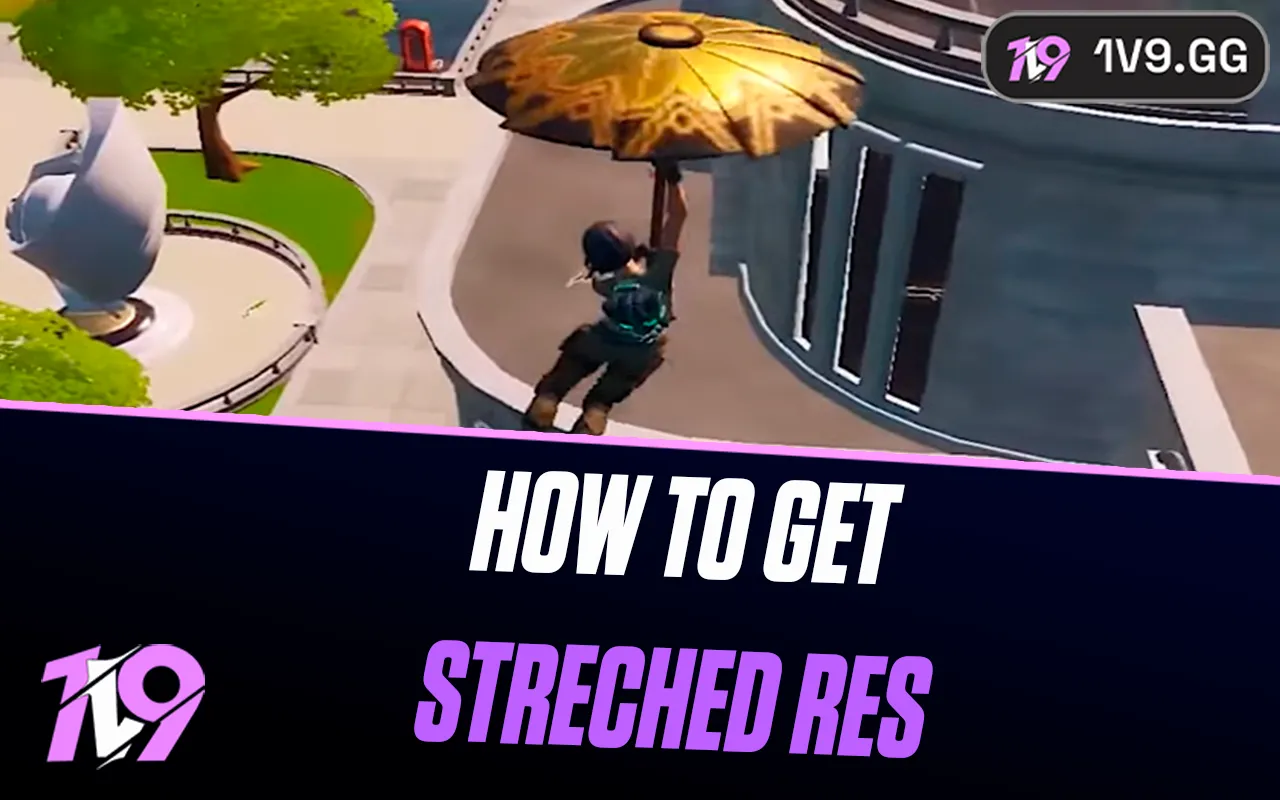

Stretch Resolution on Fortnite: How to Get Stretched Res
Fortnite drops players into fast-paced matches where every small advantage can make a real difference, especially in competitive modes like Battle Royale, Zero Build, and Reload. With so much on the line in each fight, many PC players look for ways to improve performance and visibility, and that’s where stretched resolution comes in. Using a stretched resolution can make enemy models appear wider, reduce visual clutter, and even help boost FPS on lower-end systems. That said, Epic Games doesn’t offer a simple toggle for this, so setting it up takes a bit of manual work and only works on PC. In this guide, we’ll break down exactly how to get stretched resolution in Fortnite, explain the different methods available, and share the best resolution values players commonly use to gain a competitive edge without risking their account.
#1: NVIDIA Control Panel Method
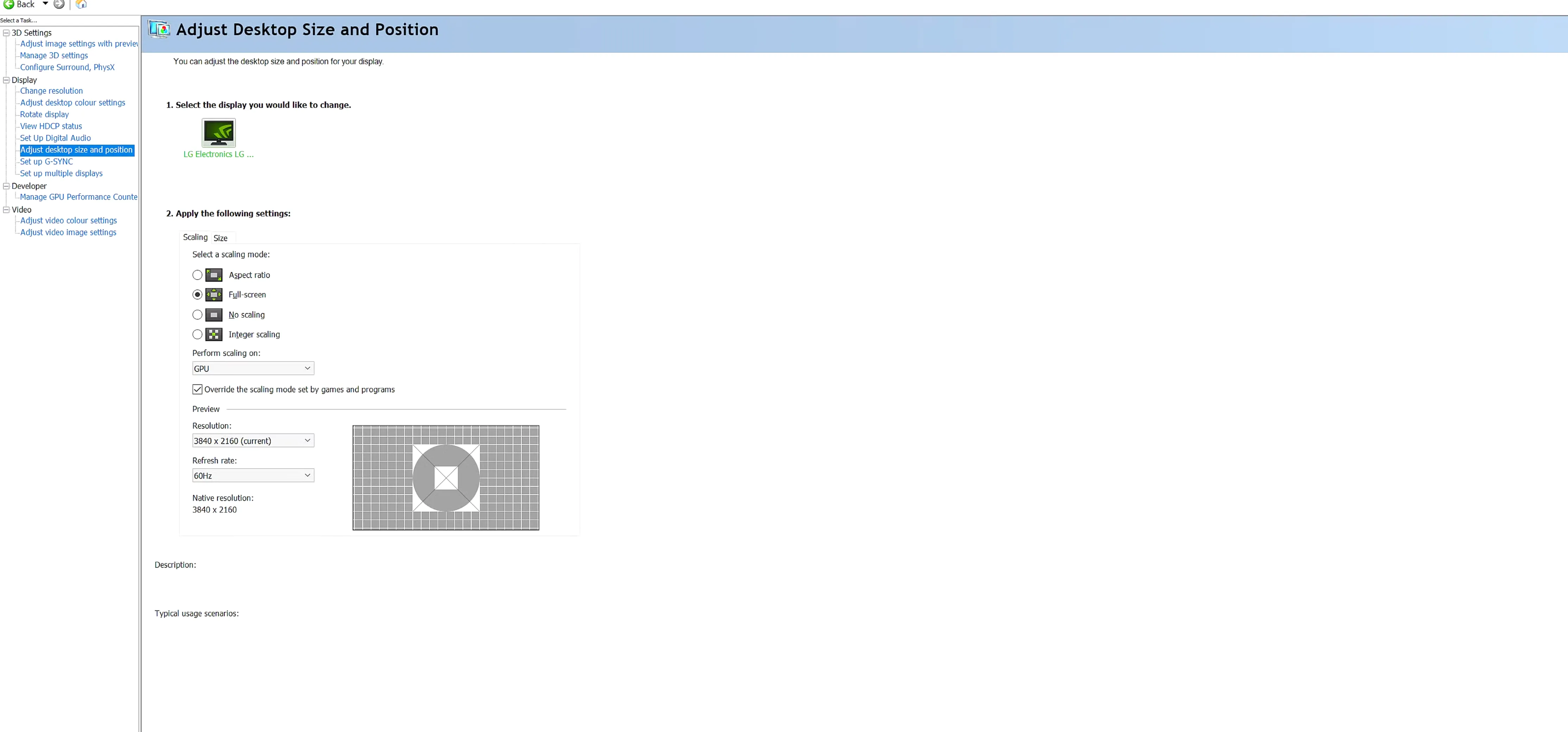
The NVIDIA Control Panel approach is the simplest and most reliable way to use stretched resolution in Fortnite, but it does require an NVIDIA graphics card. This method works system-wide, meaning it can be used across multiple games once set up correctly.
Start by opening NVIDIA Control Panel on your PC. Go to Adjust desktop size and position, then set Scaling Mode to Fullscreen and Perform scaling on to GPU. Make sure the option Override the scaling mode set by games and programs is enabled, as this is what allows stretched resolutions to work properly.
Next, move to the Change resolution section under Display. Click Customize, then select Create Custom Resolution. Here, you’ll enter your stretched resolution values. For example, if you want a popular stretched setup like 1350×1080, set Horizontal pixels to 1350 and Vertical lines to 1080. After entering the values, click Test, and confirm by selecting Yes if the screen displays correctly. Once saved, this resolution will appear under the Custom resolutions list.
Finally, launch Fortnite and open the in-game settings. Under the Display tab, set Window Mode to Windowed Fullscreen, then select your newly created custom resolution. Apply the settings, and your game will now run in stretched resolution, giving you a wider feel, potential FPS gains, and improved visibility during fights.
#2: Fortnite User Settings
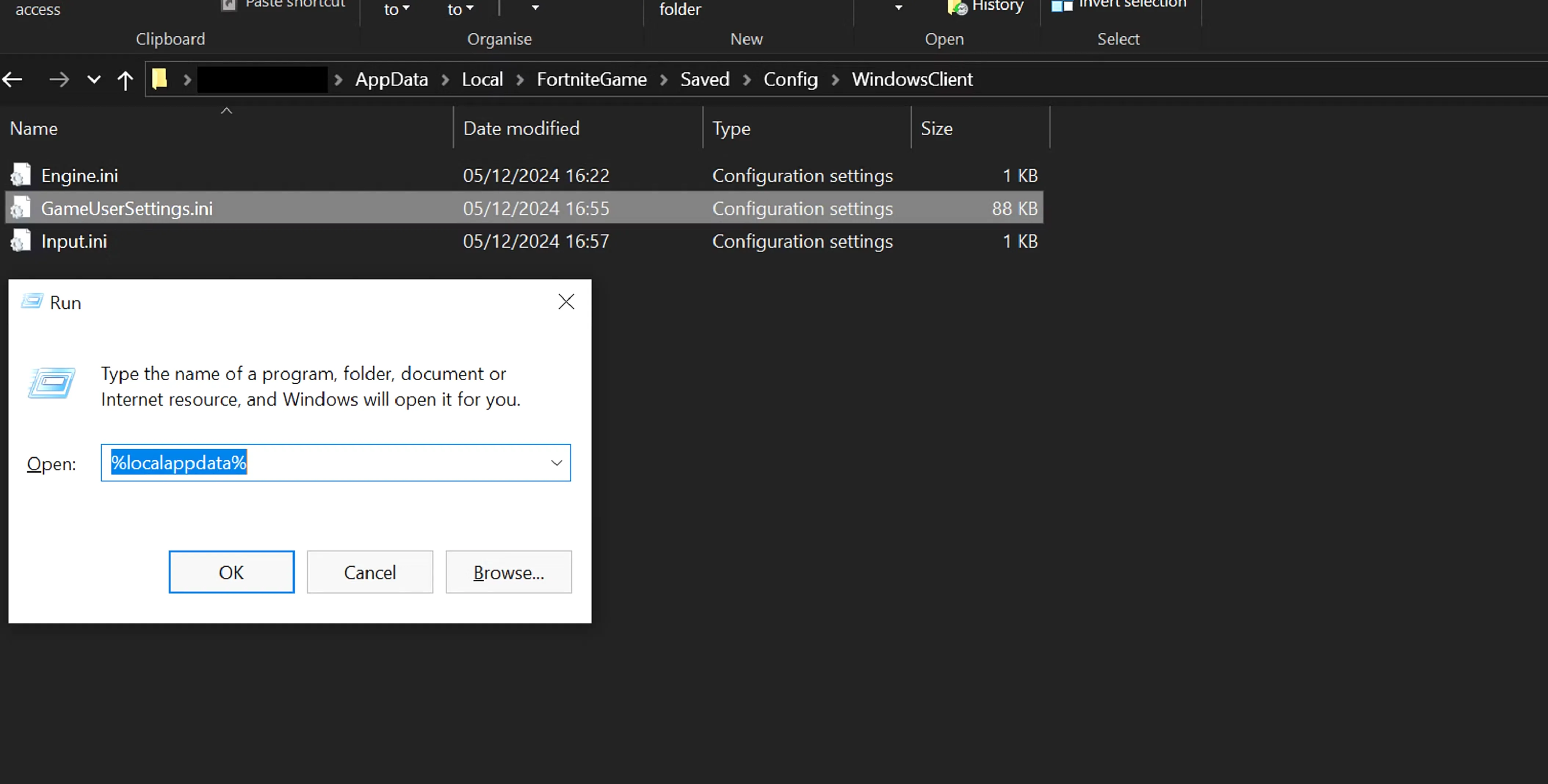
This method relies on editing Fortnite’s configuration files directly. It has been disabled in some past updates, but Epic has re-enabled similar behavior before, so it’s still worth knowing in case it works again in future seasons. This approach only works on PC and requires a bit more care than the NVIDIA method.
Start by opening the Run window with Windows + R, then type %localappdata% and press Enter. From there, open the FortniteGame folder, go into Saved, then Config, and finally WindowsClient. Inside this folder, look for a file called GameUserSettings.ini. Right-click it, choose Properties, uncheck Read-Only, and apply the change. Now open the file using Notepad.
Once the file is open, press Ctrl + F, search for ResolutionSizeX, and change both ResolutionSizeX and ResolutionSizeY to the stretched resolution you want. For example, for a stretched 1350×1080 setup, set ResolutionSizeX to 1350 and ResolutionSizeY to 1080. After that, search for DesiredScreenWidth and DesiredScreenHeight and set them to the exact same values.
When you’re done, save the file, right-click it again, return to Properties, re-enable Read-Only, and click Apply. Launch Fortnite, and if the method is currently supported, the game should load using the stretched resolution you set.
Best Stretched Resolution Settings in Fortnite
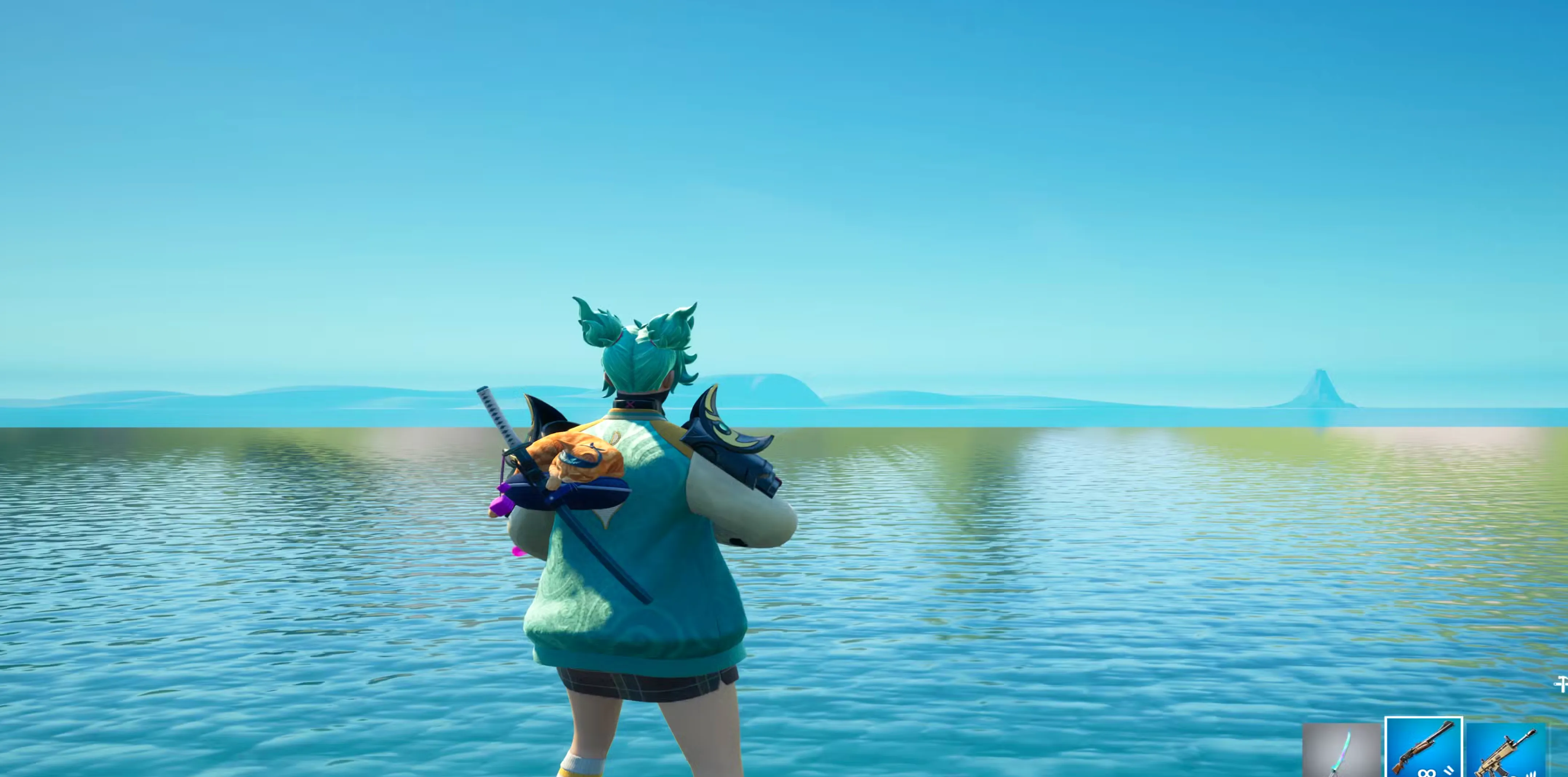
There isn’t a single “perfect” stretched resolution in Fortnite, since the best option depends on your PC, monitor, and personal preference. That said, many competitive players stick to a few proven resolutions that balance performance, visibility, and smooth gameplay. The main goal of using a stretched resolution is to gain higher FPS while making enemy models appear slightly wider on screen, which can make tracking targets feel easier.
Most players choose resolutions that keep the vertical resolution at 1080 while reducing the horizontal width. This keeps the image sharp while still delivering the stretched effect. Some of the most commonly used and tested stretched resolutions in Fortnite include 1750×1080, 1656×1070, 1600×1080, 1550×1080, and 1440×1080. For lower-end systems or players who want maximum performance, ultra-low options like 936×668 are also used, though they significantly reduce visual clarity.
It’s always a good idea to test a few different stretched resolutions in Creative or Team Rumble before settling on one. What feels smooth and comfortable for aiming matters far more than copying a pro player’s exact settings.
Conclusion
Using a stretched resolution in Fortnite is all about finding what feels right for you while gaining a small competitive edge. Whether you choose the NVIDIA Control Panel method or experiment with custom resolutions, stretched settings can help boost performance, improve FPS stability, and make targets feel easier to track on screen. Just remember that stretched resolution is a personal preference, not a magic setting, and it may take some trial and error to find the perfect balance for your setup. As long as you’re playing on PC and stick to safe configuration methods, stretched resolution can be a solid way to fine-tune your Fortnite experience and play at your best.
Posted On: December 26th, 2025
Recent Articles


Our 1v9 support team is available 24/7 to help you with any questions or issues you may have.
support@1v9.gg
Loading...
1v9.gg is not endorsed or affiliated by any game developers or publishers.
2026 1v9, All Rights Reserved, Created By Ritesh (riteshsahoo.com)