- Home
Games
 League of Legends
 Valorant
-a6d5b3e156bb.webp) Fortnite
Fortnite Call of Duty
 Clash of Clans
 Counter-Strike 2
 Roblox
 Rainbow Six Siege
 Clash Royale
 Minecraft
 Rocket League
 Dota 2
 Genshin Impact
 Squad Busters
 Rust
Rust Apex Legends
 Pokemon Go
 XDefiant
 LoL: Wild Rift
 Hay Day
 Diablo 4
 FC 25
FC 25 Marvel Rivals
 World of Warcraft
 Destiny 2
 Deadlock
-9ede9dc6b01b.webp) PUBG Mobile
PUBG Mobile The Finals
 Growtopia
 Forza Horizon 5
 Honkai: Star Rail
 Warframe
 8 Ball Pool
 Zenless Zone Zero
 Path of Exile
 Runescape 3
 Raid: Shadow Legends
 Lost Ark
 WoW: Classic Era
 Summoners War
 WoW: Season of Discovery
 WoW Cataclysm
 WoW: Hardcore
 Throne and Liberty
 New World
 Mobile Legends
 Escape From Tarkov
 Path of Exile 2
 Blade Ball
 Fisch
Fisch Pet Simulator 99
 Pets Go
-d8bcef7708c7.webp) One Piece Bounty
One Piece Bounty Anime Adventures
 Blox Fruits
 Adopt Me
 Murder Mystery 2
 Fragpunk
 Wuthering Waves
 Teamfight Tactics
 Free Fire
 Albion Online
 Black Desert Online
 Honor of Kings
 Brawl Stars
 Arena of Valor
 Call of Duty: Mobile
 Rematch
 Steal a Brainrot
 Grow a Garden
 FC 26
FC 26 Old School Runescape
 Plants vs Brainrots
 Overwatch
 Battlefield
 Arc Raiders
 Dragon Ball Legends
 Fallout 76
 Jailbreak
 Type Soul
 GPO
GPO DonutSMP
 Escape Tsunami For Brainrots
 Watcher of Realms
 Roblox Rivals
 2XKO
2XKO Sailor Piece
 Forza Horizon 6
 GTA 5
GTA 5- Lootboxes
- Become Affiliate
- Blog
- Contact Us
- Sign In
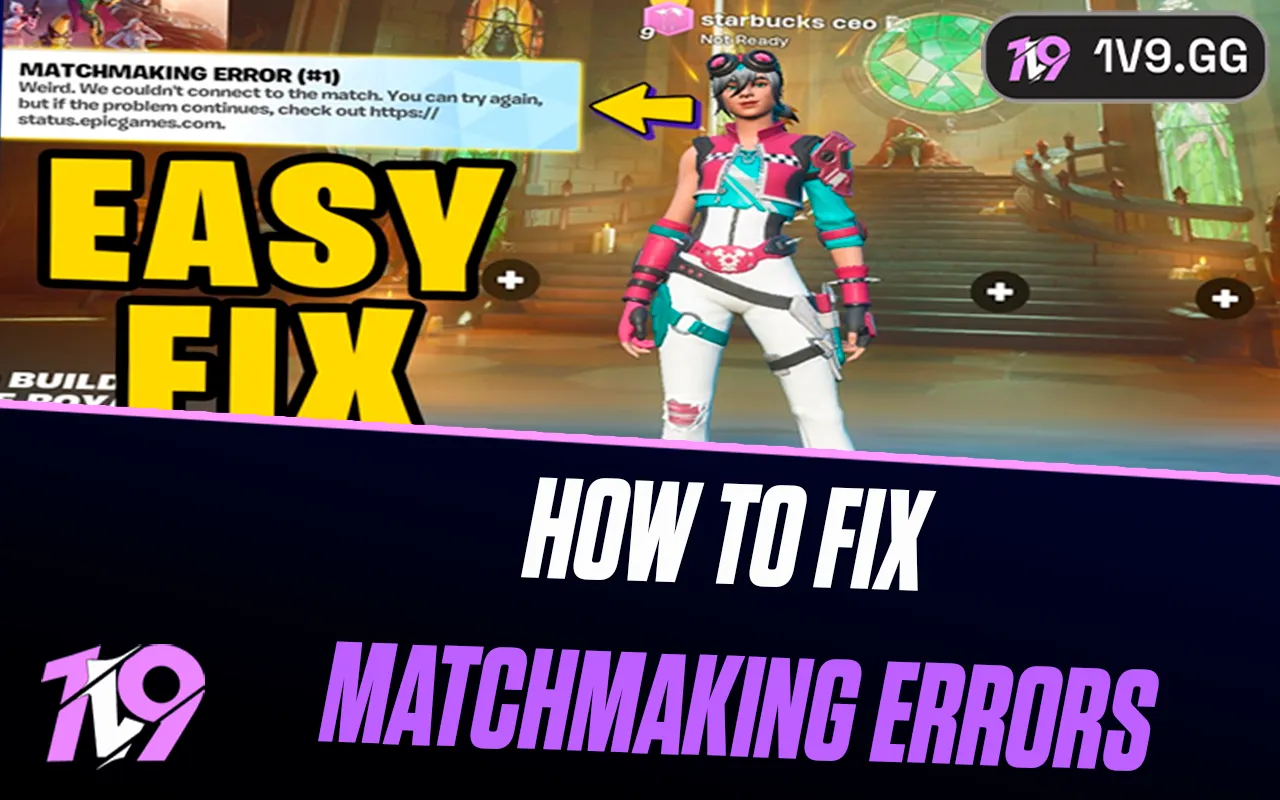

How To Fix Matchmaking Errors In Fortnite
When you try to jump into a Fortnite match and suddenly get hit with Matchmaking Error #1, #2, or #3, it can be frustrating, especially when all you want to do is play. These errors usually pop up right after you ready up in the lobby and can stop you from entering Creative, Battle Royale, or any other mode. The good news is that these matchmaking errors are very common and almost always tied to connection issues, server hiccups, or simple settings problems — not your account. In this guide, we’ll walk through the most effective fixes you should try when Fortnite matchmaking errors appear, so you can get back into the game quickly without stress or guesswork.
Fix #1: Restart Fortnite Completely
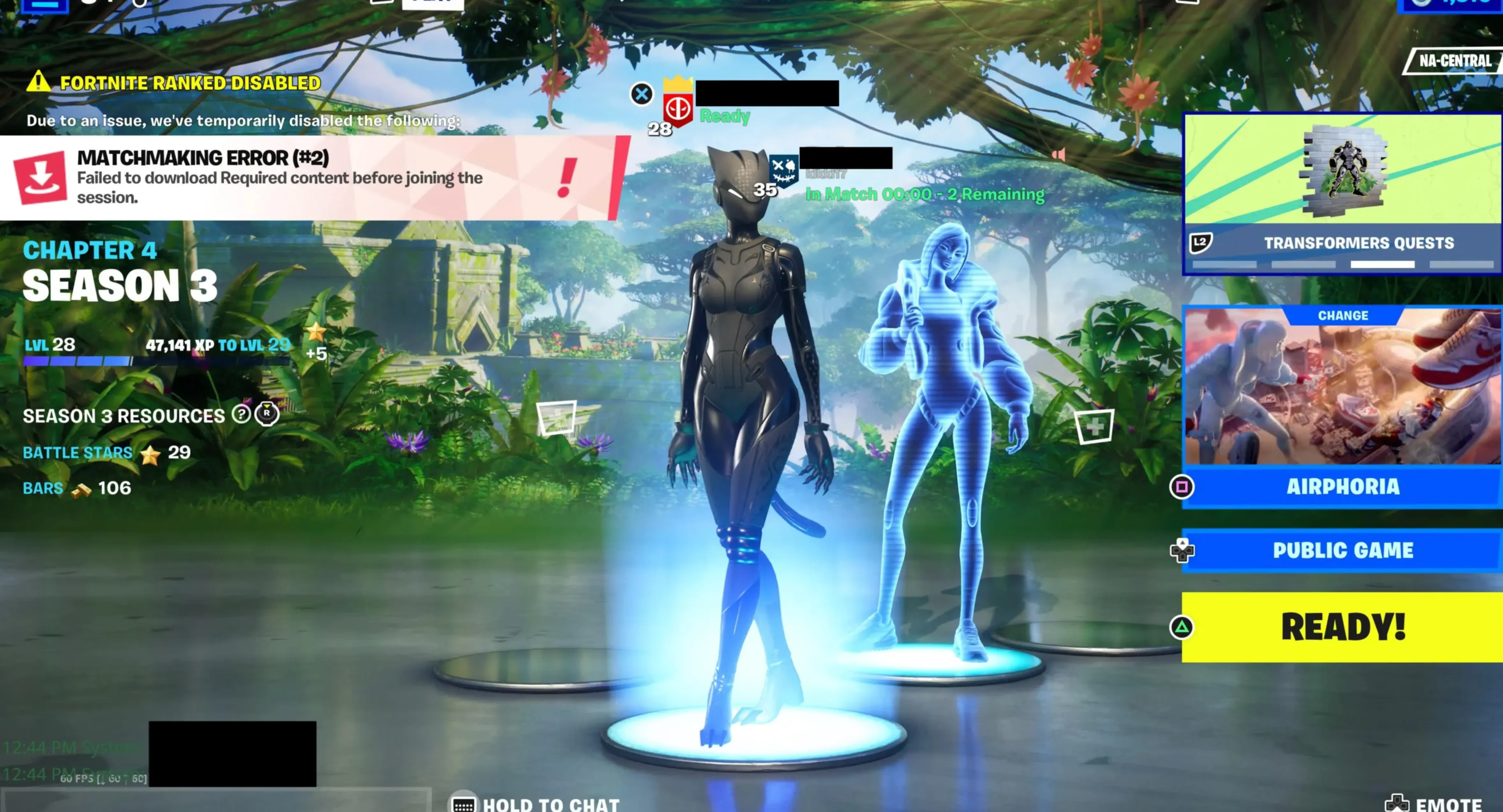
The quickest thing to try when you run into a matchmaking error is a full restart of Fortnite. In many cases, the game simply fails to sync correctly with Epic’s servers, and a fresh launch is enough to clear the issue. Close Fortnite entirely, make sure it’s no longer running in the background, then open it again and try to queue up. If that doesn’t solve it, restarting your console or PC can also help reset the connection. This step is fast, easy, and often works, so it’s always the best place to start before moving on to more advanced fixes.
Fix #2: Restart Your Internet Router
If restarting the game didn’t help, the next step is to refresh your internet connection. Matchmaking errors in Fortnite are often caused by unstable or cached network connections, and rebooting your router can fix that quickly. Simply unplug your router from the power source, wait around 60 seconds, then plug it back in and allow the connection to fully restart. Once your internet is stable again, launch Fortnite and try queueing for a match. This simple reset clears temporary connection issues and often resolves Matchmaking Error #1, #2, or #3 right away.
Fix #3: Change Your DNS to a Public Server
If restarting Fortnite and your router didn’t fix the matchmaking error, the next step is switching your DNS settings. Sometimes the DNS provided by your internet service can cause connection issues with online games. Using a public DNS, like Google’s, often fixes this instantly and is completely safe.
Below are simple steps for each platform.
PlayStation (PS4 / PS5)
Go to Settings → Network → Settings → Set Up Internet Connection.
Choose Wi-Fi or LAN, then select Custom.
Set IP Address Settings to Automatic.
Set DHCP Host Name to Do Not Use.
Set DNS Settings to Manual.
Enter the following values:
Primary DNS: 8.8.8.8
Secondary DNS: 8.8.4.4
Keep MTU Settings on Automatic and Proxy Server on Do Not Use.
Save the settings and restart Fortnite.
Xbox (Xbox One / Series X|S)
Open Settings → General → Network Settings.
Select Advanced Settings → DNS Settings → Manual.
Enter:
Primary DNS: 8.8.8.8
Secondary DNS: 8.8.4.4
Confirm the changes and relaunch Fortnite.
PC (Windows)
Right-click the Windows icon and open Settings.
Go to Network & Internet, then select Wi-Fi or Ethernet depending on your connection.
Open Hardware Properties and click Edit next to DNS server assignment.
Change it to Manual, enable IPv4, and enter:
Preferred DNS: 8.8.8.8
Alternate DNS: 8.8.4.4
Alternatively, you can enable IPv6 and use:
Preferred DNS: 2001:4860:4860::8888
Alternate DNS: 2001:4860:4860::8844
Save the settings, restart your PC, and load back into Fortnite.
Switching to a public DNS fixes matchmaking errors for many players and improves connection stability overall, especially when Fortnite servers are under heavy load.
Fix #4: Make Sure Your Device Time Is Set Automatically
One small but often overlooked cause of Fortnite matchmaking errors is an incorrect system clock. Epic Games relies on accurate time synchronization to connect players to its servers, and if your device’s date or time is even slightly off, matchmaking can fail.
To fix this, go into your console or PC system settings and enable automatic date and time syncing. This ensures your device matches the correct time zone and server time. If automatic syncing is already enabled, try turning it off, restarting your device, and then turning it back on again. Once your clock is properly synced, relaunch Fortnite and try matchmaking again — in many cases, this simple step instantly resolves Error #1, #2, or #3.
Fix #5: Clear Your Console or PC Cache
If Fortnite still won’t connect after trying the previous fixes, your device’s cache may be the problem. Over time, consoles and PCs store temporary files to help apps load faster. However, these files can become outdated or corrupted, which may block Fortnite from properly communicating with Epic Games’ servers. Clearing the cache removes these temporary files without deleting your account data, saved games, or settings.
Below are the safest ways to clear the cache on each platform:
PlayStation (PS4 / PS5)
Turn off your console completely. Press and hold the power button until you hear two beeps to enter Safe Mode. Connect your controller using a USB cable. From the menu, choose the option to clear cache and rebuild the database, then select “Clear System Software Cache.” Once finished, let the console restart normally.
Xbox
Power off your Xbox and unplug it from the wall. Disconnect all accessories as well. Leave it unplugged for at least two minutes. While it’s unplugged, press and hold the power button for a few seconds. Plug everything back in and turn the console on.
PC (Epic Games Launcher)
Click the arrow icon in the bottom-right corner of the taskbar, right-click the Epic Games Launcher icon, and fully close it. Press the Windows key and R together, type %localappdata%, and hit Enter. Open the EpicGamesLauncher folder, then open the “Saved” folder. Delete the folders named webcache, webcache_4147, and webcache_4430. Restart your PC and relaunch Fortnite.
After clearing the cache, Fortnite should be able to reconnect properly. If the matchmaking error was caused by corrupted temporary files, this step usually fixes it instantly.
Conclusion
Matchmaking errors in Fortnite can be frustrating, but they’re usually quick to fix once you know where to look. Most issues come down to connection problems, cached data, or small system sync errors rather than anything being wrong with your account. By restarting the game, resetting your router, adjusting DNS settings, syncing your device clock, or clearing cache files, you can solve the majority of Error #1, #2, or #3 cases in just a few minutes. If one fix doesn’t work, moving through the list step by step gives you the best chance to get back into matches smoothly and avoid running into the same issue again.
Posted On: December 27th, 2025
Recent Articles


Our 1v9 support team is available 24/7 to help you with any questions or issues you may have.
support@1v9.gg
Loading...
1v9.gg is not endorsed or affiliated by any game developers or publishers.
2026 1v9, All Rights Reserved, Created By Ritesh (riteshsahoo.com)