- Home
Games
 League of Legends
 Valorant
-a6d5b3e156bb.webp) Fortnite
Fortnite Call of Duty
 Clash of Clans
 Counter-Strike 2
 Roblox
 Rainbow Six Siege
 Clash Royale
 Minecraft
 Rocket League
 Dota 2
 Genshin Impact
 Squad Busters
 Rust
Rust Apex Legends
 Pokemon Go
 XDefiant
 LoL: Wild Rift
 Hay Day
 Diablo 4
 FC 25
FC 25 Marvel Rivals
 World of Warcraft
 Destiny 2
 Deadlock
-9ede9dc6b01b.webp) PUBG Mobile
PUBG Mobile The Finals
 Growtopia
 Forza Horizon 5
 Honkai: Star Rail
 Warframe
 8 Ball Pool
 Zenless Zone Zero
 Path of Exile
 Runescape 3
 Raid: Shadow Legends
 Lost Ark
 WoW: Classic Era
 Summoners War
 WoW: Season of Discovery
 WoW Cataclysm
 WoW: Hardcore
 Throne and Liberty
 New World
 Mobile Legends
 Escape From Tarkov
 Path of Exile 2
 Blade Ball
 Fisch
Fisch Pet Simulator 99
 Pets Go
-d8bcef7708c7.webp) One Piece Bounty
One Piece Bounty Anime Adventures
 Blox Fruits
 Adopt Me
 Murder Mystery 2
 Fragpunk
 Wuthering Waves
 Teamfight Tactics
 Free Fire
 Albion Online
 Black Desert Online
 Honor of Kings
 Brawl Stars
 Arena of Valor
 Call of Duty: Mobile
 Rematch
 Steal a Brainrot
 Grow a Garden
 FC 26
FC 26 Old School Runescape
 Plants vs Brainrots
 Overwatch
 Battlefield
 Arc Raiders
 Dragon Ball Legends
 Fallout 76
 Jailbreak
 Type Soul
 GPO
GPO DonutSMP
 Escape Tsunami For Brainrots
 Watcher of Realms
 Roblox Rivals
 2XKO
2XKO Sailor Piece
 Forza Horizon 6
 GTA 5
GTA 5- Lootboxes
- Become Affiliate
- Blog
- Contact Us
- Sign In

How To Activate Auto-Fire in Fortnite
Auto-fire has become one of the most useful tricks in Fortnite, especially for players who want to farm XP, complete Creative maps faster, or earn progress while staying AFK. While Fortnite doesn’t have an official “auto-fire” toggle in the settings, there are a few simple in-game methods players use to trigger continuous shooting without holding the fire button. These techniques are commonly used in Creative XP maps, target ranges, and AFK grind setups, and they work across multiple platforms when done correctly. In this guide, we’ll break down how auto-fire works in Fortnite, when to use it, and how to activate it step by step without risking your account or breaking any rules.
How to Enable Auto-Fire in Fortnite
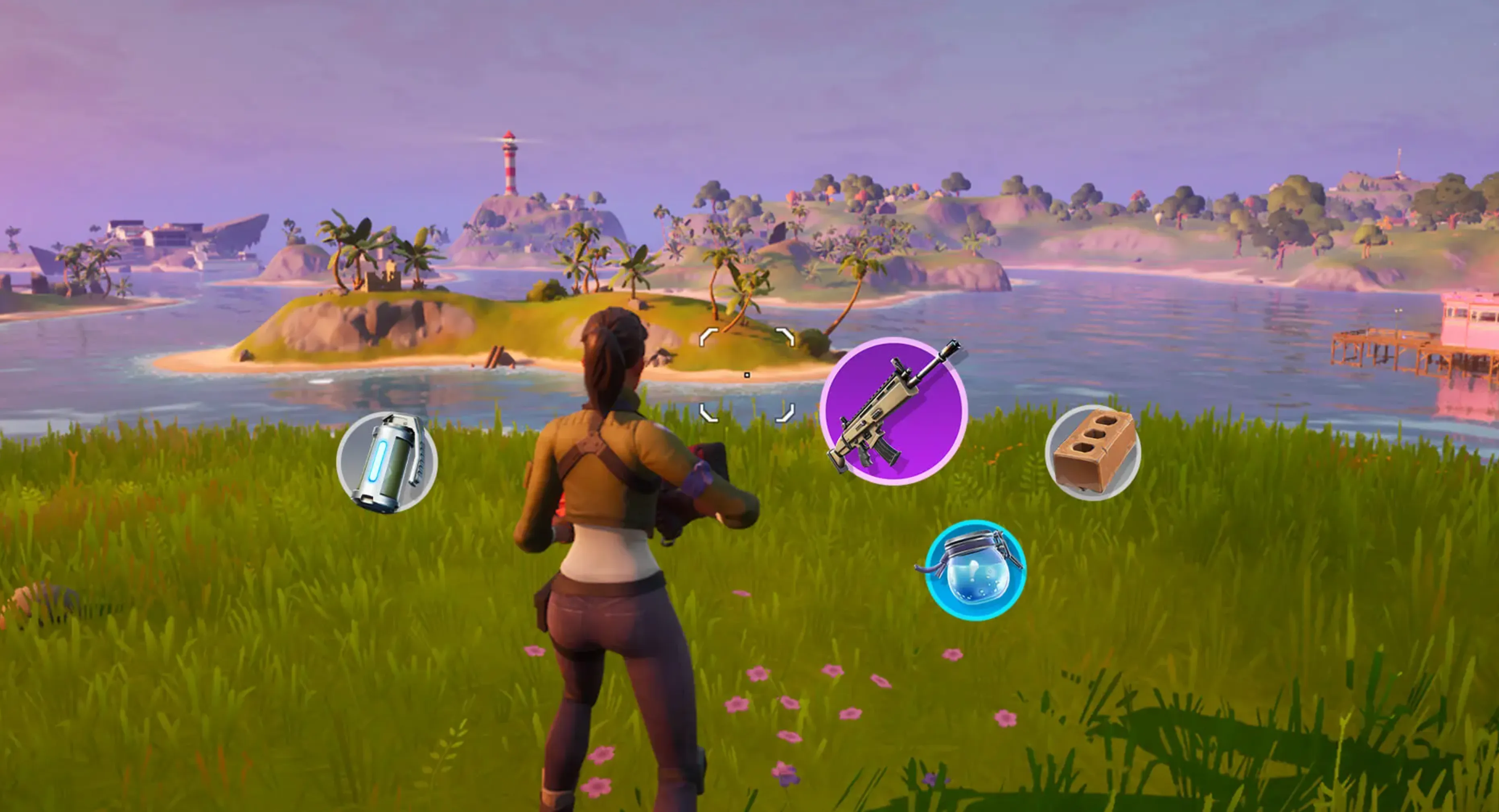
If you want Fortnite to shoot automatically while you aim, you’ll need to adjust a few settings related to gyro controls. Auto-Fire isn’t a single toggle, but when configured correctly, it allows your weapon to keep firing with minimal input, which is especially useful for Creative maps, AFK XP methods, or smoother aiming on supported devices.
Start by launching Fortnite and opening the Settings menu. From there, head to the Touch & Motion tab. Once inside, apply the following setup:
• Gyro Aiming: On
• Active Mode (Combat): Scope, Aiming, Firing
• Active Mode (Building): None
• Look Stick Effect: Enabled
• Gyro Button: Custom Only
• Sensitivity: 0.70
• Vertical / Horizontal Ratio: 0.64 : 1
• First-Person Mode Strength: 100%
• Steadying: 29.0
After enabling these options, your character will respond more smoothly to aiming inputs, and when combined with certain actions (like holding fire and opening text chat in Creative maps), your weapon can continue firing automatically. This setup makes tracking targets easier in Battle Royale and is widely used by players looking to reduce hand movement or farm XP more efficiently.
Once everything is set, jump into a match or Creative map to test it out and fine-tune sensitivity if needed. Small adjustments can make a big difference depending on your device and playstyle.
How Does Auto-Fire Work in Fortnite?
Auto-Fire works by letting Fortnite handle the trigger pull for you once a valid target is detected in front of your reticle. With combat modes like Scope, Aiming, and Firing enabled, the game instantly shoots as soon as your crosshair is placed over an opponent, without needing to press the fire button yourself.
In simple terms, you focus only on aiming and tracking. The game takes care of firing at the exact moment a target is in range. This results in faster reactions and more consistent shots than most players can manually achieve, especially during intense fights.
While it might feel similar to an aimbot, Auto-Fire is completely allowed since it’s an official Fortnite setting. There’s no risk of bans or penalties for using it. The key tradeoff is control — you rely entirely on your aim placement, but in return, you get instant firing with near-perfect timing. If your crosshair stays on target, Auto-Fire will do the rest.
Conclusion
Auto-Fire can be a real game changer in Fortnite when used the right way. Once it’s properly enabled, it takes a lot of the reaction-time pressure off your hands and lets the game handle firing the moment a target is lined up. This can make fights feel smoother, help with consistency, and give you an edge in close and mid-range battles, especially if you struggle with timing shots. While it’s not a replacement for good positioning or aim control, Auto-Fire works best as a support tool that rewards smart movement and steady tracking. If you’re looking for a more relaxed and efficient way to take gunfights, activating Auto-Fire is definitely worth trying out.
Posted On: December 27th, 2025
Recent Articles


Our 1v9 support team is available 24/7 to help you with any questions or issues you may have.
support@1v9.gg
Loading...
1v9.gg is not endorsed or affiliated by any game developers or publishers.
2026 1v9, All Rights Reserved, Created By Ritesh (riteshsahoo.com)