 League of Legends
 Valorant
-a6d5b3e156bb.webp) Fortnite
Fortnite Call of Duty
 Clash of Clans
 Counter-Strike 2
 Roblox
 Rainbow Six Siege
 Clash Royale
 Minecraft
 Rocket League
 Dota 2
 Genshin Impact
 Squad Busters
 Rust
Rust Apex Legends
 Pokemon Go
 XDefiant
 LoL: Wild Rift
 Hay Day
 Diablo 4
 FC 25
FC 25 Marvel Rivals
 World of Warcraft
 Destiny 2
 Deadlock
-9ede9dc6b01b.webp) PUBG Mobile
PUBG Mobile The Finals
 Growtopia
 Forza Horizon 5
 Honkai: Star Rail
 Warframe
 8 Ball Pool
 Zenless Zone Zero
 Path of Exile
 Runescape 3
 Raid: Shadow Legends
 Lost Ark
 WoW: Classic Era
 Summoners War
 WoW: Season of Discovery
 WoW Cataclysm
 WoW: Hardcore
 Throne and Liberty
 New World
 Mobile Legends
 Escape From Tarkov
 Path of Exile 2
 Blade Ball
 Fisch
Fisch Pet Simulator 99
 Pets Go
-d8bcef7708c7.webp) One Piece Bounty
One Piece Bounty Anime Adventures
 Blox Fruits
 Adopt Me
 Murder Mystery 2
 Fragpunk
 Wuthering Waves
 Teamfight Tactics
 Free Fire
 Albion Online
 Black Desert Online
 Honor of Kings
 Brawl Stars
 Arena of Valor
 Call of Duty: Mobile
 Rematch
 Steal a Brainrot
 Grow a Garden
 FC 26
FC 26 Old School Runescape
 Plants vs Brainrots
 Overwatch
 Battlefield
 Arc Raiders
 Dragon Ball Legends
 Fallout 76
 Jailbreak
 Type Soul
 GPO
GPO DonutSMP
 Escape Tsunami For Brainrots
 Watcher of Realms
 Roblox Rivals
 2XKO
2XKO Sailor Piece
 Forza Horizon 6
 GTA 5
GTA 5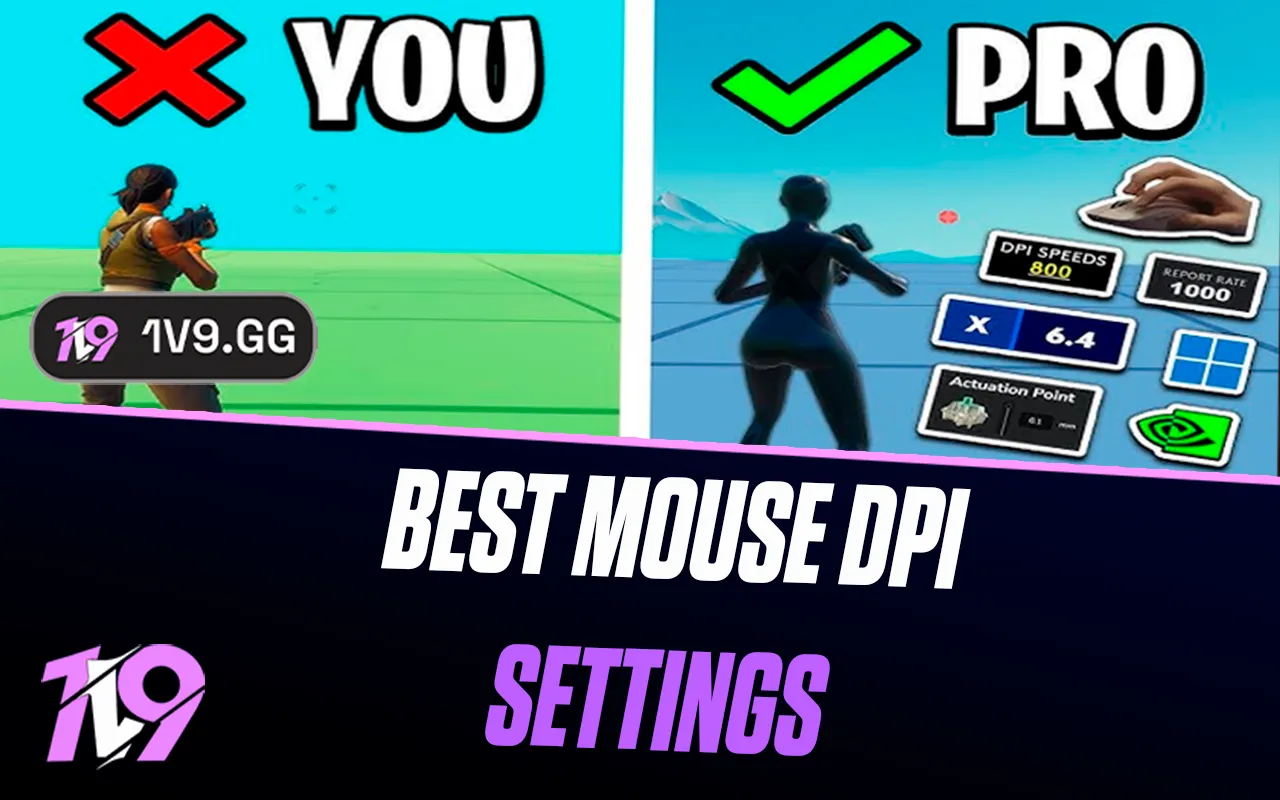

For most mouse-and-keyboard players, the best Fortnite starting point is 800 DPI with 6–8% X and Y sensitivity, which equals 48–64 eDPI. Start at the lower end for steadier long-range aim or the higher end for quicker building and close-range turns. Keep X and Y equal, use 35–50% targeting and scope sensitivity, and test 1000Hz polling unless mouse movement causes frame-rate drops.
Best Fortnite mouse settings: quick answer
After choosing a baseline, use a current Fortnite aim-training map to compare the same tracking, flick, and peek drills instead of judging settings from one Battle Royale match.
Fortnite sensitivity starting points by playstyle
DPI alone does not determine how fast your crosshair moves. The useful comparison is eDPI, which combines mouse DPI with Fortnite’s in-game sensitivity. These profiles are deliberately modest starting points you can test on a normal mouse pad.
| Use case | DPI | X / Y | eDPI | Why start here |
|---|---|---|---|---|
| Precision / large pad | 800 | 5–6% | 40–48 | More control for long-range tracking and small corrections |
| Balanced Builds | 800 | 6–8% | 48–64 | A workable balance between shotgun control and quick turns |
| Zero Build | 800 | 5–7% | 40–56 | Leans toward steady rifle tracking without edit-speed pressure |
| Compact pad / fast turns | 800 | 8–10% | 64–80 | Requires less desk space but exposes shaky micro-adjustments sooner |
A clean default: try 800 DPI at 6.4% X and Y, or 51.2 eDPI. It is not a magic value; it simply sits inside the balanced range and is easy to calculate.
DPI, sensitivity, and eDPI are different
DPI is the mouse’s hardware sensitivity
DPI, or dots per inch, controls how much movement the mouse reports before Fortnite applies its own multiplier. A player using 1600 DPI is not automatically playing at twice the final sensitivity of someone on 800 DPI; the in-game percentage matters too.
X and Y sensitivity control Fortnite’s hip-fire movement
X controls horizontal movement and Y controls vertical movement. Keeping them equal makes diagonal and vertical corrections easier to learn. A deliberate unequal setup can work, but it adds another variable before you have identified the real problem.
eDPI makes complete sensitivities comparable
Fortnite eDPI = mouse DPI × (X sensitivity ÷ 100).
- 800 DPI × 6.4% = 51.2 eDPI
- 1600 DPI × 3.2% = 51.2 eDPI
- 400 DPI × 12.8% = 51.2 eDPI
Those three combinations produce the same theoretical hip-fire turn speed in Fortnite, although desktop cursor feel, menu navigation, sensor behavior, and the precision of the game’s slider can still differ. Do not compare Fortnite eDPI directly with another game’s eDPI because games use different sensitivity scales.
Every mouse setting that matters
Targeting sensitivity
Targeting sensitivity is the multiplier applied while aiming down sights with weapons that use the targeting setting. A 40% targeting value on 51.2 hip-fire eDPI gives an effective ADS speed of about 20.5 eDPI. Start between 35% and 50%: lower values favor small rifle corrections, while higher values preserve faster target switching.
Scope sensitivity
Scope sensitivity controls scoped weapons separately. Matching it to targeting sensitivity reduces the number of different speeds you must learn, but it is reasonable to lower scope sensitivity if distant shots repeatedly overshoot.
Building and editing sensitivity
When Fortnite exposes separate keyboard-and-mouse build or edit multipliers for the current mode, begin at 100%. Increase one setting only when the base aim feels controlled but the related action is consistently too slow. A faster edit multiplier cannot fix poor crosshair placement, and an extreme build multiplier can make placements less repeatable.
Polling rate
Polling rate is how often the mouse reports its position to the computer. A stable 1000Hz is a sensible baseline. Epic’s current support guidance says a high polling rate can cause frame-rate drops when the mouse moves and recommends testing 500Hz to 1000Hz for a balance between performance and input response. A 2000Hz, 4000Hz, or 8000Hz option is not automatically better if it creates stutter on your system.
Windows pointer settings
Leave Windows pointer speed at its normal default unless you have a documented reason to change it, and disable Enhanced Pointer Precision. Epic specifically recommends turning that feature off when sensitivity appears to change during play because it varies pointer movement according to mouse speed. Also use one active DPI stage in your mouse software so an accidental DPI-button press cannot change the feel mid-fight.
Builds vs Zero Build sensitivity
Builds asks one setting to support shotgun aim, rapid turns, piece placement, edits, and box movement. Start around 48–64 eDPI and keep build/edit multipliers near 100% until you know which action is limiting you. Raise the relevant multiplier in small steps instead of making hip-fire aim faster just to build more quickly.
Zero Build removes the mechanical reason to favor a faster base sensitivity. A 40–56 eDPI starting range gives many players more room for assault-rifle and SMG tracking, while still allowing a comfortable 180-degree turn. Your mouse pad must still be large enough to turn without lifting at the worst moment.
The mode does not change the laws of aiming: if you run out of pad, raise sensitivity slightly; if the crosshair skips past targets, lower it. Players on a controller should use the separate Fortnite controller settings guide, because stick response curves, deadzones, Aim Assist, and gyro require a different calibration method.
Current Fortnite pro settings: examples, not rules
Professional settings are useful for showing what is viable, but copying one player does not copy their desk space, grip, mouse weight, role, habits, or practice time. The examples below were collected from ProSettings on August 25, 2026; the source pages report their own last-update dates and can change later.
| Player | DPI | X / Y | eDPI | Target / scope | Polling |
|---|---|---|---|---|---|
| Peterbot | 800 | 6.4% / 6.4% | 51.2 | 45% / 45% | 1000Hz |
| shxrk | 1200 | 6.8% / 6.8% | 81.6 | 42.6% / 42.6% | 1000Hz |
| Queasy | 800 | 6.6% / 6.6% | 52.8 | 29% / 32% | 1000Hz |
| Vanyak3kk | 800 | 7.1% / 7.1% | 56.8 | 30% / 30% | 4000Hz |
| Merstach | 1600 | 3.3% / 3.3% | 52.8 | 48% / 48% | 1000Hz |
The useful pattern is not a single DPI. Four examples land between 51.2 and 56.8 eDPI despite using 800 or 1600 DPI, while shxrk shows that a much faster setup can also be viable. Treat the table as evidence of a workable range, not a leaderboard of settings.
How to find your best Fortnite sensitivity
- Record the current setup. Write down DPI, X/Y, targeting, scope, build/edit multipliers, polling rate, Windows pointer settings, and mouse-pad space.
- Choose one baseline. If you have no stable reference, use 800 DPI, 6.4% X/Y, 40% targeting and scope, and 100% build/edit.
- Check physical turn space. From the center of the pad, confirm that one comfortable swipe can cover the largest turn you regularly need. If it cannot, raise X/Y slightly or create more usable desk space.
- Run repeatable drills. Compare close shotgun flicks, medium-range tracking, small long-range corrections, and—for Builds—protected edits and rapid piece placement.
- Change one variable. Adjust X/Y by roughly 5–10% of its current value, not five or ten percentage points. If you use 6.4%, a sensible first change is about 0.3–0.6 points.
- Repeat across several sessions. One strong or weak match is noisy evidence. Use the same drills, weapons, warm-up length, and frame-rate conditions.
- Lock the winner. Once a setup survives practice and normal matches, stop changing it unless you can name a recurring problem.
A broad Fortnite Creative maps hub can help you find realistic fights after isolated drills. For structured feedback on crosshair placement, mouse control, and fight decisions, you can also compare Fortnite coaching options; coaching is optional and cannot turn one sensitivity into a universal best setting.
Signs your sensitivity is too high or too low
| Symptom | Likely cause | First adjustment |
|---|---|---|
| You repeatedly pass over nearby targets | Hip-fire sensitivity may be too high | Lower X and Y together by about 5% |
| AR tracking is steady until you ADS | Targeting multiplier may be too high | Lower targeting without changing hip fire |
| You run out of pad during turns | Sensitivity is too low for your space | Raise X/Y slightly or free more pad area |
| Aim feels different from one swipe to another | Acceleration or accidental DPI switching | Disable Enhanced Pointer Precision and unused DPI stages |
| FPS drops only while moving the mouse | Polling rate may be too demanding | Test 1000Hz, then 500Hz, and compare stability |
How to change mouse sensitivity in Fortnite
- Open Fortnite and select your profile icon or main menu.
- Choose Settings.
- Select the mouse-and-keyboard tab, shown by the arrow-keys icon in Epic’s current support instructions.
- Change X-axis, Y-axis, targeting, scope, and any build/edit options available for the selected mode.
- Apply the changes, test them, and record the values before adjusting again.
Epic notes that the available settings can depend on your selected or current game mode. If a setting is missing, return to the lobby, select the relevant Fortnite mode, and check the menu again before assuming the option was removed.
Fortnite mouse sensitivity FAQ
Is 800 DPI best for Fortnite?
800 DPI is a convenient and widely used starting point, but it is not inherently more accurate than 1600 DPI paired with half the in-game sensitivity. Compare the complete eDPI and keep the option that behaves consistently on your mouse, desktop, and pad.
Is 400 or 1600 DPI better?
Either can work. 400 DPI needs a higher in-game percentage for the same turn speed; 1600 DPI needs a lower one. Modern sensors generally handle both, so final eDPI, stable tracking, and comfortable menu use matter more than choosing a fashionable DPI.
Should X and Y sensitivity match?
Yes, as a baseline. Equal X and Y values keep horizontal and vertical movement predictable. Separate them only after repeatable testing shows a specific vertical-control problem.
What polling rate should I use?
Start at 1000Hz. If mouse movement causes FPS drops or stutter, Epic recommends testing within 500Hz to 1000Hz. Higher supported rates can work on capable systems, but they should be judged by measured stability rather than the larger number.
Does changing DPI improve aim?
Not by itself. DPI changes mouse input speed; improvement comes from choosing a controllable total sensitivity, keeping it stable, and practicing repeatable corrections. A new value may remove a mismatch, but it does not replace mechanics or decision-making.
Why does my sensitivity feel random?
Check Enhanced Pointer Precision, extra DPI stages, mouse-profile switching, inconsistent frame rate, polling-rate-related stutter, and different targeting or scope multipliers. Fix one cause at a time so you can tell which change solved the problem.
Sources and update policy
- Epic Games Support: mouse polling rate and FPS drops
- Epic Games Support: Enhanced Pointer Precision
- Epic Games Support: finding mouse-and-keyboard settings
- ProSettings Fortnite player database, checked August 25, 2026
This guide is rechecked when Epic changes input options, publishes new troubleshooting guidance, or a Fortnite update materially changes mouse-and-keyboard controls. Professional examples are dated because player settings change and are secondary evidence, not official recommendations.
Bottom line
Start at 800 DPI and 6–8% X/Y, calculate the full eDPI, and tune with repeatable drills. A stable 51.2 eDPI that fits your pad is more useful than copying a faster or slower pro setup you cannot control.


