- Home
Games
 League of Legends
 Valorant
-a6d5b3e156bb.webp) Fortnite
Fortnite Call of Duty
 Clash of Clans
 Counter-Strike 2
 Roblox
 Rainbow Six Siege
 Clash Royale
 Minecraft
 Rocket League
 Dota 2
 Genshin Impact
 Squad Busters
 Rust
Rust Apex Legends
 Pokemon Go
 XDefiant
 LoL: Wild Rift
 Hay Day
 Diablo 4
 FC 25
FC 25 Marvel Rivals
 World of Warcraft
 Destiny 2
 Deadlock
-9ede9dc6b01b.webp) PUBG Mobile
PUBG Mobile The Finals
 Growtopia
 Forza Horizon 5
 Honkai: Star Rail
 Warframe
 8 Ball Pool
 Zenless Zone Zero
 Path of Exile
 Runescape 3
 Raid: Shadow Legends
 Lost Ark
 WoW: Classic Era
 Summoners War
 WoW: Season of Discovery
 WoW Cataclysm
 WoW: Hardcore
 Throne and Liberty
 New World
 Mobile Legends
 Escape From Tarkov
 Path of Exile 2
 Blade Ball
 Fisch
Fisch Pet Simulator 99
 Pets Go
-d8bcef7708c7.webp) One Piece Bounty
One Piece Bounty Anime Adventures
 Blox Fruits
 Adopt Me
 Murder Mystery 2
 Fragpunk
 Wuthering Waves
 Teamfight Tactics
 Free Fire
 Albion Online
 Black Desert Online
 Honor of Kings
 Brawl Stars
 Arena of Valor
 Call of Duty: Mobile
 Rematch
 Steal a Brainrot
 Grow a Garden
 FC 26
FC 26 Old School Runescape
 Plants vs Brainrots
 Overwatch
 Battlefield
 Arc Raiders
 Dragon Ball Legends
 Fallout 76
 Jailbreak
 Type Soul
 GPO
GPO DonutSMP
 Escape Tsunami For Brainrots
 Watcher of Realms
 Roblox Rivals
 2XKO
2XKO Sailor Piece
 Forza Horizon 6
 GTA 5
GTA 5- Lootboxes
- Become Affiliate
- Blog
- Contact Us
- Sign In


All Hytale Console Commands and How to Use Them
Hytale is all about freedom. Whether you’re roaming massive biomes, fighting mobs, building insane creations, or running a multiplayer server with friends, the game gives you a lot of control over how you play. If you really want to take that control further, console commands are where things get interesting. Hytale commands let you teleport instantly, change the weather, manage players, adjust game settings, and handle server administration with ease. They’re especially useful for creators, server owners, and anyone who wants to experiment without limits. In this guide, we’ll break down every Hytale console command, explain what each one does, and show you exactly how to use them so you can get the most out of your world without restrictions.
All Hytale Exploration Server Console Commands
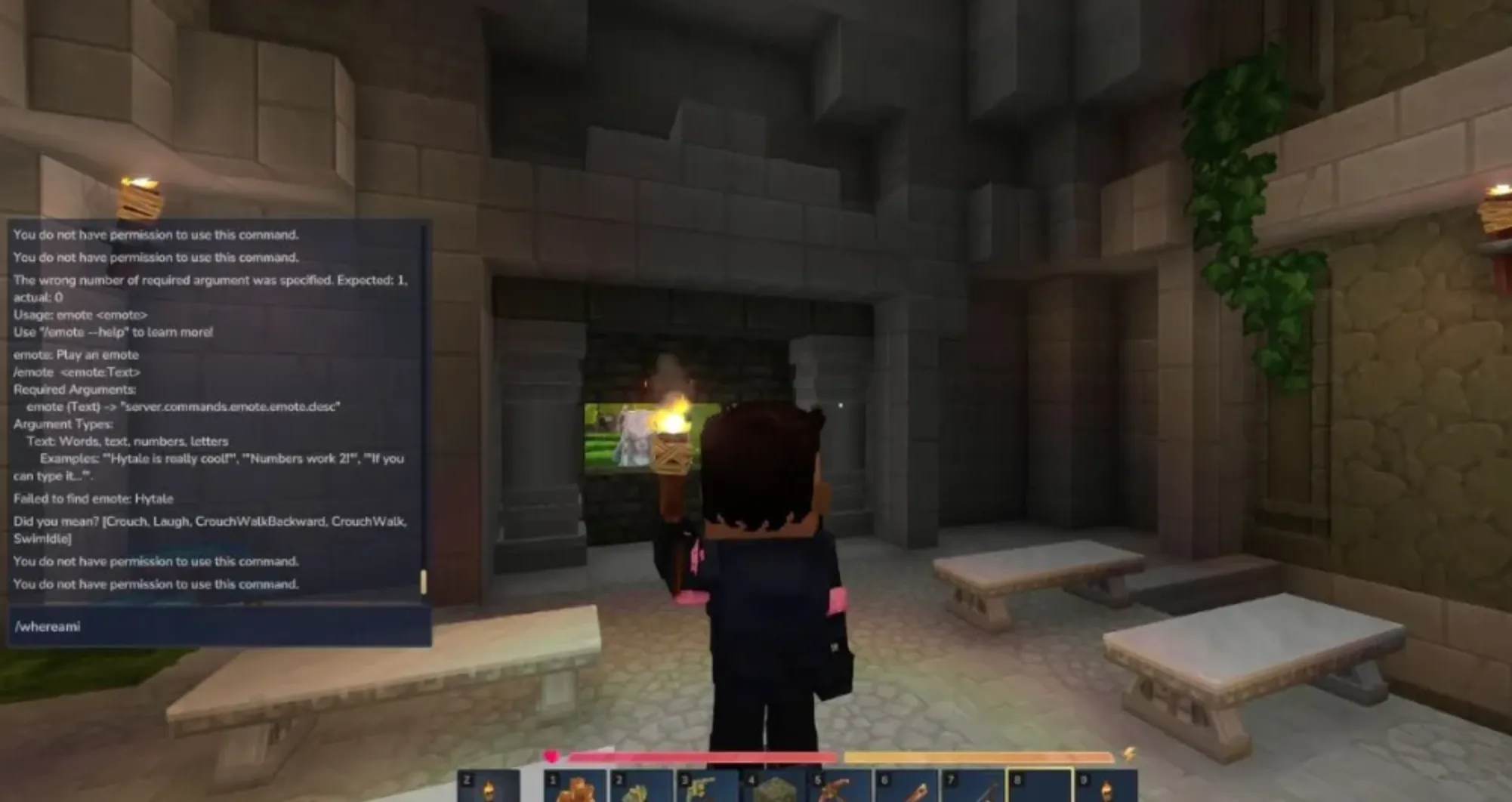
The Exploration world in Hytale is meant to be a more relaxed experience where players can freely travel through biomes, explore structures, mine resources, and enjoy the game without heavy restrictions. That said, once you’re hosting a multiplayer Exploration server, console commands become extremely useful. They give you more control over players, help you monitor server performance, and even allow for some fun interactions if you want to mess around with friends.
Here are some helpful Hytale console commands you can use in Exploration servers, especially for multiplayer management and network checks.
The /emote <emote_name> command lets your character perform a specific emote. It’s mostly cosmetic but great for roleplay or just having fun. The /help <command_name> command shows detailed information about how a command works, which is useful if you’re still learning the console system.
With /op, you can manage operator permissions on the server, while /op self instantly gives you operator status if you don’t already have it. This is essential for server hosts who want full control without relying on external settings.
For connection and performance checks, /ping displays network latency details, helping you see if players are experiencing lag. If you want to clean things up, /ping clear removes stored ping history, and /ping graph shows connection data visually, which is helpful when troubleshooting server stability.
Player-related commands are also important. /who lists every player currently connected to the server, while /whoami displays detailed information about your own character and status.
Finally, /webserver allows you to manage web server-related settings, including service accounts and credentials, which is mainly useful for advanced server setups.
These commands don’t change the core Exploration gameplay, but they give server owners far more flexibility. Whether you’re running a private world with friends or hosting a larger multiplayer session, knowing these commands makes managing a Hytale Exploration server much easier and more enjoyable.
All Hytale Creative Server Console Commands
Hytale’s Creative mode is where the game fully opens up. You can fly freely, build without limits, ignore damage, and access every block in the game from the start. It’s designed for large-scale builds, detailed terrain work, and experimenting without restrictions. If you’re hosting a Creative server, console commands take that freedom even further by letting you edit terrain instantly, copy massive structures, and reshape the world in seconds.
Creative commands focus heavily on block manipulation and world editing. With /block set, you can place any block directly at specific coordinates, while /block get and /block getstate let you inspect blocks and their data. If you need to modify how a block behaves, /block setstate allows you to change its state instantly.
For large builds, clipboard tools are essential. /copy, /cut, and /paste let you duplicate or move entire sections of a build, while /undo and /redo make experimenting stress-free by reverting mistakes. You can also rotate or flip copied structures using /rotate and /flip, which is perfect for mirroring builds or adjusting orientation.
Selection-based commands give you even more control. /pos1 and /pos2 define an area, after which you can fill it with blocks using /fillblocks, swap materials with /replace, or clear everything using /clear blocks. Commands like /expand, /contractselection, /selectchunk, and /selectchunksection help you quickly resize or target large areas without manual selection.
Prefab tools are great for builders who reuse designs. /prefab save lets you store a structure, /prefab load places it back into the world, and /prefab list shows everything you’ve saved. You can also stack or shift selections with /stack and /shift, which makes repeating patterns incredibly fast.
Creative servers also give control over time, movement, and environment. /time shows the current world time, while /time lets you set it exactly where you want. /tp handles teleporting, /hub returns you to the Creative hub, and /environment allows you to tweak environmental settings. If you want dramatic effects, /hollow can carve out builds, and /submerge fills areas with fluids.
Advanced tools like /importimage and /importobj let you turn images or 3D models into block-based creations, which is perfect for artistic builds. Commands such as /buildertoolslegend, /itemstate, /repairfillers, /move, /setblocks, and /wall further refine how you control your world and tools.
These Creative server commands turn Hytale into a full sandbox editor rather than just a building mode. Whether you’re designing massive cities, sculpting landscapes, or experimenting with ideas, mastering these commands will save time and unlock the true creative potential of your server.
How To Use Console Commands in Hytale
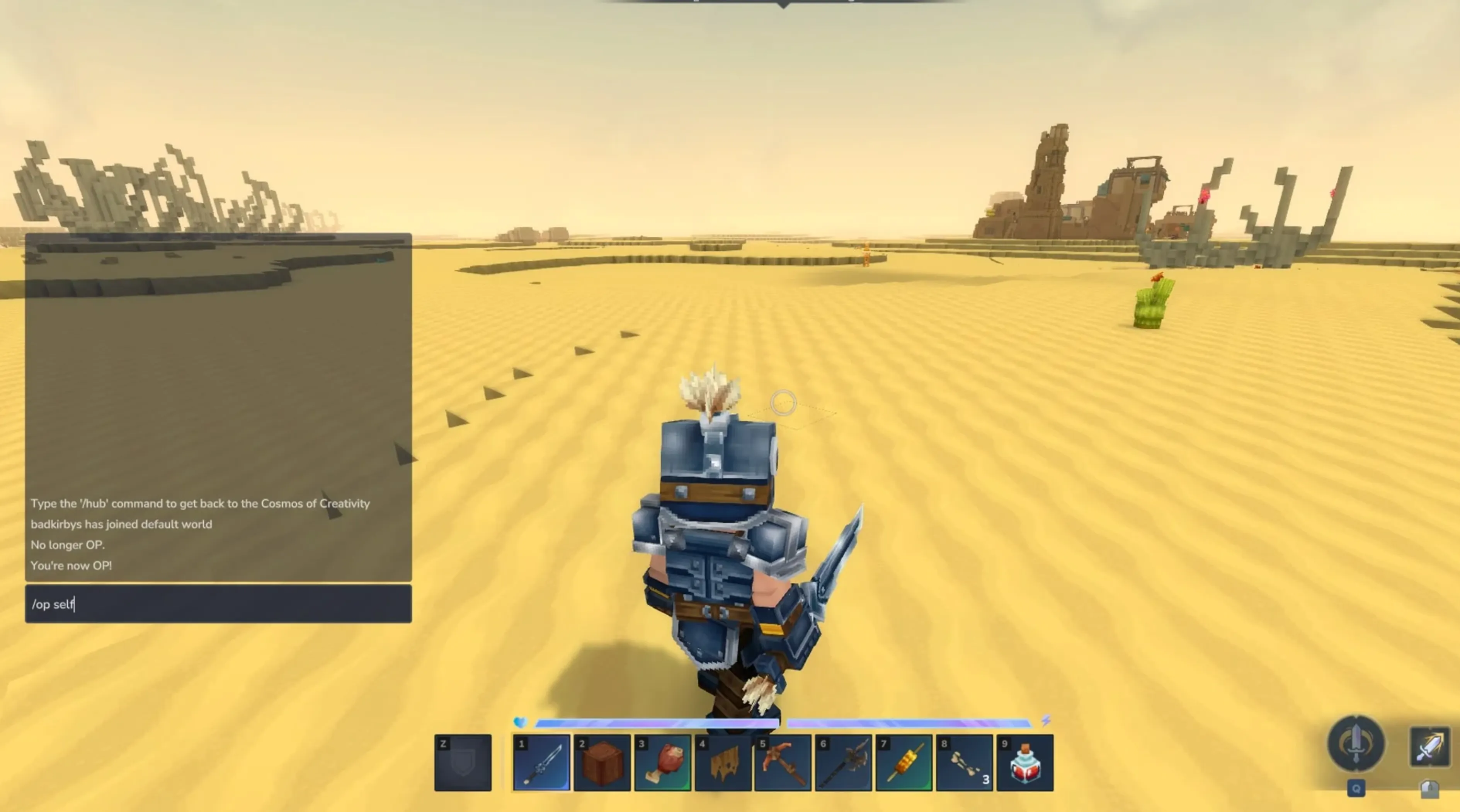
Using console commands in Hytale is simple once you know where to type them and have the right permissions. You don’t need any external tools or menus, since everything is handled directly inside the game.
Start by launching Hytale and loading into a world, whether that’s single-player or a multiplayer server. Once you’re in-game, press the / key to bring up the chat input. This is where all commands are entered. Type the command exactly as it’s written, including any required arguments like coordinates, block names, or values, then press Enter to run it.
If the command executes correctly, you’ll see the effect instantly in the world. If nothing happens or you get an error message, it usually means one of two things: the command syntax is incorrect, or you don’t have permission to use it. On multiplayer servers, most commands require operator (OP) access. If you’re not the server owner, you’ll need to ask the server admin to grant you OP permissions before commands will work.
Once you have access, console commands become a powerful tool for building faster, managing players, teleporting, and controlling the world exactly how you want.
Conclusion
Hytale’s console commands open up a whole new level of control, whether you’re exploring solo, building massive creative projects, or managing a multiplayer server with friends. From simple quality-of-life commands like teleporting and checking player info to advanced tools that let you edit terrain, copy structures, or control the environment, these commands make everything faster and more flexible. Once you understand how to use them and have the right permissions, you can shape your world exactly the way you want without limitations. If you plan to spend a lot of time in Hytale, learning and using console commands is one of the best ways to get the most out of the game.
Posted On: January 15th, 2026
Recent Articles


Our 1v9 support team is available 24/7 to help you with any questions or issues you may have.
support@1v9.gg
Loading...
1v9.gg is not endorsed or affiliated by any game developers or publishers.
2026 1v9, All Rights Reserved, Created By Ritesh (riteshsahoo.com)