

How To Play Free Fire on PC: Step-by-Step Guide
Free Fire is one of the most fast-paced mobile shooters out there, but playing it on a small screen can sometimes hold you back. On PC, the game feels smoother, aiming becomes easier with a mouse, and you get a bigger, clearer view of everything happening around you. The best part is that you don’t need a powerful setup or any complicated tricks to run it — just the right emulator and a quick installation. In this guide, we’ll walk you through the easiest and safest ways to play Free Fire on PC so you can enjoy better controls, higher FPS, and a more comfortable gaming experience from start to finish.
#1: BlueStacks
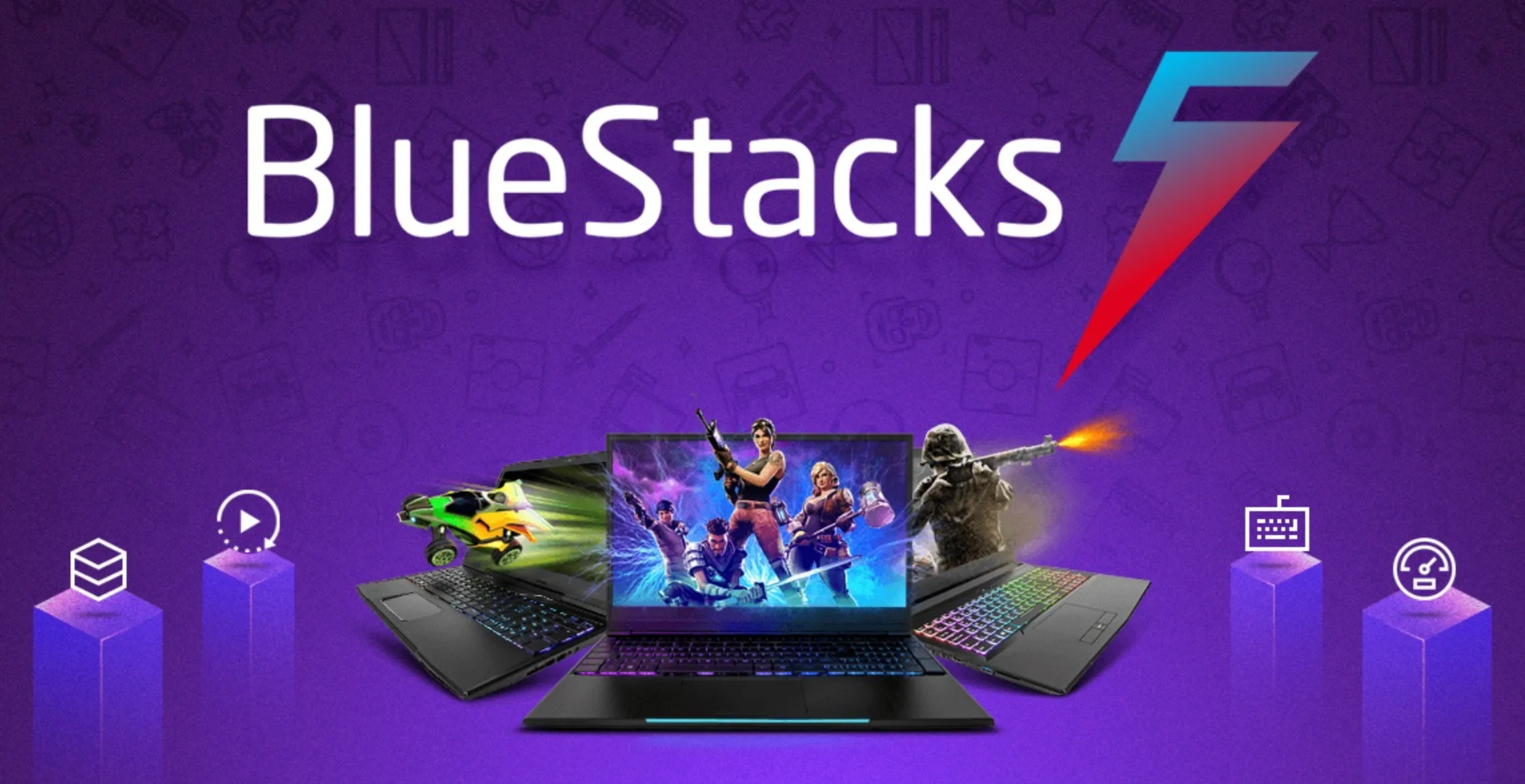
BlueStacks is the easiest and most reliable way to play Free Fire on your PC. It’s been the go-to Android emulator for years because it runs smoothly, supports all modern Windows and Mac systems, and gives you better control with a keyboard and mouse. Once you install it, the whole setup takes only a few minutes, and you can jump straight into matches with much more precision than on a phone.
To get started, download BlueStacks from its official website and install it on your computer. After opening it, sign in with your Google account so you can access the Play Store. Search for “Free Fire,” hit install, and wait for it to finish. When the game appears on your BlueStacks home screen, launch it and start customizing your keybindings. BlueStacks already includes a preset layout for Free Fire, but you can tweak everything to match your playstyle. With a bigger screen, sharper visuals, and smoother aim, BlueStacks is easily the best way to enjoy Free Fire on PC without any complicated steps.
#2: LDPlayer
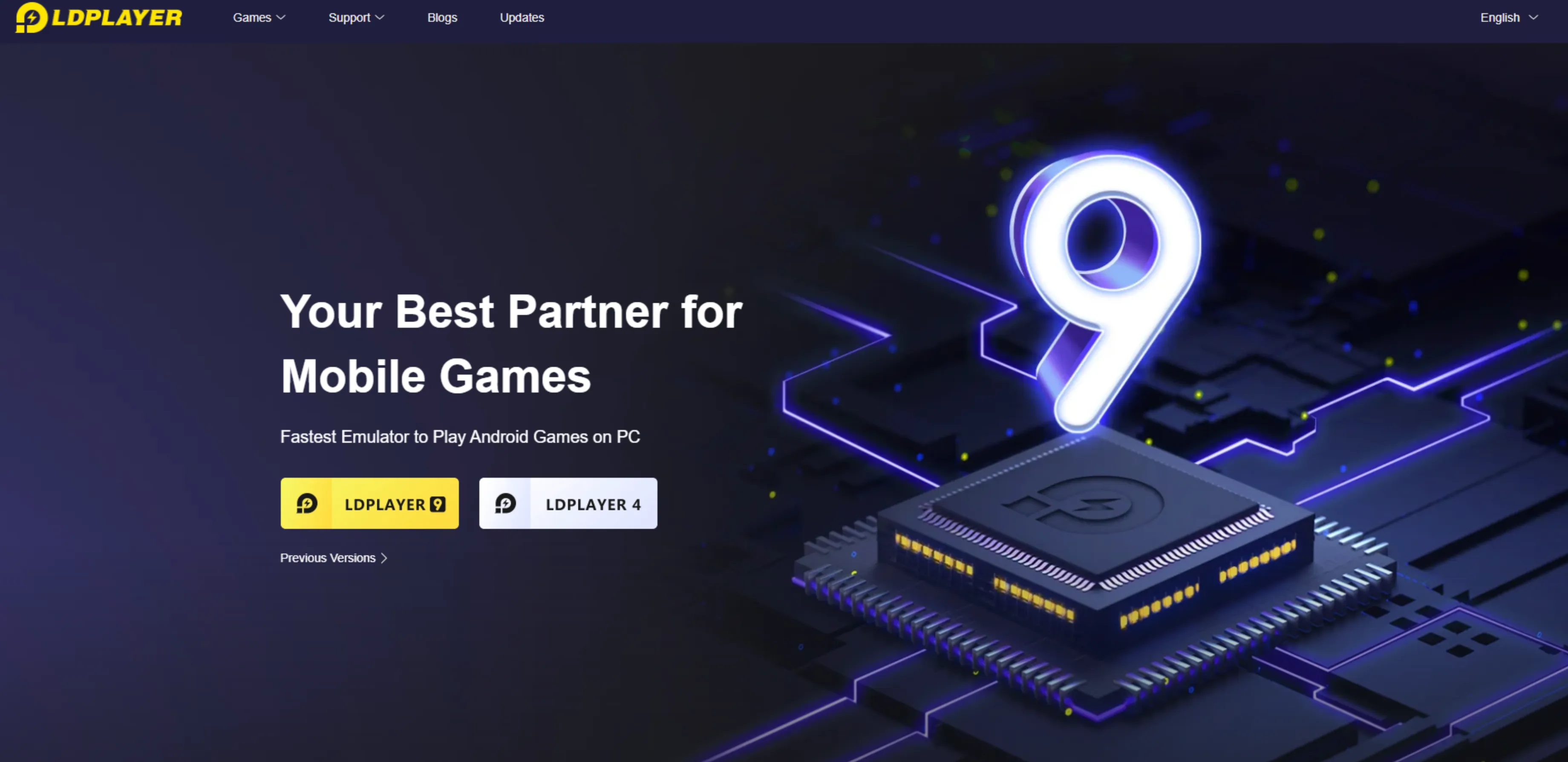
LDPlayer is another great option if you want to play Free Fire on PC without stressing your system. It’s lighter than most emulators, loads fast, and works especially well on older laptops or low-spec computers. The whole thing is designed around gaming, so Free Fire runs smoother and feels more responsive.
To get started, go to the official LDPlayer website and download the installer. Once you run it, the setup finishes quickly and you’ll be dropped straight into the home screen. Log in with your Google account so you can open the Play Store, then search for Free Fire and hit install. After it finishes downloading, the game will appear on your LDPlayer dashboard.
From there, you can tweak a few settings to get better performance — like increasing RAM allocation or lowering the resolution if your PC struggles. LDPlayer also supports custom keymapping, so you can aim, move, and shoot using your keyboard and mouse for a much cleaner and easier gameplay experience. It’s simple, fast to set up, and one of the easiest ways to play Free Fire on your computer.
Conclusion
Playing Free Fire on PC is way easier than most people expect, and the two emulators we covered make it even smoother. BlueStacks gives you the best mix of performance and stability, while LDPlayer is great if you want something lighter that still runs the game really well. Both let you enjoy the game with better controls, higher FPS, and a bigger screen, which instantly gives you an advantage compared to mobile. No matter which one you choose, the setup is quick, and you’ll be jumping into matches with keyboard and mouse precision in just a few minutes. If you want the cleanest and most reliable way to play Free Fire on your computer, these methods are the ones to go for.
Posted On: November 30th, 2025
Recent Articles


Our 1v9 support team is available 24/7 to help you with any questions or issues you may have.
support@1v9.gg


-a6d5b3e156bb.webp)





Loading...
1v9.gg is not endorsed or affiliated by any game developers or publishers.
2026 1v9, All Rights Reserved, Created By Ritesh (riteshsahoo.com)