- Home
Games
 League of Legends
 Valorant
-a6d5b3e156bb.webp) Fortnite
Fortnite Call of Duty
 Clash of Clans
 Counter-Strike 2
 Roblox
 Rainbow Six Siege
 Clash Royale
 Minecraft
 Rocket League
 Dota 2
 Genshin Impact
 Squad Busters
 Rust
Rust Apex Legends
 Pokemon Go
 XDefiant
 LoL: Wild Rift
 Hay Day
 Diablo 4
 FC 25
FC 25 Marvel Rivals
 World of Warcraft
 Destiny 2
 Deadlock
-9ede9dc6b01b.webp) PUBG Mobile
PUBG Mobile The Finals
 Growtopia
 Forza Horizon 5
 Honkai: Star Rail
 Warframe
 8 Ball Pool
 Zenless Zone Zero
 Path of Exile
 Runescape 3
 Raid: Shadow Legends
 Lost Ark
 WoW: Classic Era
 Summoners War
 WoW: Season of Discovery
 WoW Cataclysm
 WoW: Hardcore
 Throne and Liberty
 New World
 Mobile Legends
 Escape From Tarkov
 Path of Exile 2
 Blade Ball
 Fisch
Fisch Pet Simulator 99
 Pets Go
-d8bcef7708c7.webp) One Piece Bounty
One Piece Bounty Anime Adventures
 Blox Fruits
 Adopt Me
 Murder Mystery 2
 Fragpunk
 Wuthering Waves
 Teamfight Tactics
 Free Fire
 Albion Online
 Black Desert Online
 Honor of Kings
 Brawl Stars
 Arena of Valor
 Call of Duty: Mobile
 Rematch
 Steal a Brainrot
 Grow a Garden
 FC 26
FC 26 Old School Runescape
 Plants vs Brainrots
 Overwatch
 Battlefield
 Arc Raiders
 Dragon Ball Legends
 Fallout 76
 Jailbreak
 Type Soul
 GPO
GPO DonutSMP
 Escape Tsunami For Brainrots
 Watcher of Realms
 Roblox Rivals
 2XKO
2XKO Sailor Piece
 Forza Horizon 6
 GTA 5
GTA 5- Lootboxes
- Become Affiliate
- Blog
- Contact Us
- Sign In
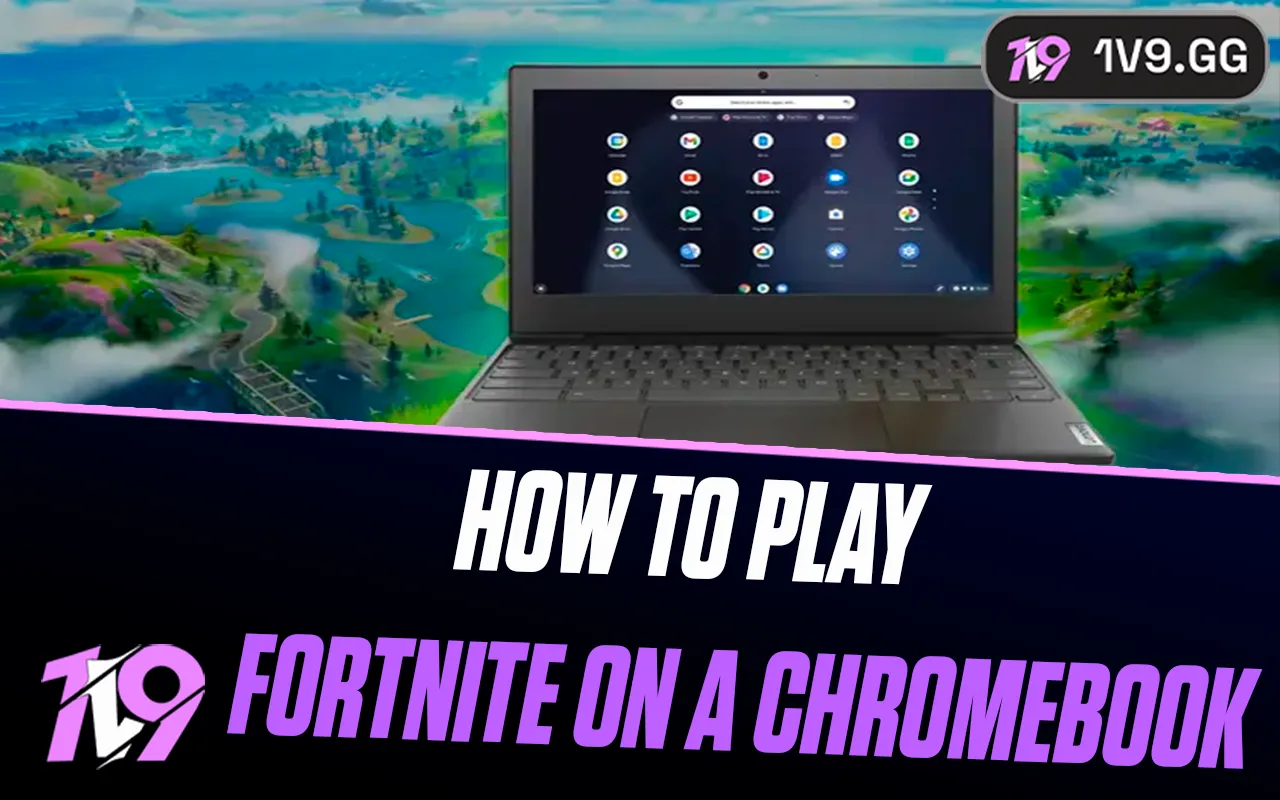

How to Play Fortnite on a School Chromebook Safely
You can play Fortnite on a Chromebook through Xbox Cloud Gaming, NVIDIA GeForce NOW or Amazon Luna—but only if the Chromebook owner and network administrator allow those services. Epic does not support installing the Epic Games Store directly on ChromeOS. A managed school device may block gaming sites, accounts, controllers or streaming traffic, and you should not bypass those controls.
Use these methods only on a device and network you are authorized to use for gaming. If a service is blocked, ask the administrator or use a personal device outside school—do not use proxies, VPN bypasses, developer mode or sideloading tricks.
Official Chromebook options for Fortnite
Epic’s Chromebook support page names three cloud services. The game runs on a remote server and streams video to Chrome, so the Chromebook does not install or render the full PC game.
| Service | Fortnite access | Account | Main limitation |
|---|---|---|---|
| Xbox Cloud Gaming | Fortnite is playable without a paid Game Pass subscription | Microsoft account linked to Epic | Browser/network access and region support |
| GeForce NOW | Free and paid membership tiers | NVIDIA and Epic accounts | Free-tier queues/session limits may apply |
| Amazon Luna | Availability and access depend on region/current offer | Amazon account linked to Epic | Regional availability and current access terms |
The broader Fortnite Chromebook guide covers personal Chromebooks. This page focuses on the extra permission and privacy risks of school-owned devices.
Option 1: Xbox Cloud Gaming
- In Chrome, open xbox.com/play.
- Sign in with your own Microsoft account.
- Search for Fortnite and select Play.
- Link your Epic account when prompted, checking that it is the account with your existing progress.
- Connect a supported controller if the current browser experience requires or works better with one.
Fortnite is an exception to the usual Game Pass catalog rule: Microsoft allows cloud access without a paid Game Pass subscription. You still need supported service availability and permission to use the school device.
Option 2: NVIDIA GeForce NOW
- Open play.geforcenow.com in Chrome.
- Sign in to NVIDIA and connect your own Epic account.
- Find Fortnite, choose a server location if offered, and launch.
- Use the free tier if available or compare paid tiers for shorter queues and longer sessions.
You do not need the Google Play app; the browser client is enough on a supported Chromebook. A school policy that disables the Play Store is not permission to work around a blocked browser service.
Option 3: Amazon Luna
Open Luna in Chrome, sign in with your Amazon account, connect Epic and launch Fortnite if it is offered in your region. Amazon can change country availability and access terms, so check the live Fortnite listing rather than relying on an old “free with Prime” claim.
What if the school Chromebook blocks cloud gaming?
Stop there. A blocked URL, disabled sign-in, restricted controller or filtered network is an administrative choice, not a technical error this guide should help you evade. Ask a teacher or IT administrator whether gaming is permitted during personal time. If not, use a personal device and personal internet connection elsewhere.
Do not enable developer mode, install unapproved APKs, change DNS, use a proxy/VPN to evade filters, or reset the Chromebook. Those actions can violate policy, erase school data, expose your login and lead to device or account discipline.
Connection, controls and account safety
- Use a stable connection with low latency; raw download speed alone does not prevent input delay.
- Close unused tabs and set the stream resolution to a level the connection can hold consistently.
- Prefer your own controller and remove it from Bluetooth settings afterward on a shared device.
- Use a private browser window only if policy allows, sign out of every service, and do not save passwords on the Chromebook.
- Turn on two-factor authentication for Epic and Microsoft/NVIDIA/Amazon accounts.
Never let another student use your credentials. The Fortnite account-sharing guide explains the security and enforcement risks.
Sources and update policy
Supported Chromebook methods were verified against Epic Games Support on August 26, 2026, with access details checked against Xbox Cloud Gaming, NVIDIA GeForce NOW and Amazon Luna. This page will not add bypass instructions for managed devices.
Posted On: April 2nd, 2026
Recent Articles


Our 1v9 support team is available 24/7 to help you with any questions or issues you may have.
support@1v9.gg
Loading...
1v9.gg is not endorsed or affiliated by any game developers or publishers.
2026 1v9, All Rights Reserved, Created By Ritesh (riteshsahoo.com)