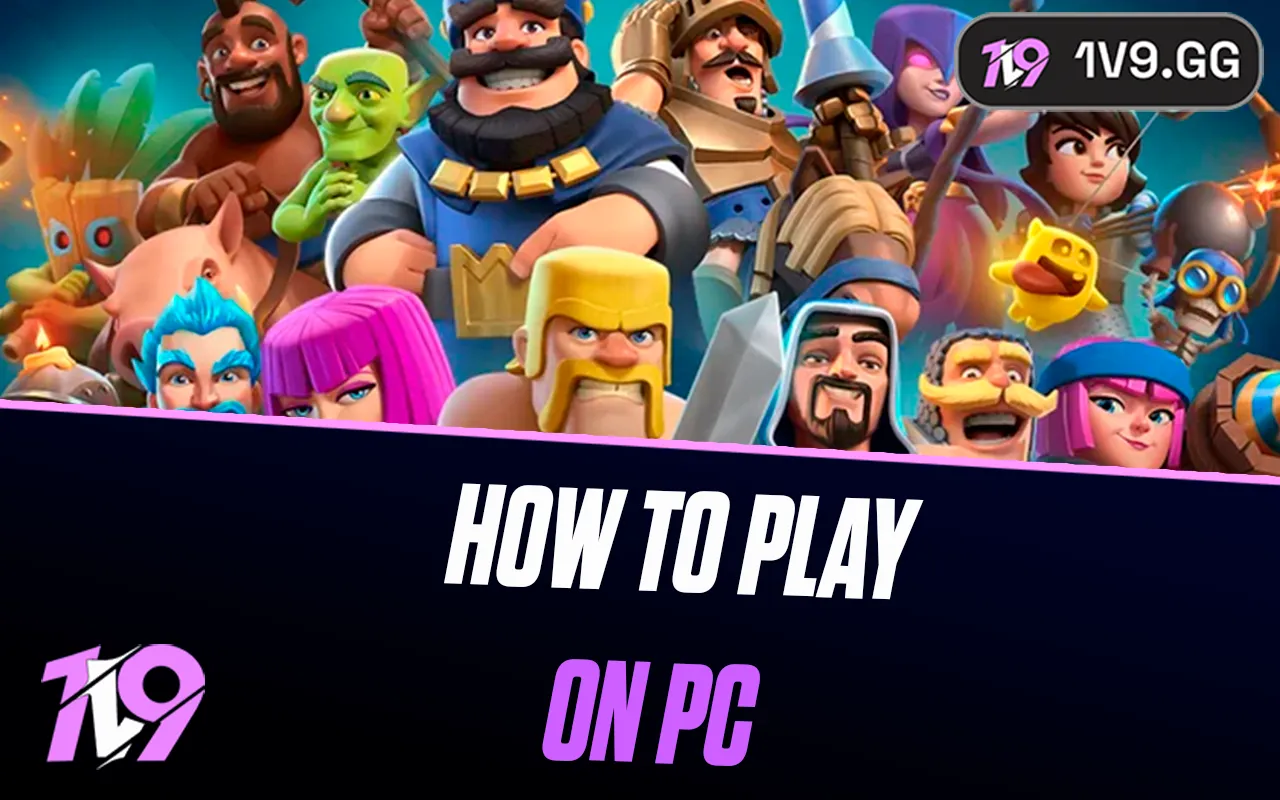


How To Play Clash Royale on PC: Complete Guide
Playing Clash Royale on a bigger screen makes everything easier — cleaner visuals, smoother controls, and way better multitasking during intense battles. Even though Supercell hasn’t released an official PC version, there are legit and safe ways to run Clash Royale on your computer using Android emulators. They let you enjoy the same account, faster aiming, and more precise troop placement with your mouse. In this guide, we’ll break down the best methods to play Clash Royale on PC, which emulators work the best, and how to set everything up quickly so you can jump into the arena without any issues.
#1: BlueStacks
BlueStacks is the most reliable and beginner-friendly option for playing Clash Royale on PC. It runs smoothly on most computers and gives you a clean, easy setup process. With full keyboard and mouse support, you get tighter control and a more comfortable way to play the game without draining your phone battery.
To get started, download BlueStacks from its official website and install it like any other program. When it launches for the first time, log in with your Google account so you can access your Clash Royale progress. After that, open the Google Play Store inside the emulator, search for Clash Royale, and install it.
Once the game appears on your BlueStacks home screen, open it and customize your controls if needed. The emulator already includes simple presets, but you can adjust everything to match your playstyle. BlueStacks also lets you tweak performance settings, making it much smoother for lower-end PCs.
#2: LDPlayer
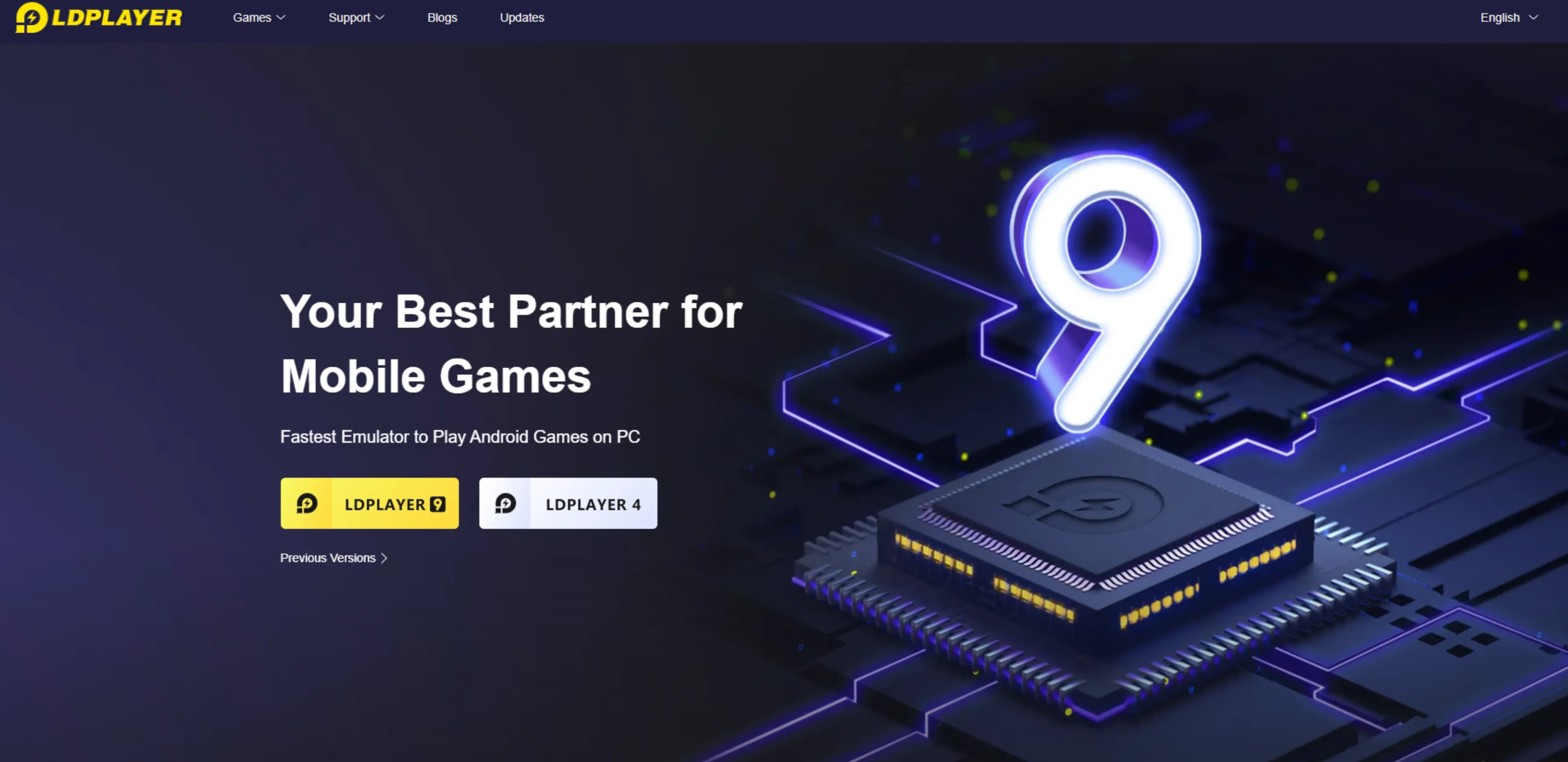
LDPlayer is another great option if you want to play Clash Royale on PC without putting too much stress on your system. It’s lighter than most emulators, launches quickly, and runs smoothly even on older laptops. The interface is simple, and everything is optimized for mobile games, making it a perfect match for Clash Royale.
Start by downloading LDPlayer from its official site, then install it using the setup wizard. Once it opens, sign in with your Google account so you can access the Play Store. Search for Clash Royale, hit install, and wait for the game to appear on your home screen.
LDPlayer also gives you plenty of control options. You can adjust the resolution, RAM usage, and FPS settings based on your PC’s power. This makes it easy to get stable performance without heat or stuttering issues. After that, launch the game and enjoy Clash Royale on a bigger screen with smoother controls.
Conclusion
Playing Clash Royale on PC is incredibly easy, and whether you prefer BlueStacks or LDPlayer, both emulators give you a smooth setup, sharper visuals, and way better control than a phone. You get a bigger screen, faster reactions with mouse controls, and a more comfortable way to grind matches for hours without worrying about battery life. Once you install an emulator and grab the game from the Play Store, you’re ready to play instantly. If you’ve been wanting a better, more stable way to enjoy Clash Royale, using a PC setup is by far the best upgrade you can make.
Posted On: November 30th, 2025
Recent Articles


Our 1v9 support team is available 24/7 to help you with any questions or issues you may have.
support@1v9.gg


-a6d5b3e156bb.webp)





Loading...
1v9.gg is not endorsed or affiliated by any game developers or publishers.
2026 1v9, All Rights Reserved, Created By Ritesh (riteshsahoo.com)