

How To Play CoD Mobile on PC: Step-by-Step Guide
If you want to enjoy Call of Duty Mobile with smoother controls, sharper graphics, and easier aiming, playing it on PC is the best way to do it. Even though CoD Mobile is made for phones, Android emulators let you run the game on Windows or Mac without any complications. You get a bigger screen, customizable keybinds, and far more stable performance compared to most mobile devices. In this guide, we’ll walk you through the easiest and safest ways to play CoD Mobile on PC, the tools you can use, and how to set everything up so you can jump straight into matches with the best possible experience.
#1: BlueStacks
BlueStacks is easily the most popular way to play CoD Mobile on a computer, and it works on both Windows and Mac. It’s stable, smooth, and built specifically for mobile games, which is why millions of players use it every day. To get started, download BlueStacks from the official site and install it. The setup only takes a few minutes, and once it’s running, pick your language and agree to the terms.
Next, sign in with your Google account so you can access the Play Store. You can use the same account you already play CoD Mobile with, or create a new one if you want a fresh start. After logging in, open the Play Store, search for “Call of Duty Mobile,” and install it. When the download finishes, launch the game directly from the BlueStacks home screen.
One of the best parts about using BlueStacks is its built-in keyboard and mouse controls. You can customize every key, adjust sensitivity, and even set up advanced controls for aiming and movement. This makes the whole experience feel more like a real PC shooter, giving you better precision and more comfortable gameplay compared to playing on a phone.
#2: LDPlayer
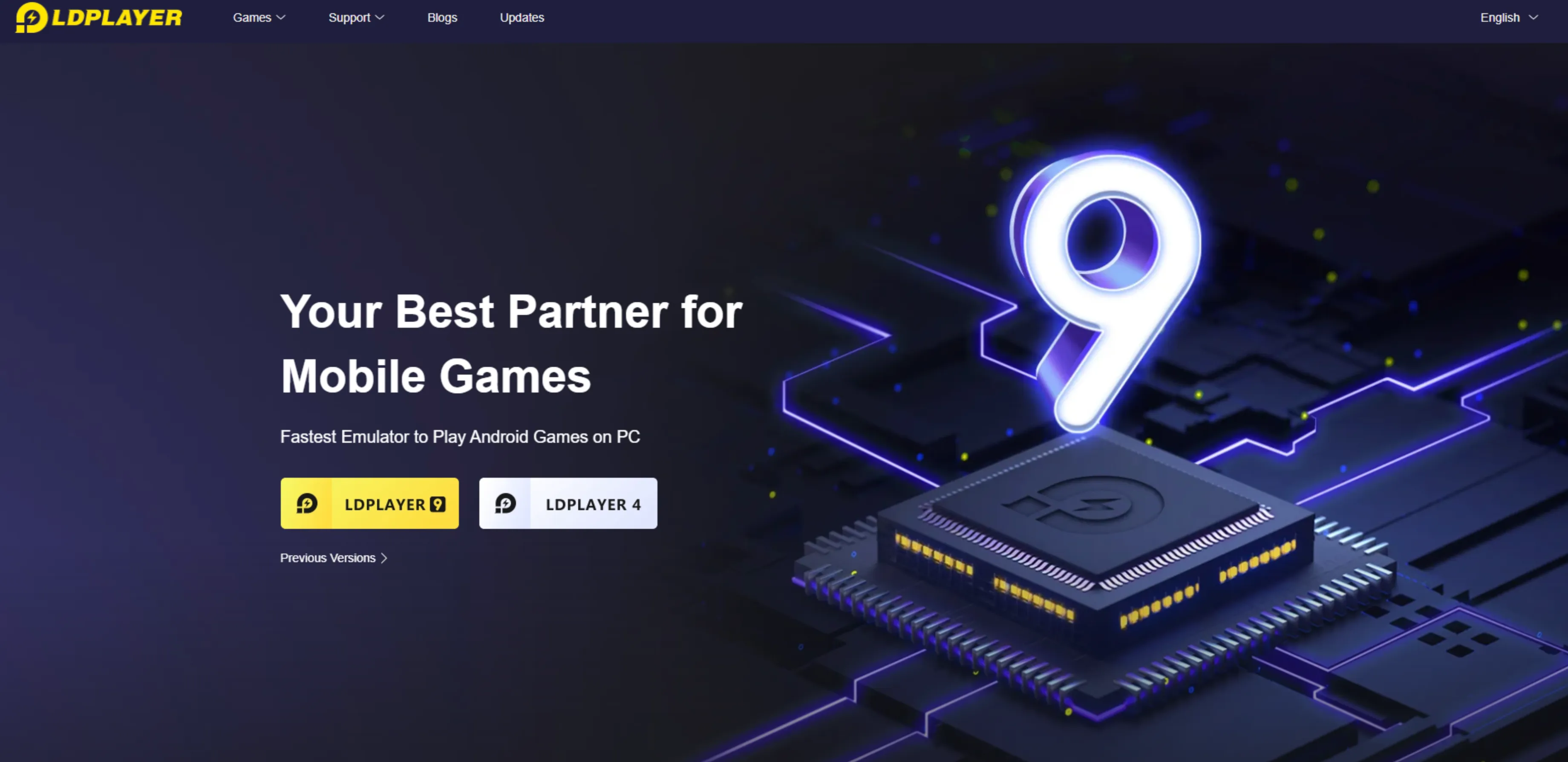
LDPlayer is another great option if you want to play CoD Mobile on PC without stressing your system. It’s a lightweight Android emulator designed specifically for gaming, which makes it perfect for mid-range or older computers that can’t handle heavier emulators.
To get started, download LDPlayer from the official website and run the installer. The setup is quick, and once it launches, you’ll sign in with your Google account to access the Play Store. Search for Call of Duty: Mobile, hit install, and the game will appear on your LDPlayer home screen.
One of the best parts about LDPlayer is how customizable it is. You can tweak performance settings like RAM usage, CPU allocation, resolution, and frame rate to match your hardware. The built-in keyboard mapping tool also lets you fine-tune your controls so the game feels smooth and natural on mouse and keyboard.
If you want a lighter emulator with stable performance for CoD Mobile, LDPlayer is easily one of the best picks.
Conclusion
Playing CoD Mobile on PC is way easier than most people think, and both BlueStacks and LDPlayer give you a smooth, reliable way to enjoy the game with better controls and clearer visuals. Whether you want the comfort of keyboard and mouse, higher FPS, or a bigger screen, emulators make the whole experience feel closer to a full PC shooter. Just pick the emulator that fits your setup, install the game, tweak your settings, and you’re ready to jump into matches with a major advantage. It’s the simplest way to upgrade your CoD Mobile experience without changing accounts or losing progress.
Posted On: November 30th, 2025
Recent Articles


Our 1v9 support team is available 24/7 to help you with any questions or issues you may have.
support@1v9.gg


-a6d5b3e156bb.webp)





Loading...
1v9.gg is not endorsed or affiliated by any game developers or publishers.
2026 1v9, All Rights Reserved, Created By Ritesh (riteshsahoo.com)