- Home
Games
 League of Legends
 Valorant
-a6d5b3e156bb.webp) Fortnite
Fortnite Call of Duty
 Clash of Clans
 Counter-Strike 2
 Roblox
 Rainbow Six Siege
 Clash Royale
 Minecraft
 Rocket League
 Dota 2
 Genshin Impact
 Squad Busters
 Rust
Rust Apex Legends
 Pokemon Go
 XDefiant
 LoL: Wild Rift
 Hay Day
 Diablo 4
 FC 25
FC 25 Marvel Rivals
 World of Warcraft
 Destiny 2
 Deadlock
-9ede9dc6b01b.webp) PUBG Mobile
PUBG Mobile The Finals
 Growtopia
 Forza Horizon 5
 Honkai: Star Rail
 Warframe
 8 Ball Pool
 Zenless Zone Zero
 Path of Exile
 Runescape 3
 Raid: Shadow Legends
 Lost Ark
 WoW: Classic Era
 Summoners War
 WoW: Season of Discovery
 WoW Cataclysm
 WoW: Hardcore
 Throne and Liberty
 New World
 Mobile Legends
 Escape From Tarkov
 Path of Exile 2
 Blade Ball
 Fisch
Fisch Pet Simulator 99
 Pets Go
-d8bcef7708c7.webp) One Piece Bounty
One Piece Bounty Anime Adventures
 Blox Fruits
 Adopt Me
 Murder Mystery 2
 Fragpunk
 Wuthering Waves
 Teamfight Tactics
 Free Fire
 Albion Online
 Black Desert Online
 Honor of Kings
 Brawl Stars
 Arena of Valor
 Call of Duty: Mobile
 Rematch
 Steal a Brainrot
 Grow a Garden
 FC 26
FC 26 Old School Runescape
 Plants vs Brainrots
 Overwatch
 Battlefield
 Arc Raiders
 Dragon Ball Legends
 Fallout 76
 Jailbreak
 Type Soul
 GPO
GPO DonutSMP
 Escape Tsunami For Brainrots
 Watcher of Realms
 Roblox Rivals
 2XKO
2XKO Sailor Piece
 Forza Horizon 6
 GTA 5
GTA 5- Lootboxes
- Become Affiliate
- Blog
- Contact Us
- Sign In
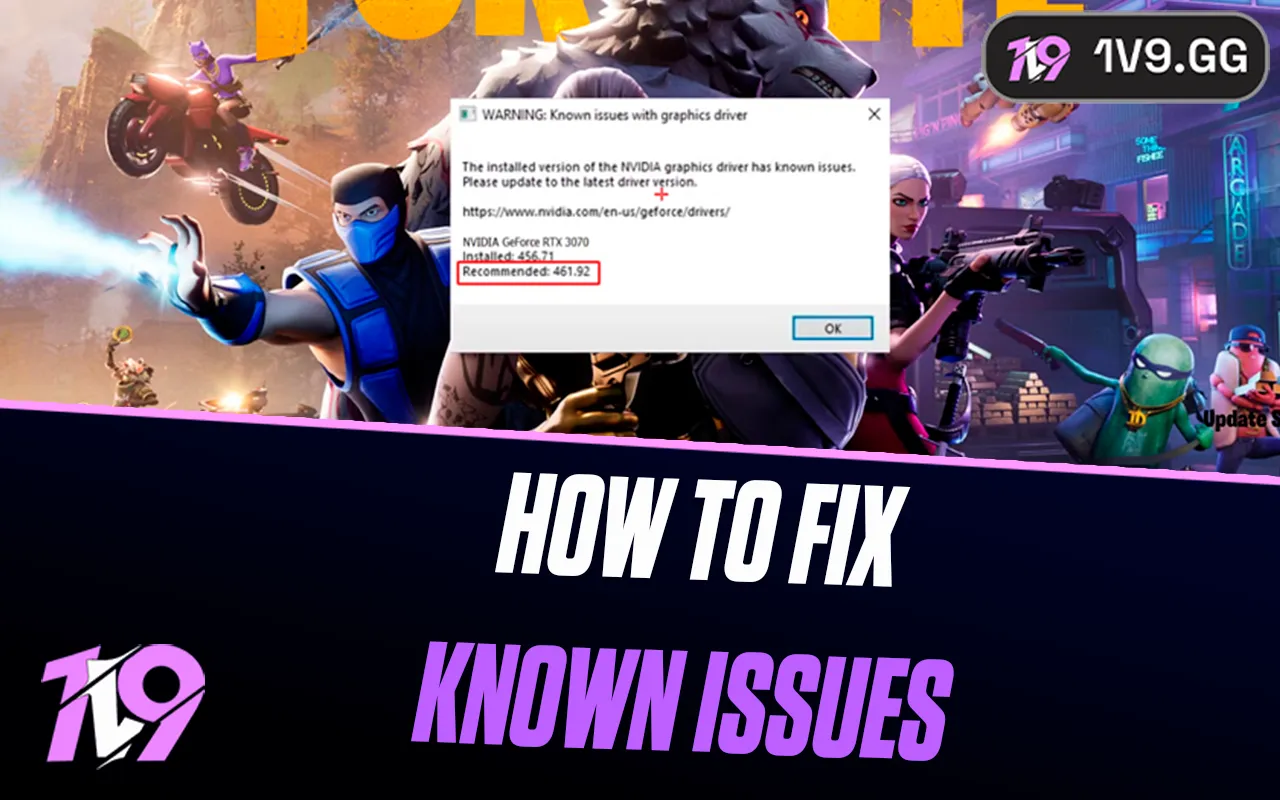

How To Fix Known Issues With Graphics Driver In Fortnite
If Fortnite suddenly starts crashing, stuttering, or showing visual glitches, there’s a good chance your graphics driver is the problem. Driver issues are one of the most common causes of performance drops, freezes, black screens, and error messages in Fortnite, especially after game updates or GPU driver updates. The good news is that most of these problems are easy to fix once you know what to look for. In this guide, we’ll break down the most common graphics driver issues players face in Fortnite and walk through simple, proven fixes to get the game running smoothly again, whether you’re on NVIDIA, AMD, or Intel graphics.
How To Fix Known Issues With Graphics Driver
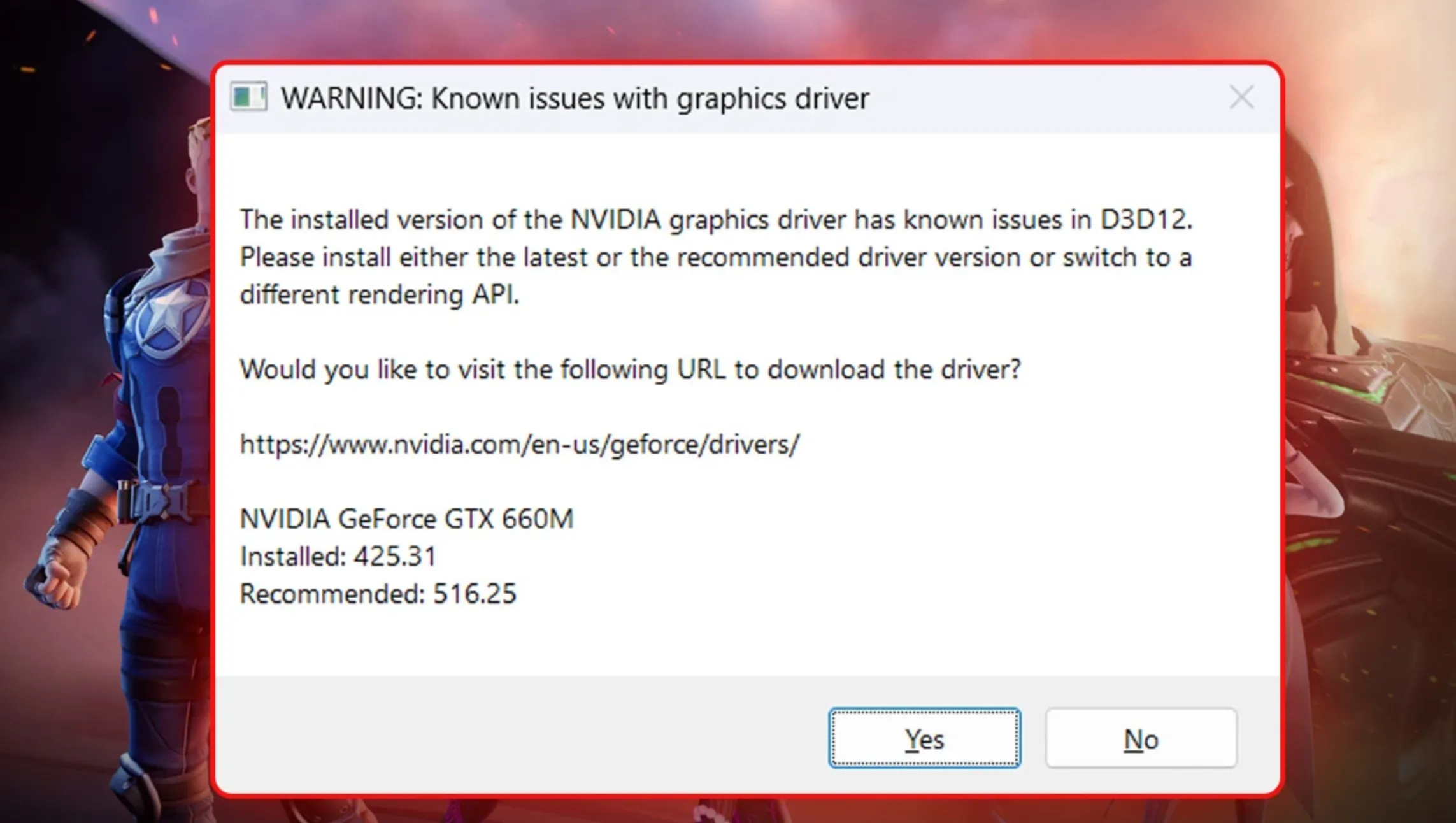
If Fortnite pops up with a warning about known graphics driver issues, it usually means your current GPU drivers aren’t fully compatible with the version of the game you’re running. Outdated or unstable drivers can cause performance drops, crashes, stuttering, or visual bugs, which is why Epic flags the issue before you even load into a match. The fix is straightforward: install the driver version Fortnite recommends for your graphics card. Start by identifying whether you’re using an NVIDIA, AMD, or Intel GPU, then head directly to the official website of your manufacturer and open the drivers or support section. From there, search for your exact graphics card model and download the latest stable driver, or the specific version Fortnite mentions in the warning message. If you’re not sure which GPU is in your system, press the Windows key, type “DxDiag,” open the DirectX Diagnostic Tool, and check the Display tab to see your graphics card name. Once you’ve found the correct driver, download it, run the installer, and follow the on-screen steps. In some cases, Fortnite may recommend rolling back to an older driver instead of using the newest one, which is also possible by viewing previous driver versions on the manufacturer’s site. After installation is complete, restart your PC and launch Fortnite again—the warning should be gone, and the game should run smoother and more stable overall.
How to Automatically Update Graphics Drivers
If you don’t want to manually search for drivers, NVIDIA makes the process much easier with its official NVIDIA App. Once installed, the app automatically detects your graphics card and shows available driver updates in the Drivers section, allowing you to install them with just a few clicks.
Keeping your drivers updated is generally the best option for performance and stability, especially for games like Fortnite that receive frequent updates. That said, if a newer driver causes issues, rolling back to a previous stable version from NVIDIA’s driver archive is often the fastest solution. Using official tools and sources ensures your system stays compatible while avoiding unnecessary performance problems.
Conclusion
Fixing graphics driver issues in Fortnite is usually quick once you know what’s causing the warning. In most cases, the problem comes down to outdated or incompatible drivers, and updating to the version Fortnite recommends will immediately restore smooth performance. Whether you download drivers manually from your GPU manufacturer or use tools like NVIDIA’s automatic updater, keeping your graphics drivers up to date is one of the easiest ways to avoid crashes, stutters, and launch errors. If a newer driver causes problems, rolling back to a stable version can be just as effective. By staying on top of driver updates, you make sure Fortnite runs the way it should every time you jump into a match.
Posted On: December 27th, 2025
Recent Articles


Our 1v9 support team is available 24/7 to help you with any questions or issues you may have.
support@1v9.gg
Loading...
1v9.gg is not endorsed or affiliated by any game developers or publishers.
2026 1v9, All Rights Reserved, Created By Ritesh (riteshsahoo.com)