

How To Use Photo Mode in Marvel Rivals
Marvel Rivals Season 6 finally delivers one of the most requested features from the community: a full Photo Mode. While this kind of feature has long been standard in single-player games, it’s still surprisingly rare in live-service multiplayer titles, which makes its arrival in Marvel Rivals stand out even more. In fact, Rivals now offers Photo Mode support ahead of other major competitive games like Overwatch 2 and Apex Legends, giving players a new way to capture cinematic moments, character poses, and action shots during matches. Whether you want clean hero screenshots, dramatic combat angles, or creative content for social media, Photo Mode opens up a lot of possibilities. In this guide, we’ll break down exactly how Photo Mode works in Marvel Rivals, how to access it, and what options you can use to get the best shots possible.
Marvel Rivals Photo Mode Explained
Photo Mode in Marvel Rivals is designed as a relaxed, social feature rather than a full match tool, which is why it’s limited to the Times Square map. This area acts as a player hub where combat is disabled, making it the perfect setting for taking clean screenshots without worrying about fights or objectives. Because of this setup, Photo Mode isn’t available in Quick Play, Competitive, or Practice vs AI, and can only be used while you’re exploring Times Square. To activate it once you’re there, the input depends on your platform: on PlayStation, hold the Options button and then press the left stick; on Xbox, hold the Start button and press the left stick; and on PC, simply long-press the O key. Once Photo Mode is active, you can freely adjust camera zoom, rotate the view and your character, apply visual filters, and disable player name tags so they don’t appear in your shot. One thing to keep in mind is that while your character remains frozen, other players in the hub can still move around, which means unexpected photobombs are very common. After lining up your shot, press the button shown under the shutter icon to capture the image, then manually save it using your platform’s screenshot tools, since the game doesn’t automatically store photos. While the feature set is fairly basic compared to traditional single-player photo modes, adding any form of Photo Mode to an online-only hero shooter is still a solid step forward and gives players a fun new way to show off their favorite heroes and moments.
How to Open Photo Mode in Marvel Rivals
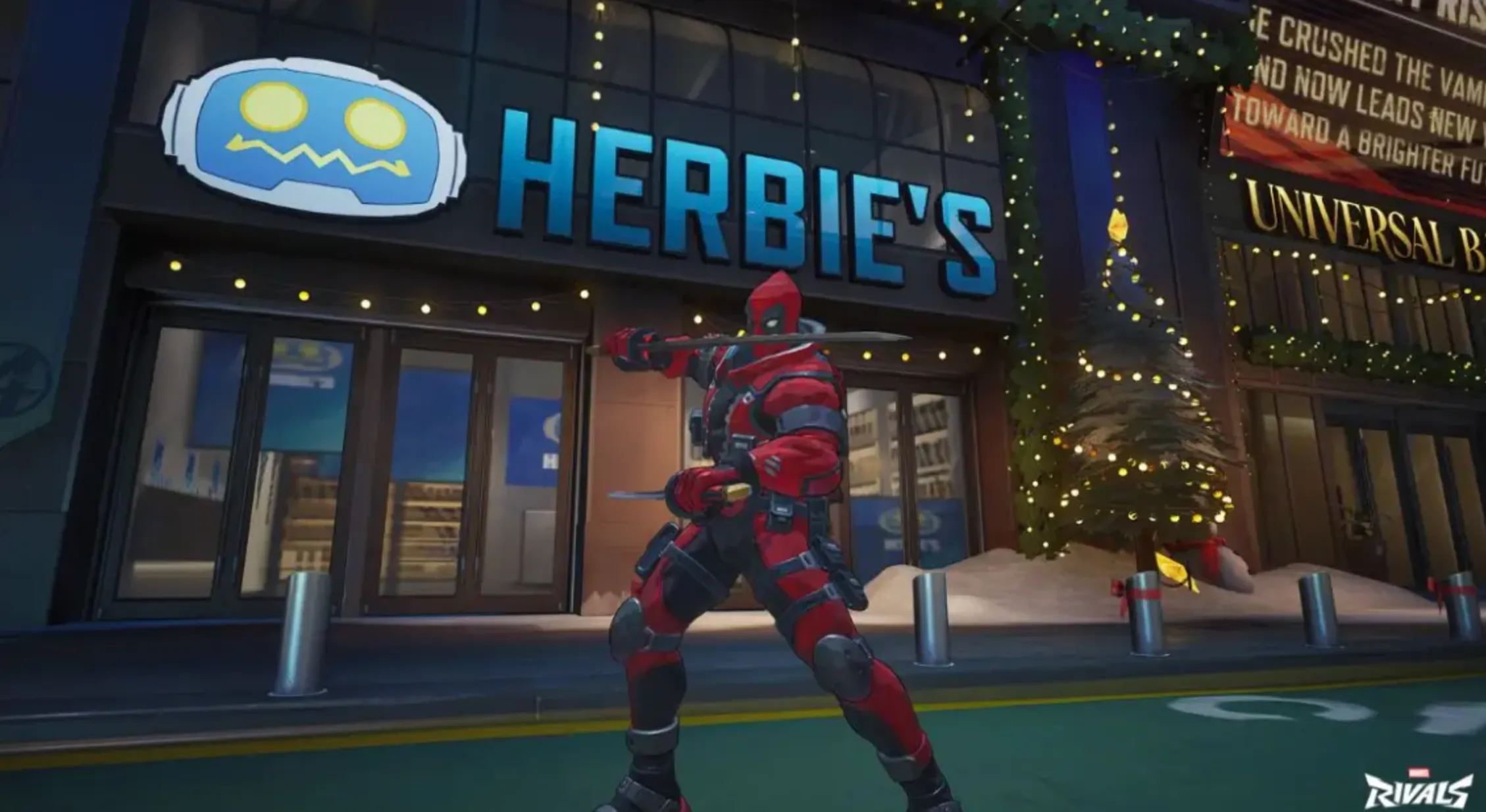
Opening Photo Mode in Marvel Rivals is quick and simple once you know where to access it. On consoles, you’ll need to hold down the pause or menu button for a moment and then press the left analog stick to bring up Photo Mode. PC players can activate it by holding the O key. It’s important to note that Photo Mode isn’t available during regular matches or combat modes. The feature is exclusive to the Times Square social hub, which is a non-combat area designed for players to hang out, explore, and take screenshots without any interruptions from gameplay.
FAQs
How do you access Photo Mode in Marvel Rivals?
To activate Photo Mode on console, hold the menu or pause button and then press the left analog stick. On PC, you can open it by holding down the O key for a short moment while in the correct area.
Can Photo Mode be used during regular matches?
No, Photo Mode isn’t available during active gameplay like Quick Play or Competitive. It can only be used inside the Times Square social hub, which is a non-combat space created specifically for exploring and taking screenshots.
Conclusion
Photo Mode in Marvel Rivals is a welcome addition that gives players a new way to enjoy the game outside of competitive matches. While it’s currently limited to the Times Square social hub and offers a fairly simple set of tools, it still allows players to capture clean hero shots, creative angles, and memorable moments with ease. For a live-service hero shooter, introducing a Photo Mode at all is a strong step forward, and it opens the door for future improvements and expanded features as the game continues to evolve.
Posted On: January 24th, 2026
Recent Articles


Our 1v9 support team is available 24/7 to help you with any questions or issues you may have.
support@1v9.gg


-a6d5b3e156bb.webp)





Loading...
1v9.gg is not endorsed or affiliated by any game developers or publishers.
2026 1v9, All Rights Reserved, Created By Ritesh (riteshsahoo.com)