

How to Change Gun Position and Viewmodel in CS2
In CS2, small visual settings can have a big impact on comfort, visibility, and overall performance, and your gun position is one of them. Many players prefer adjusting their viewmodel so the weapon takes up less screen space or sits in a position that feels more natural for aiming and spraying. Whether you want a cleaner view of enemies, better crosshair visibility, or a setup similar to professional players, changing your gun position can make the game feel smoother and more controlled. In this article, we’ll explain how to change your gun position and viewmodel in CS2, including the commands you need and how to customize them to match your playstyle.
What is Viewmodel in CS2?
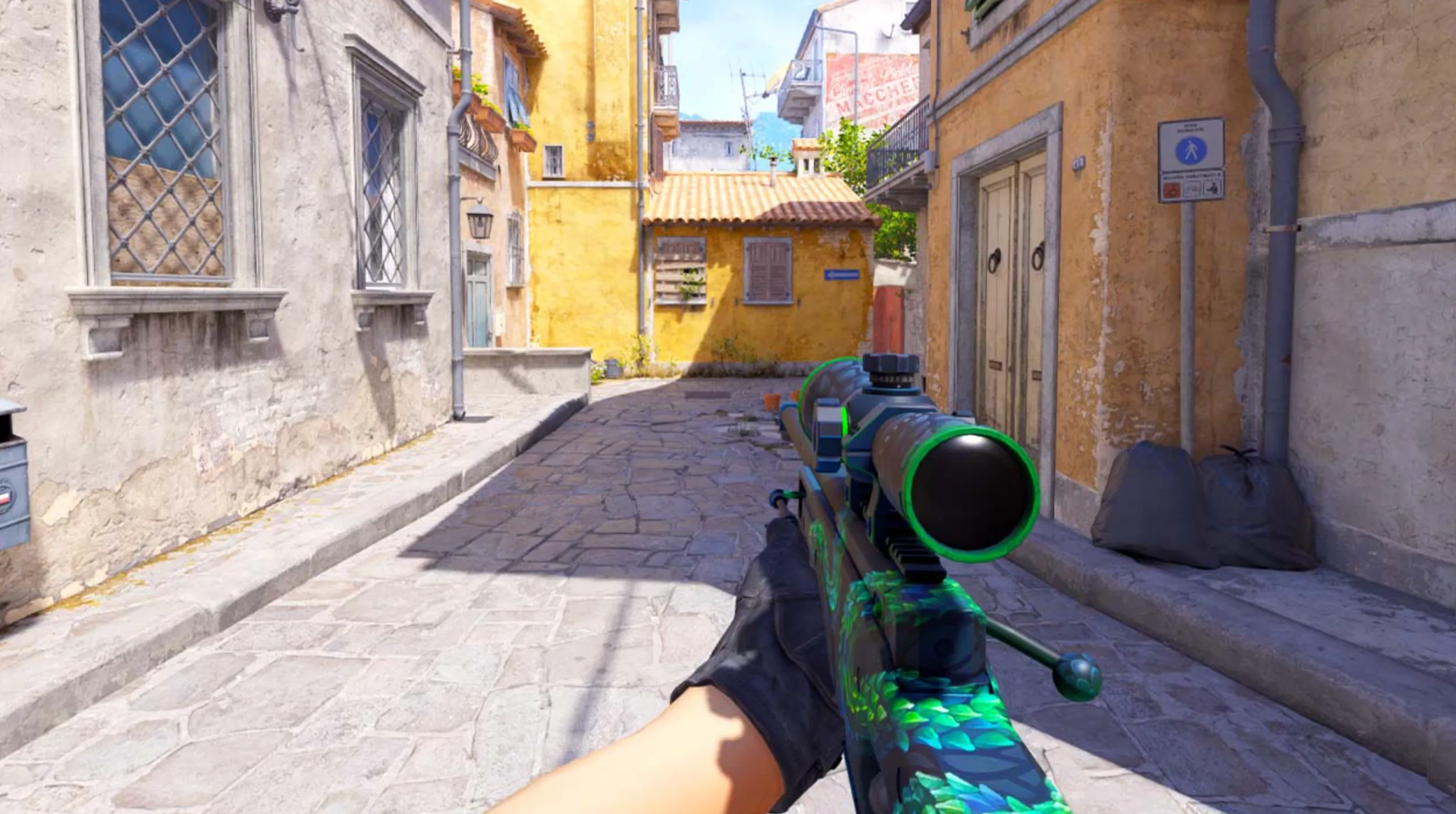
In Counter-Strike 2, the viewmodel refers to how your weapon and hands are positioned on the screen while you’re playing. It controls where the gun sits, how far it appears from your character, and how much space it takes up on your display. Adjusting the viewmodel won’t change recoil, accuracy, or damage, but it can strongly affect how clearly you see enemies and angles during fights. A cleaner or more compact viewmodel can reduce visual clutter, making it easier to track targets, spot movement, and stay aware of what’s happening around you, which is especially important in fast-paced competitive matches.
How to Customize Viewmodel in CS2
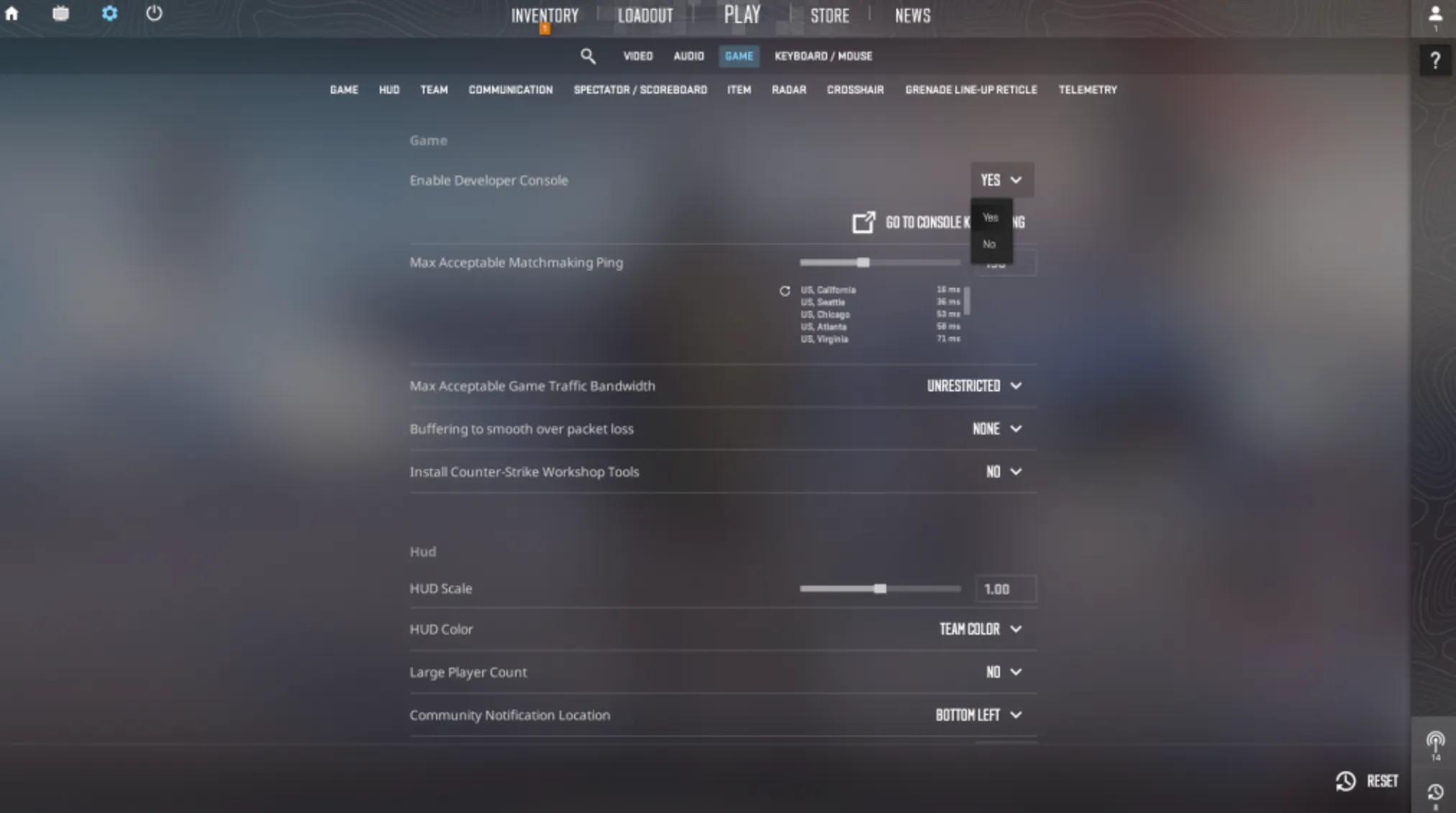
To customize your viewmodel in Counter-Strike 2, you’ll need to use the developer console, since most weapon position settings aren’t available through the regular menu. Start by enabling the console in Settings → Game and turning Enable Developer Console to Yes. Once that’s done, press the ~ key in-game to open it.
From there, you can fine-tune how your weapon appears using viewmodel commands. The most important ones are viewmodel_offset_x, viewmodel_offset_y, and viewmodel_offset_z, which move the weapon left or right, closer or farther, and up or down on your screen. These values let you reduce how much space the gun takes up or shift it to a position that feels more comfortable for aiming. You can also adjust viewmodel_fov, which controls how close or far the weapon looks. Higher values push the gun further away, giving you a cleaner view of the screen, while lower values bring it closer. A common starting point many players test is setting the FOV around 68 and tweaking from there.
If you want something quick without manually adjusting every axis, you can use viewmodel_presetpos with values like 1, 2, or 3 to switch between Valve’s preset layouts. These presets are useful if you want a balanced setup before moving on to custom values. Experimenting with these commands in a practice match is the best way to find a viewmodel that matches your playstyle and gives you better visibility without affecting your actual aim or mechanics.
Best Viewmodel Settings in CS2
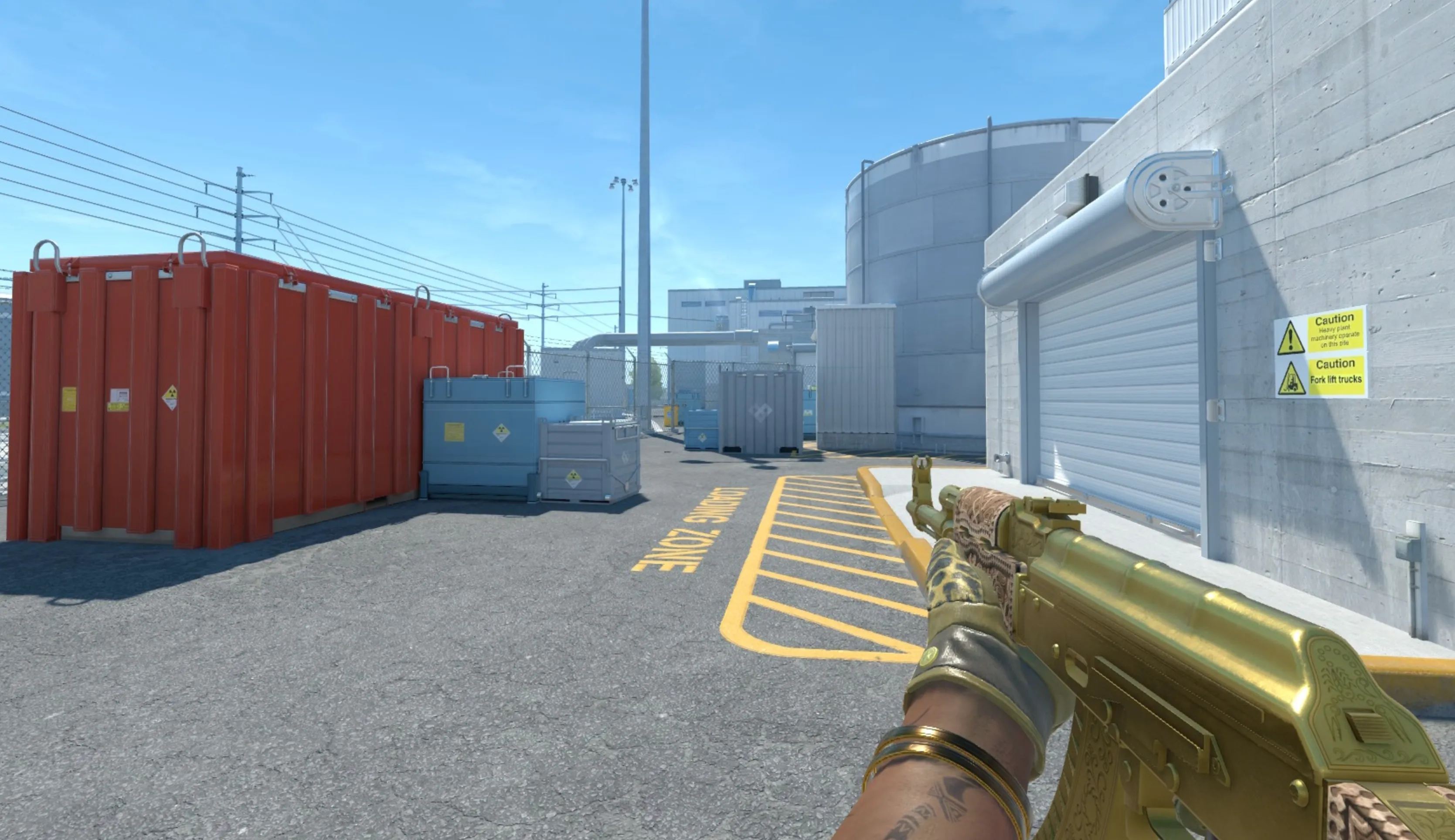
When it comes to finding the best viewmodel settings in Counter-Strike 2, there’s no single setup that works perfectly for everyone. That said, many players lean toward configurations that keep the weapon compact and out of the way, making it easier to focus on enemies and angles. A popular style uses values around viewmodel_offset_x 2.5, viewmodel_offset_y -2, viewmodel_offset_z -2, combined with a lower viewmodel_fov, such as 54, to push the gun slightly away from the center of the screen.
This type of setup reduces visual clutter and gives you more space to see what’s happening in front of you, which can be especially helpful in tight fights or when holding narrow angles. The weapon feels less intrusive, allowing your crosshair placement and peripheral vision to stand out more clearly. While these values are a solid starting point, the real benefit comes from tweaking them to match what feels most natural for you. Small adjustments can make a big difference, so testing different offsets in a practice match is the best way to lock in a viewmodel that feels comfortable and consistent.
Pro Players Viewmodel Settings in CS2
Checking how top professional players set up their viewmodel in Counter-Strike 2 can give you a great reference point when building your own setup. While everyone fine-tunes settings to personal taste, most pros favor clean, centered viewmodels that keep the weapon out of the way without feeling awkward. Below are commonly used configurations from well-known CS2 pros.
• ZywOo
Uses a viewmodel FOV of 68 with offsets set to X: 2.5, Y: 0, Z: -1.5. This keeps the weapon balanced and slightly lowered for clear visibility.
• s1mple
Runs a FOV of 68 with offsets X: 2, Y: 1, Z: -1.5. His setup places the gun a bit higher and closer, which some players prefer for tracking sprays.
• m0NESY
Uses a FOV of 68 and offsets X: 2.5, Y: 0, Z: -1.5, very similar to ZywOo’s layout, focusing on a clean center screen.
• donk
Also plays with FOV 68 and offsets X: 2.5, Y: 0, Z: -1.5, favoring consistency and minimal screen obstruction.
• NiKo
Chooses a slightly different approach with FOV 68 and offsets X: -1, Y: 1, Z: -1.5, shifting the weapon more to the side for extra screen space.
These setups are not magic settings, but solid examples of what works at the highest level. Copying them directly is fine as a starting point, but small adjustments based on your resolution, crosshair, and comfort will help you get the most out of your viewmodel.
How To Switch to Left-Handed Mode in CS2
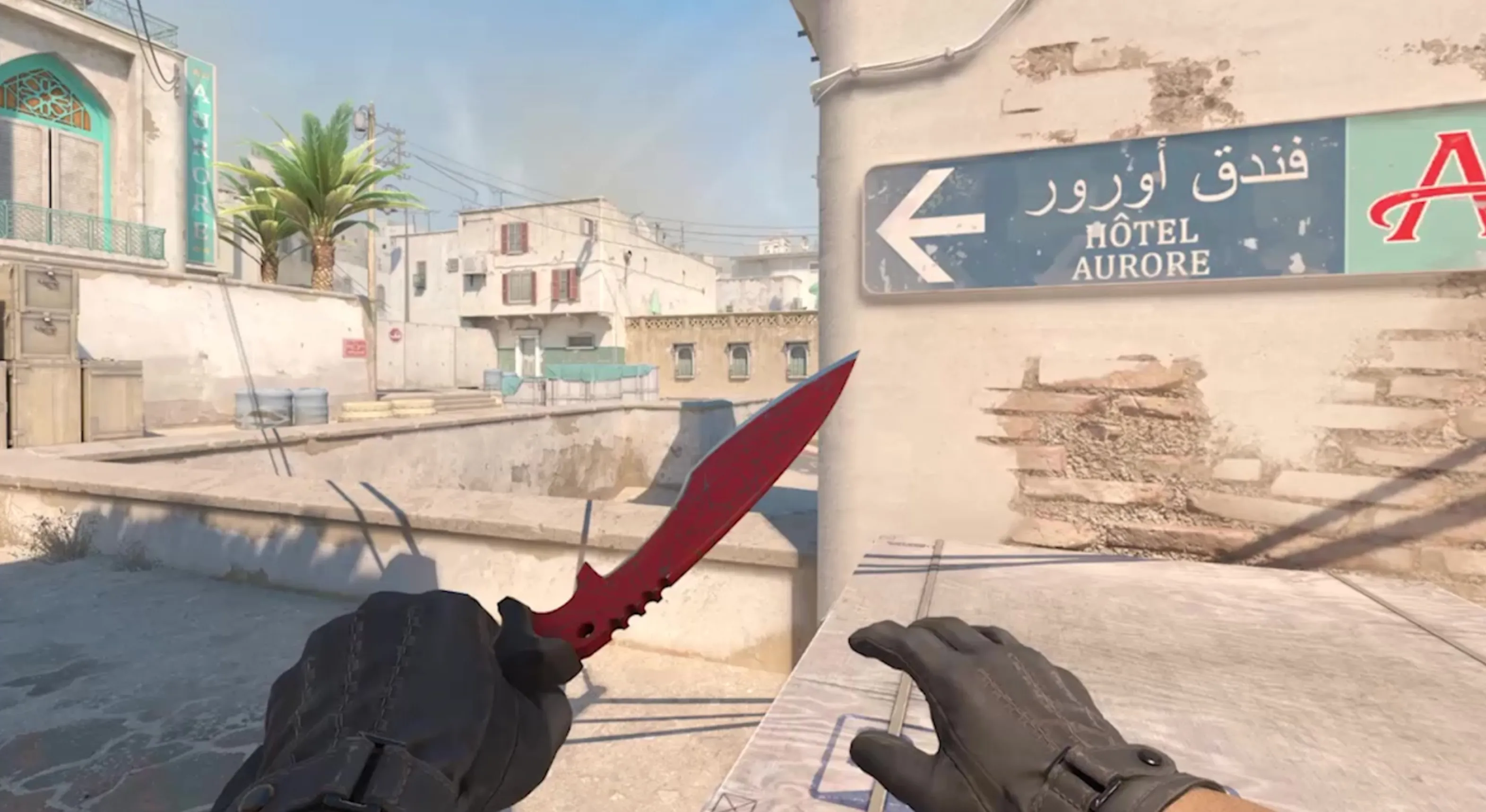
CS2 also lets you switch your weapon to the left side of the screen, which is useful for left-handed players or anyone who prefers a different visual layout. The fastest way to do this in Counter-Strike 2 is by pressing the H key during a match, which instantly swaps your weapon between right-hand and left-hand view. If you want to customize this, head into Settings → Keyboard / Mouse and scroll down until you find the option to change the keybind for switching viewmodel hands.
Using a left-handed viewmodel can improve visibility in certain situations, especially when holding angles or peeking from specific sides of the map. Some players find it easier to spot enemies when the weapon is shifted away from their usual sightline. Combined with custom viewmodel offsets and FOV settings, switching hands gives you even more control over what’s visible on your screen. While there’s no universal “best” setup, experimenting with hand position, viewmodel placement, and console commands helps you fine-tune CS2 to match your playstyle and improve overall comfort during matches.
FAQs
Does changing the viewmodel affect accuracy in CS2?
No, adjusting the viewmodel only changes how your weapon looks on screen. It doesn’t affect recoil, bullet spread, or hit registration in Counter-Strike 2.
What is the best viewmodel FOV in CS2?
Most players and professionals use a viewmodel FOV around 68 because it pushes the weapon further away and improves screen visibility, but lower values can feel more comfortable for some setups.
Can I reset my viewmodel to default settings?
Yes, you can use the command viewmodel_presetpos 1 or reset all viewmodel commands to return to the default weapon position.
Is left-hand mode allowed in competitive matches?
Yes, switching to a left-handed viewmodel is fully allowed in all CS2 modes, including matchmaking and tournaments.
Do pro players use custom viewmodel settings?
Yes, almost all professional players use custom viewmodel settings to reduce visual clutter and improve awareness, though each pro’s setup is slightly different.
Conclusion
Changing your gun position and viewmodel in CS2 is a simple adjustment that can greatly improve comfort, visibility, and overall awareness during matches. While viewmodel settings don’t affect accuracy or mechanics, they play a big role in how clearly you see enemies, angles, and movement on your screen. By learning how to use console commands, testing different offsets and FOV values, and even switching to left-handed mode, you can fine-tune the game to better match your playstyle. There’s no perfect setup that works for everyone, but experimenting with these options allows you to create a cleaner, more comfortable view that helps you stay focused and play more confidently in Counter-Strike 2.
Posted On: February 4th, 2026
Recent Articles


Our 1v9 support team is available 24/7 to help you with any questions or issues you may have.
support@1v9.gg


-a6d5b3e156bb.webp)





Loading...
1v9.gg is not endorsed or affiliated by any game developers or publishers.
2026 1v9, All Rights Reserved, Created By Ritesh (riteshsahoo.com)